
Factory resetting your i3CONNECT display wipes all user data (all apps, files, and settings) and restores the device to its original settings.
This is helpful if you’re preparing the display for a new user, troubleshooting persistent issues, or clearing personal information before recycling or reselling. This article is for anyone managing or maintaining i3CONNECT displays running Studio.
This article is not suitable if you only want to reset network settings or clear app data. Refer to the relevant articles for those actions.
Before you start
-
Backup any important files or settings you want to keep.
-
Ensure you have administrator access to the display so that you can access the settings menu.
A factory reset will remove all data on the screen. This cannot be undone.
Solution
-
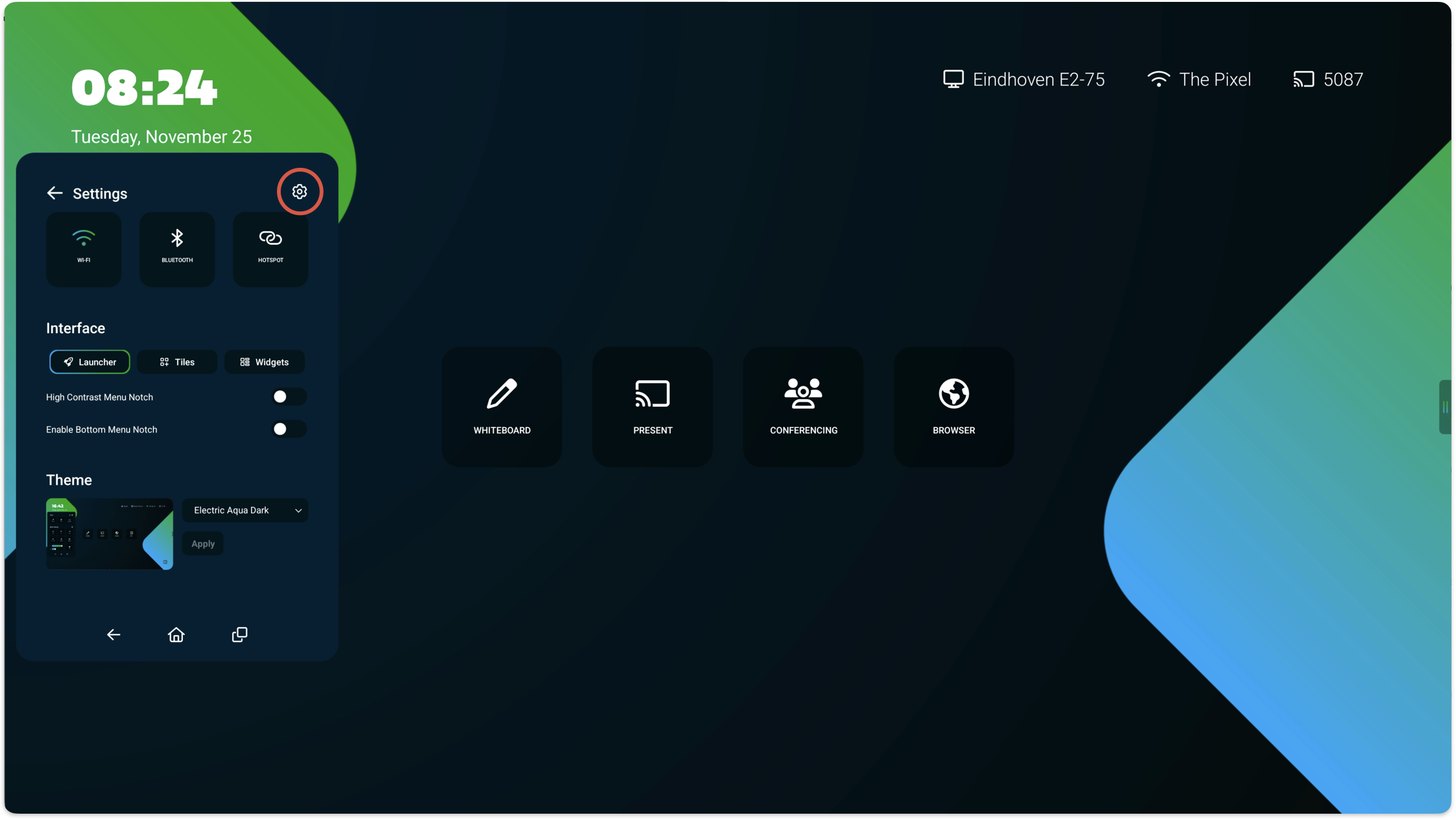
Open the side menu on your i3CONNECT display by tapping on the grabber icon on the left or right of the screen.
-
Tap the Cogwheel icon, then tap the Cogwheel again to enter Settings.
-
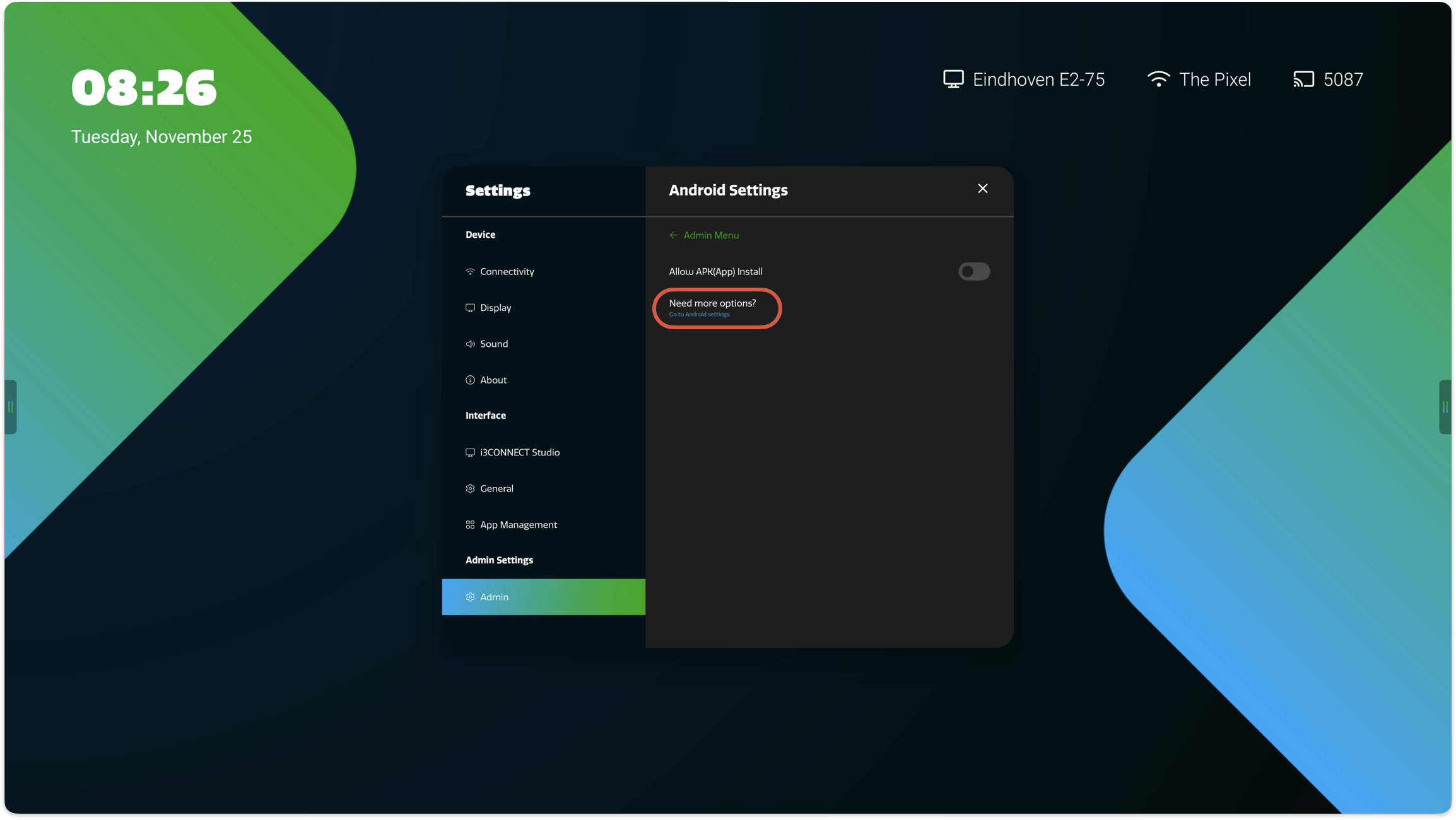
Navigate to Admin → Android → Go to Android settings to open the Android settings.
-
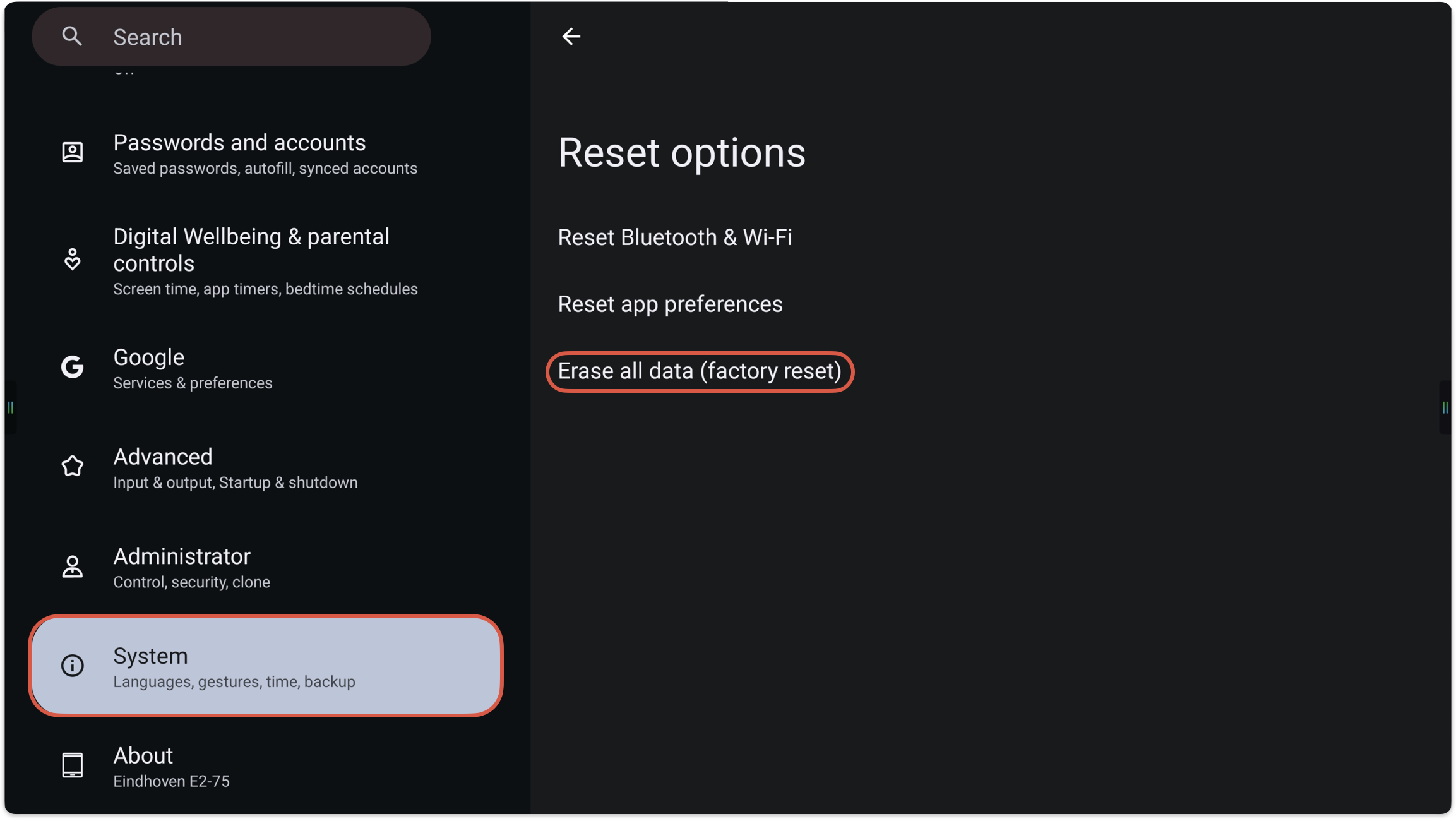
Go to System → Reset options, and then select Erase all data to start the factory reset.
Troubleshooting
-
If the display does not restart or the reset fails, ensure you have administrator rights and try again.
-
For persistent issues after a reset, contact i3CONNECT support.