
i3TOUCH E10##CC (non-r)
-
download the firmware for your display size
-
Copy the upgrade_510 folder to a USB drive
Recommended USB drive: 4 GB – FAT32 formatted – empty
Download the firmware, and copy the “upgrade_510” folder to the ROOT location of the USB drive.
USB:\upgrade_510 -
Insert the USB drive into the USB 2.0 port of the i3TOUCH
Insert the USB drive, containing the upgrade_510 folder, into the USB 2.0 port indicated below
-
Open the service DEBUG MENU on the display.
With the remote control unit, press the INPUT, 1, 3, 7, 9 buttons in this order.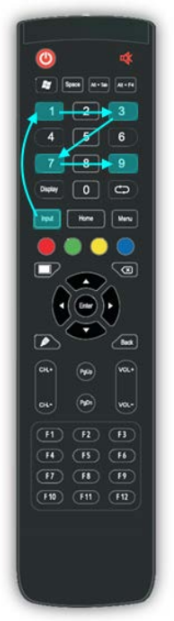
-
Select UPGRADE > UPGRADE ALL
In the service debug menu, you can find the option to upgrade the firmware.
Select the Upgrade function
On the next page, select Upgrade All.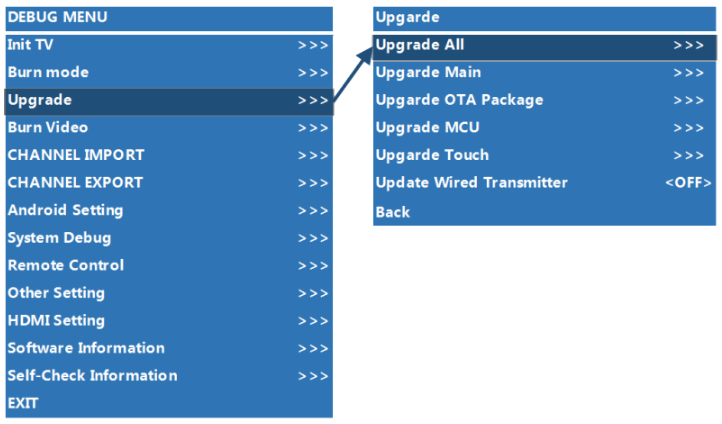
-
DO NOT INTERRUPT the firmware upgrade process !
In no way interrupt the upgrade process of the firmware. Make sure the power supply does not get disconnected or interrupted. Do not press the power buttons. Wait untill the display has restarted, and is showing the HOME screen.
Also, do not touch the display during the firmware upgrade process, as the touch calibration is
reinitializing.
i3TOUCH E10##CR (R version)
-
Format an empty USB stick as FAT32.
-
Extract the file [systemFW BIN] to the USB stick in the root directory. You will get 'upgrade_510' or 'upgrade_551' folder.
-
Switch off the on/off switch to “O” (on the bottom of the display, next to the power cord). Insert USB stick into the USB2.0 port of the display (underneath HDMI2.0).
-
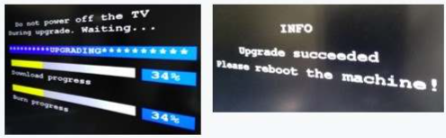
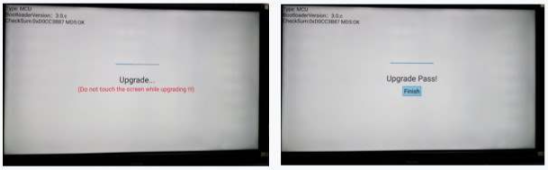
Press and hold the POWER button and switch the on/off switch to “I”. Hold the power button for 6 seconds until the power led blinks red/blue. The mainboard will now upgrade. When finished, the display will reboot and upgrade the MCU automatically. It will take 3 minutes to complete the upgrade procedure.
mainboard upgrade
mcu upgrade
-
now install the latest over the air (OTA) update by following this manual https://saharainteractive-my.sharepoint.com/:f:/g/personal/customerportal_i3-connect_com/IgATFdbk70XDSrVST5ErH_bGAailQ6i0G3jPH3hWNcd26B8?e=69Qsygand using one of these files according to your display size: