
Need to check if your RS232 or TCP-UDP control setup is working? This guide is for IT admins, AV installers, and support teams who want to quickly confirm cable and command functionality with i3CONNECT solutions.
Use this article if your display isn’t responding to control boxes, but works via remote or front panel.
Skip this guide if you’re setting up wireless sharing or basic display features; see our other how-tos for those.
By the end, you’ll know if your control connection is working, or have clear next steps if it isn’t.
If you still can’t send or receive commands, contact i3CONNECT support with screenshots of your setup.
Things you will need
-
Have a Windows laptop with admin rights.
-
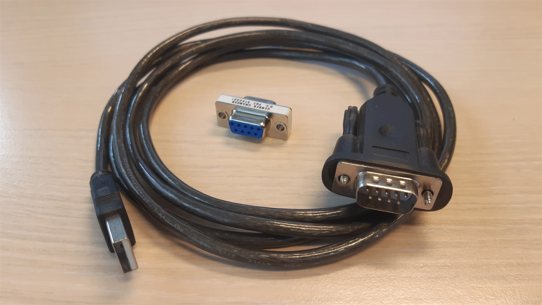
USB-to-Serial (RS232) cable and, if needed, a gender changer.
-
Docklight (free evaluation version) or Docklight Scripting for TCP-UDP.
-
Display manual for command reference; you can find this by searching in our support knowledge base for “[display name] RS232 commands”.
Document your process
In the case that this solution does not work, take screenshots of Device Manager, Docklight settings, and command results. They will give the information support needs to help you further.
Instructions
-
Connect your USB-to-Serial cable between your laptop and the display’s RS232 port. Use a gender changer if needed.
-
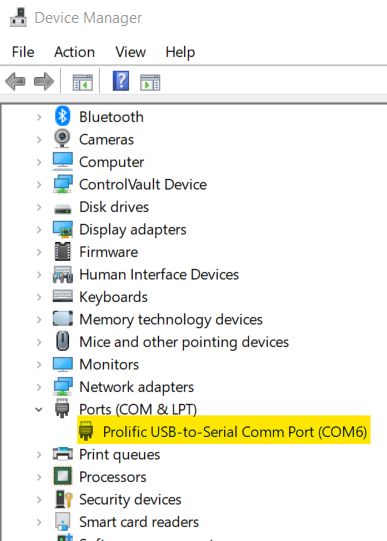
Check which COM port Windows assigned to your cable in Windows Device Manager:
-
Open Windows Device Manager and look under “Ports (COM & LPT)”.
-
-
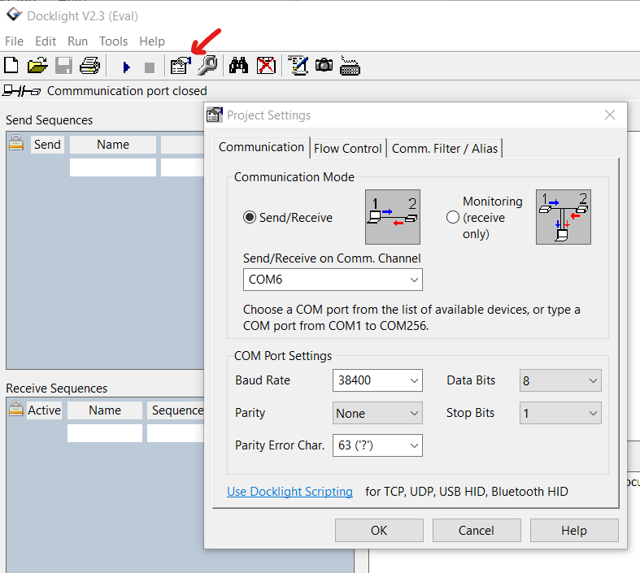
Launch your serial communication software (e.g., Docklight).
-
Configure it to match the display’s RS232 settings (baud rate, parity, etc.—see your display manual) and the COM port you just looked up.
-
We recommand using a free evaluation version of Docklight (https://docklight.de/).
-
-
Select the correct command format:
-
Check if your display expects ASCII or HEX commands.
-
In Docklight, choose the matching input mode.

-
-
Send a few test commands from the display manual here.
-
For example, to power on an i3TOUCH EX, enter:
3A 30 31 53 30 30 30 30 0D (HEX format, no “0x” prefix).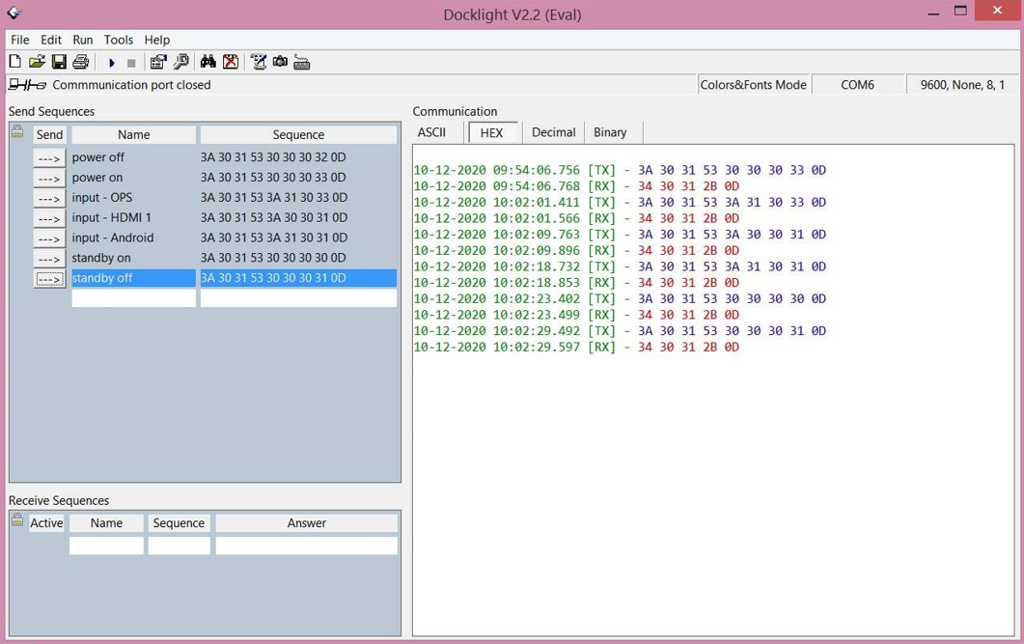
-
-
Observe the display’s response in Docklight. A correct response confirms communication.
Testing TCP-UDP Control
-
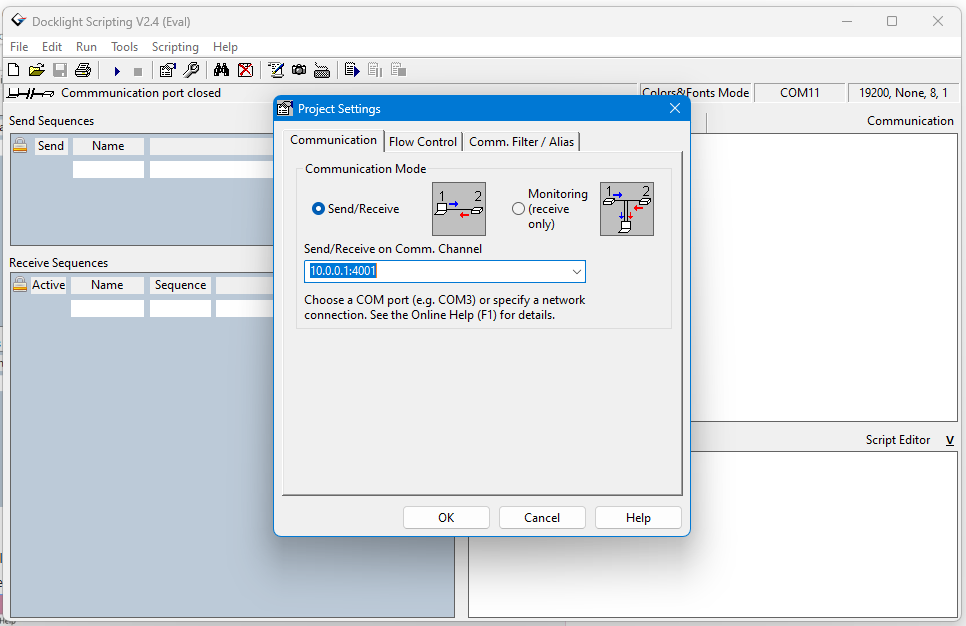
Open Docklight Scripting.
-
Enter the display’s IP address and port (see manual; e.g., 192.168.1.11:6688 for i3TOUCH X3).
-
Send the same commands as above, but over the network.
-
Check for a response and document as before.
Troubleshooting
-
If you see no response:
-
Double-check cable connections and COM port settings.
-
Verify you’re using the correct command format (HEX vs ASCII).
-
Try a different USB port or cable.
-
-
If the display responds to its remote/front panel but not to commands:
-
Ensure you’re not using pre-programmed control box scripts. Always test with direct commands from the display’s manual.
-
-
For HEX commands, do not include the “0x” prefix in Docklight.
-
If you’re stuck, send your screenshots and setup details to i3CONNECT support.