
Use this article if you’re experiencing no sound or microphone issues when using Microsoft Teams or Google Meet on an i3CONNECT display running the Google EDLA interface. This guide is for users who want to quickly restore audio functionality during video calls.
What is Google EDLA
The Google EDLA environment is a standard mobile Android operating system, originally designed by Google for mobile devices. This presents some usability issues when using this solution for video conferencing. The issues occur in both MS Teams and in Google Meet.
If you are using i3CONNECT Studio or another interface, this article does not apply—refer to the relevant support articles for your environment.
Before you start
-
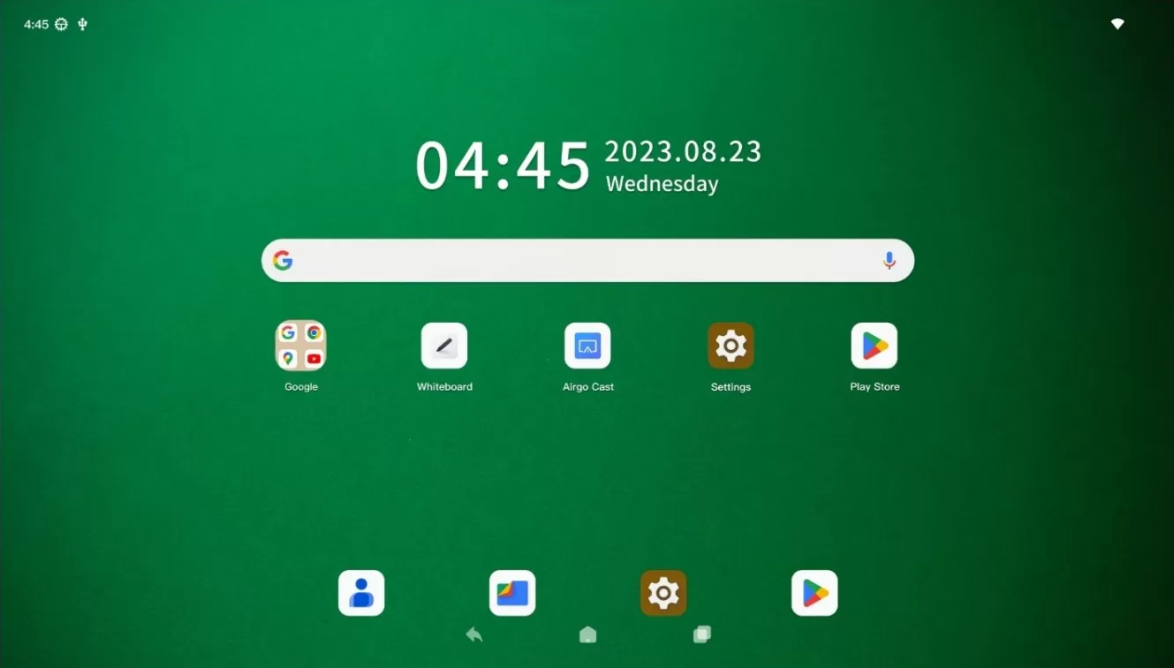
Check that your i3CONNECT display is running the Google EDLA interface.
-
Ensure your display’s volume is turned up and not muted.
In Google Meet
-
Open your video conferencing app
-
Start or join your meeting.
-
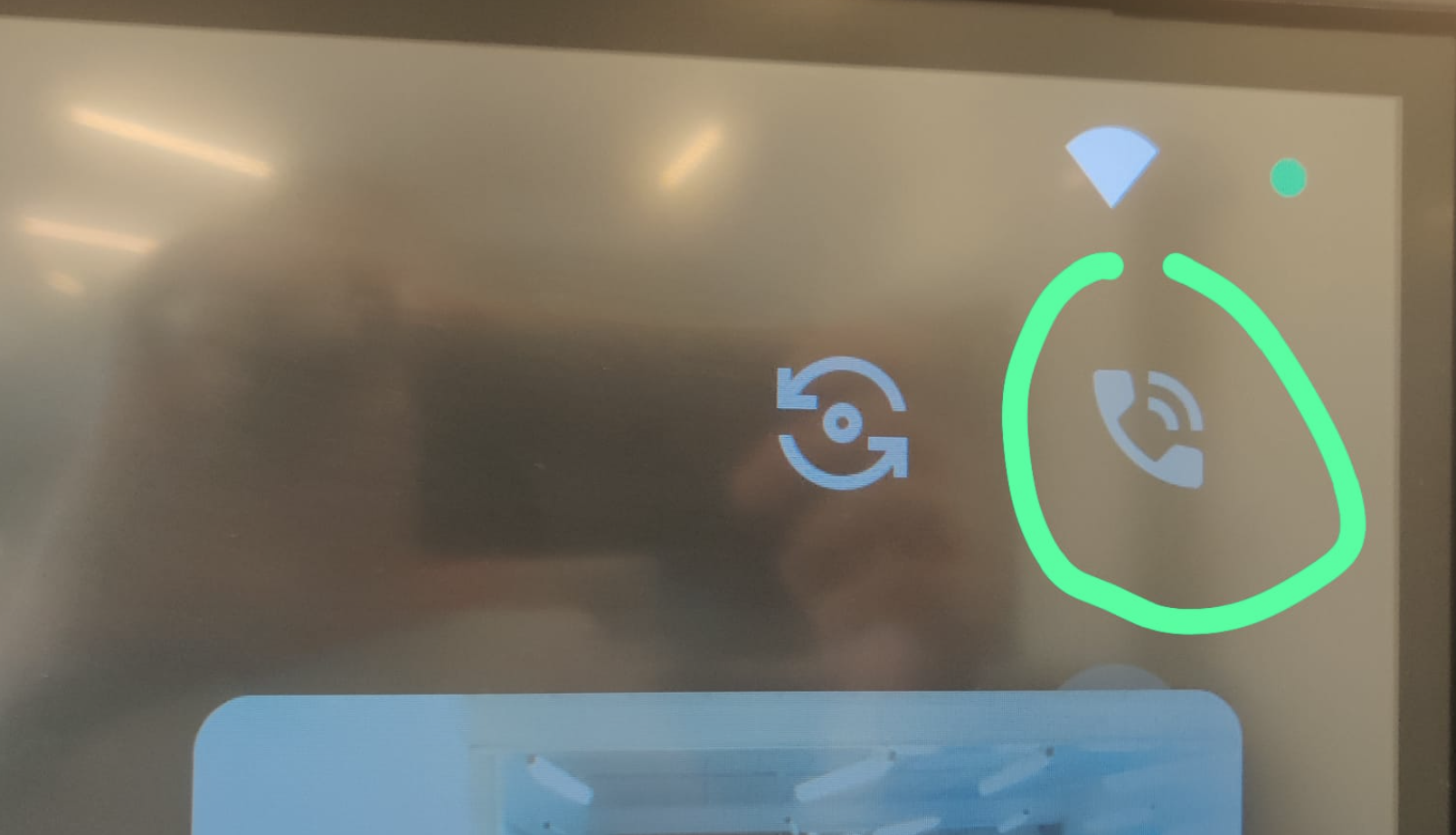
Tap the ‘phone’ icon on the meeting screen.
-
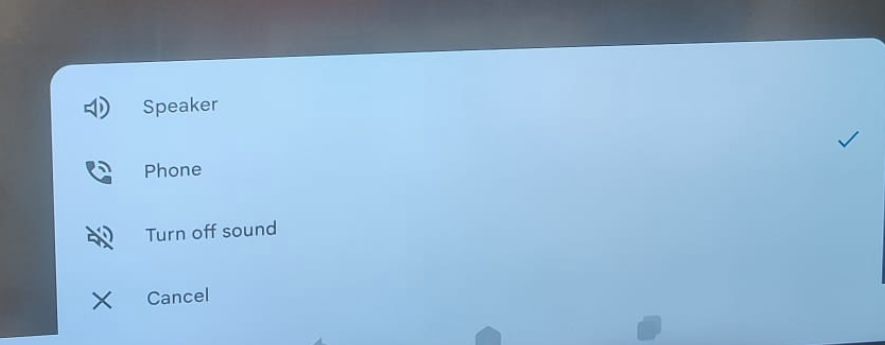
Select the ‘phone’ option from the menu that appears.
-
Test your microphone and speakers by speaking or playing audio in the call.
In Microsoft Teams
The solution is similar in MS Teams;
-
Open your video conferencing app
-
Start or join your meeting.
-
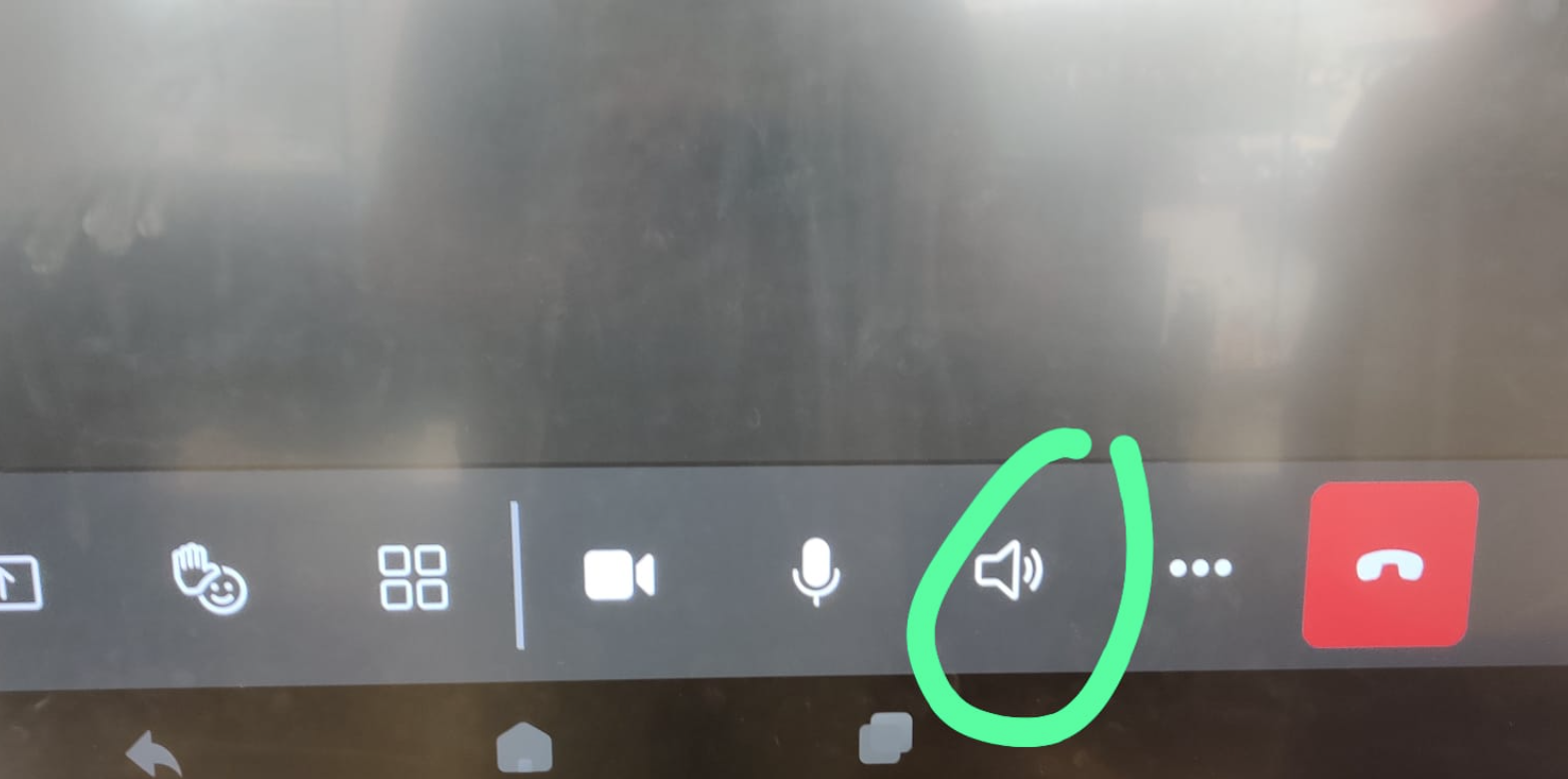
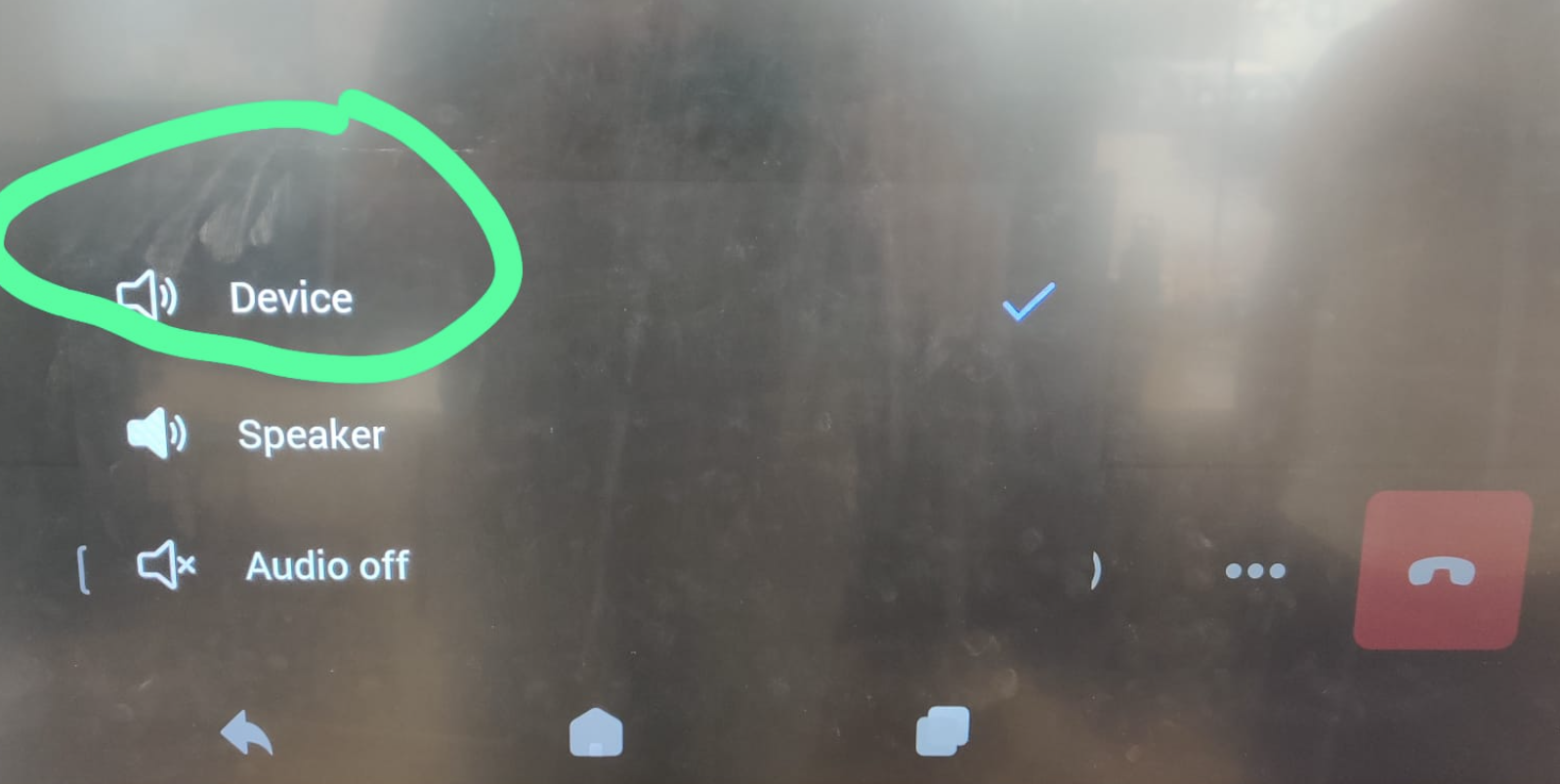
Tap the ‘speaker’ icon during your call.
-
Select ‘Device’ in the bottom menu.
-
Test your microphone and speakers by speaking or playing audio in the call.
Troubleshooting
-
If you still have no sound or microphone access after following these steps:
-
Restart the video conferencing app and try again.
-
Check that the display’s physical volume buttons are not muted.
-
Verify that no other apps are using the microphone or speakers.
-
Restart your i3CONNECT display if issues persist.
-
-
If the problem continues, contact i3CONNECT support for further assistance.