
Clearing the cache and data from an app can resolve issues like app crashes, freezing, or unexpected behavior on your i3CONNECT display.
This guide is for anyone using i3CONNECT Studio on any i3CONNECT interactive display who needs to reset an app to its default state. This article is not suitable if your display is unresponsive or you cannot access the settings menu. Please contact support in those cases.
By following these steps, the selected app will be reset, and any locally stored data or settings for that app will be erased.
Before you start
-
Make sure you have access to the display settings.
Be aware that clearing data will remove all app-specific settings and saved files within the app. This cannot be undone.
Solution
-
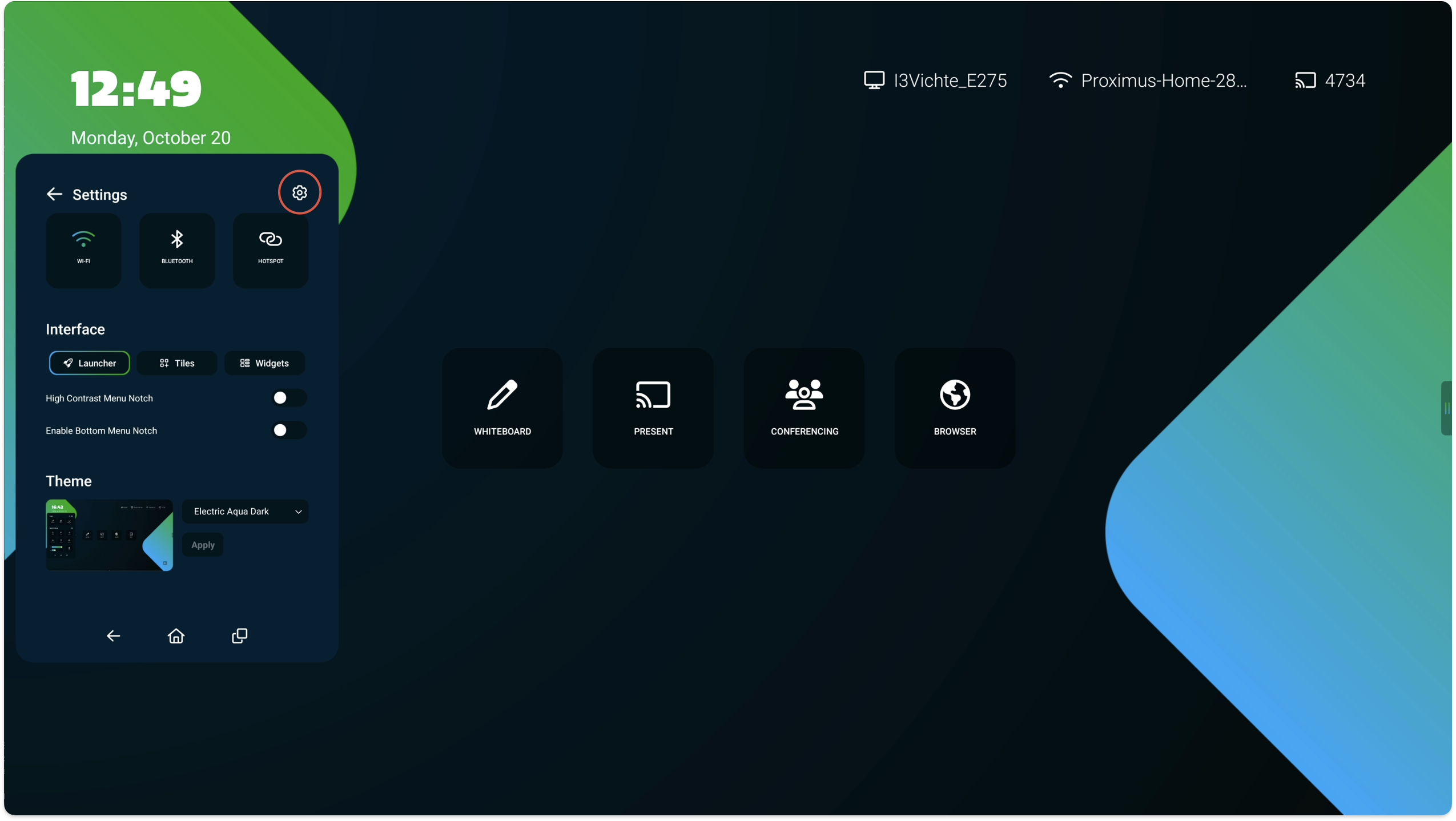
Open the side menu by tapping on the grabbers to the left or right of the screen’s interface.
-
Tap the Cogwheel icon, then tap the Cogwheel again to open Settings.
-
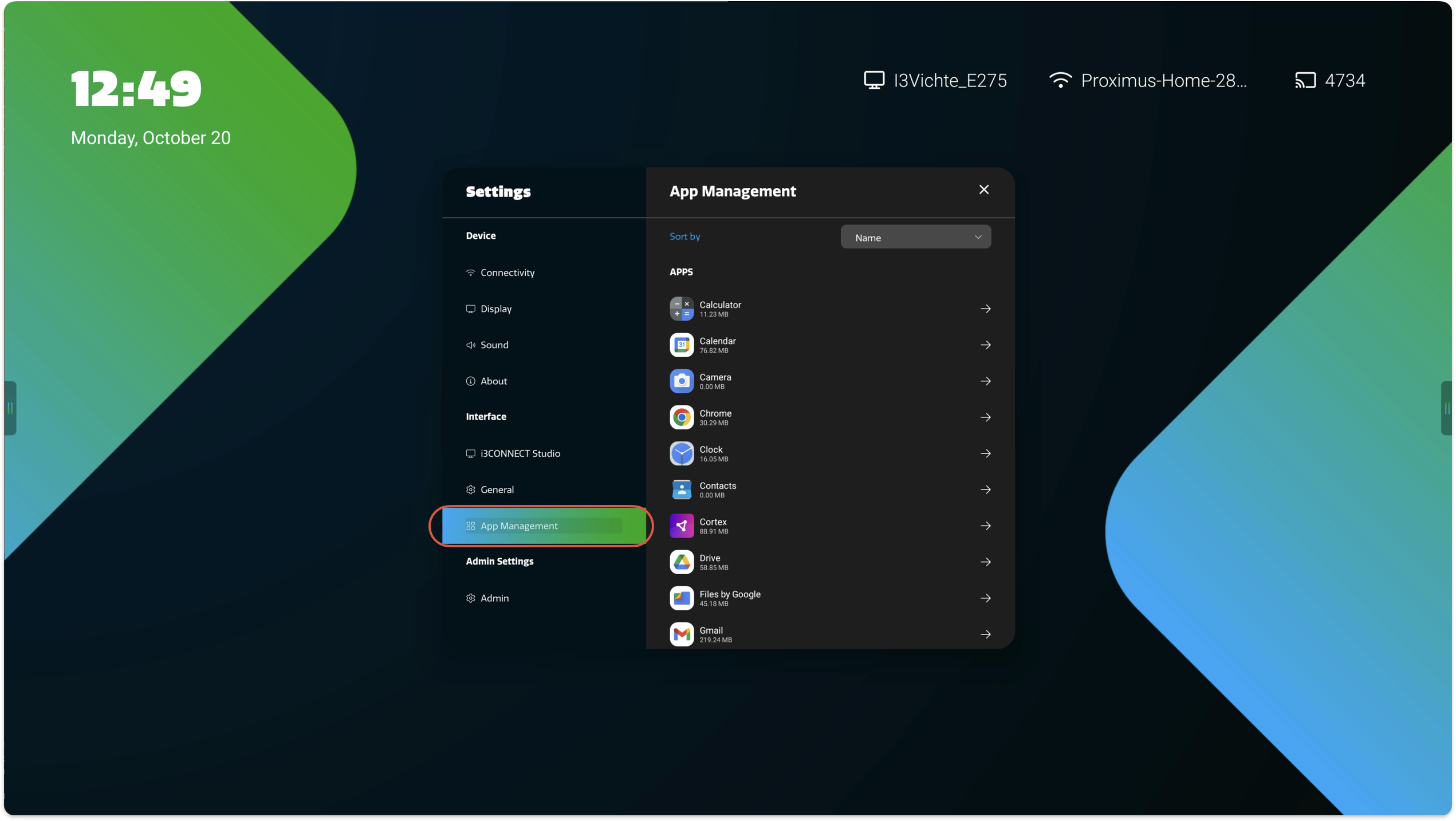
Select App Management and search for the app that needs to be reset.
-
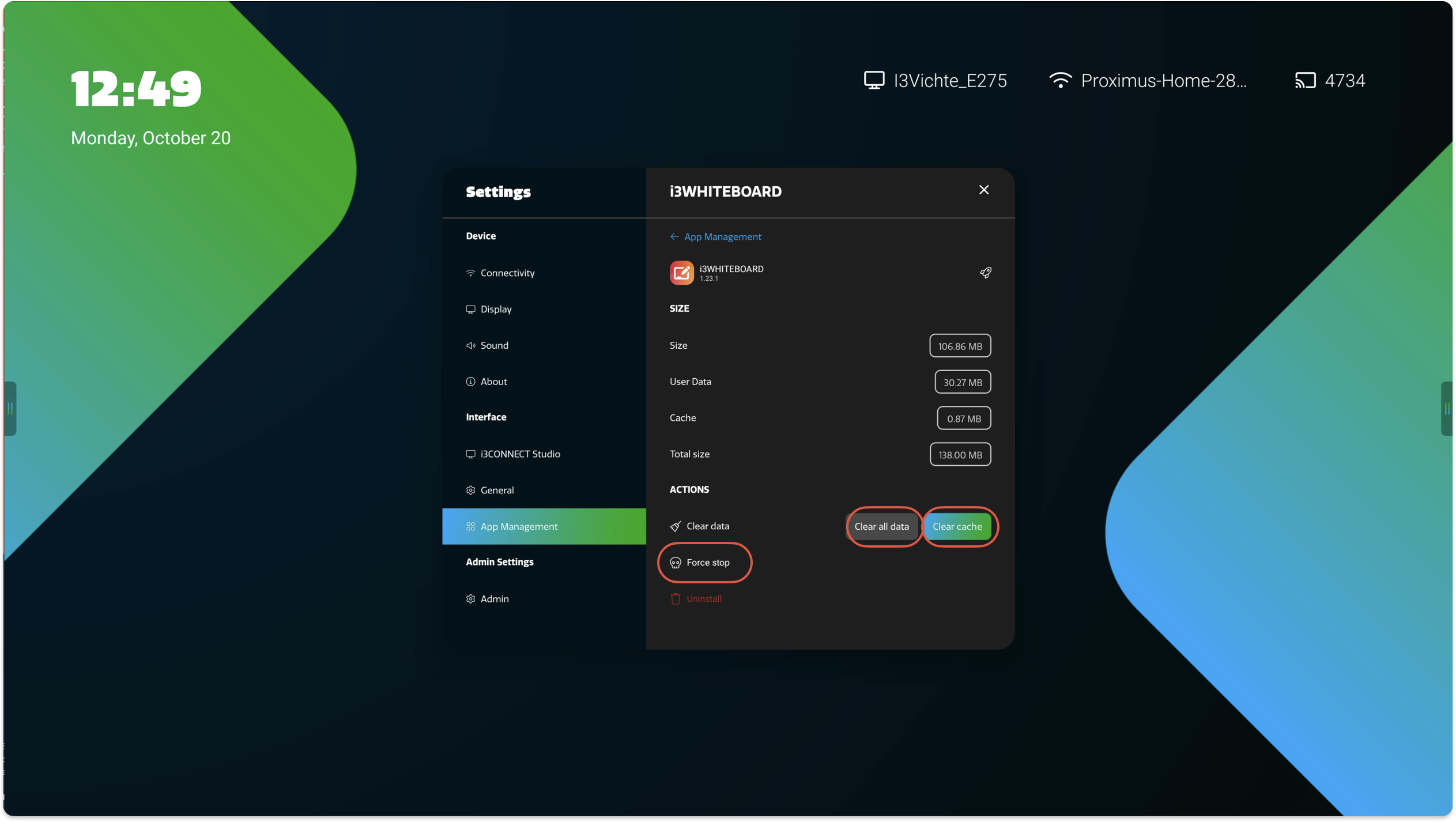
Press Force Stop and then Clear cache and Clear all data to reset the app.
If the app continues to malfunction after clearing cache and data, or if you cannot find the app in App Management, contact i3CONNECT support for further assistance.