What each item means
-
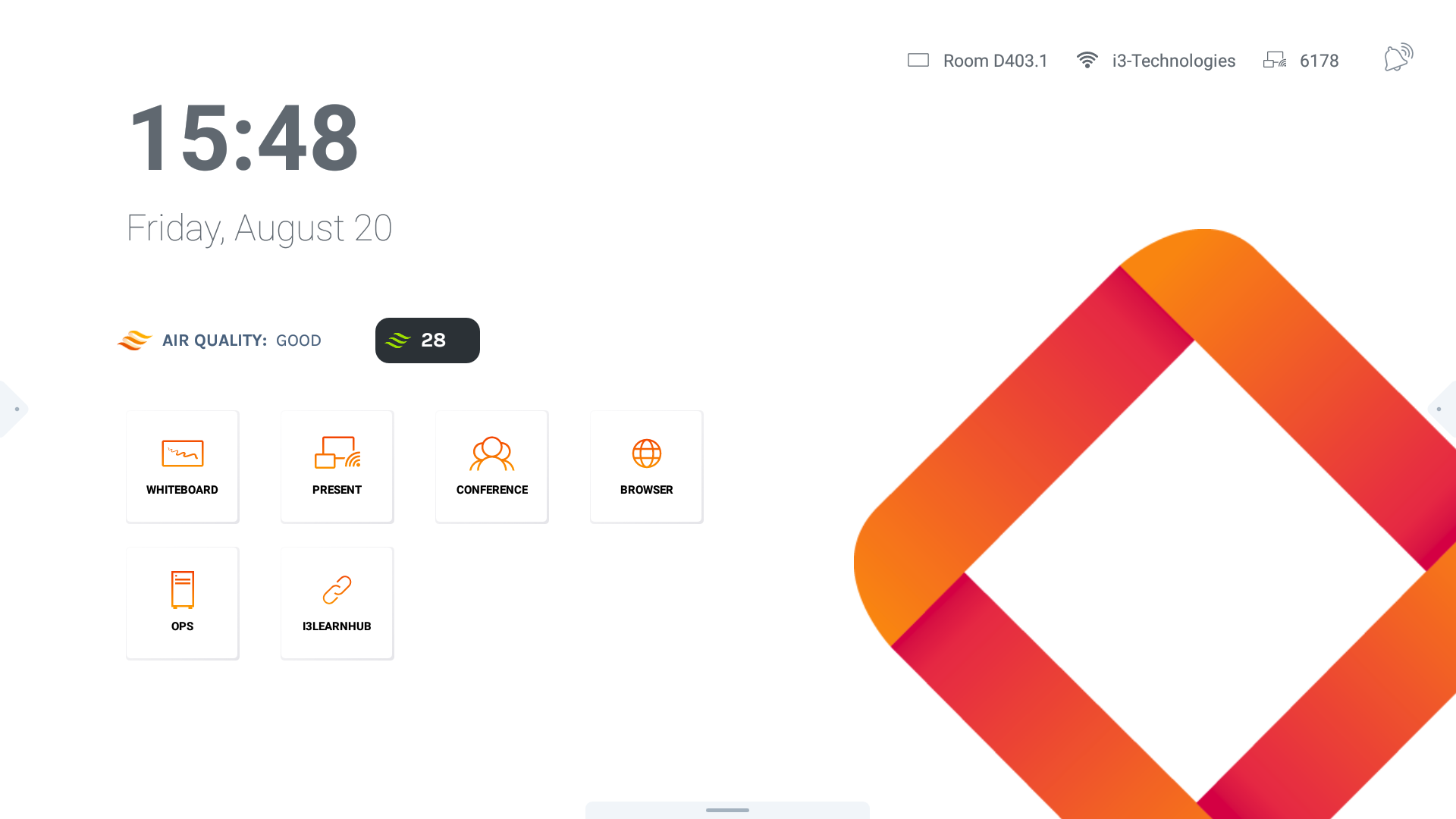
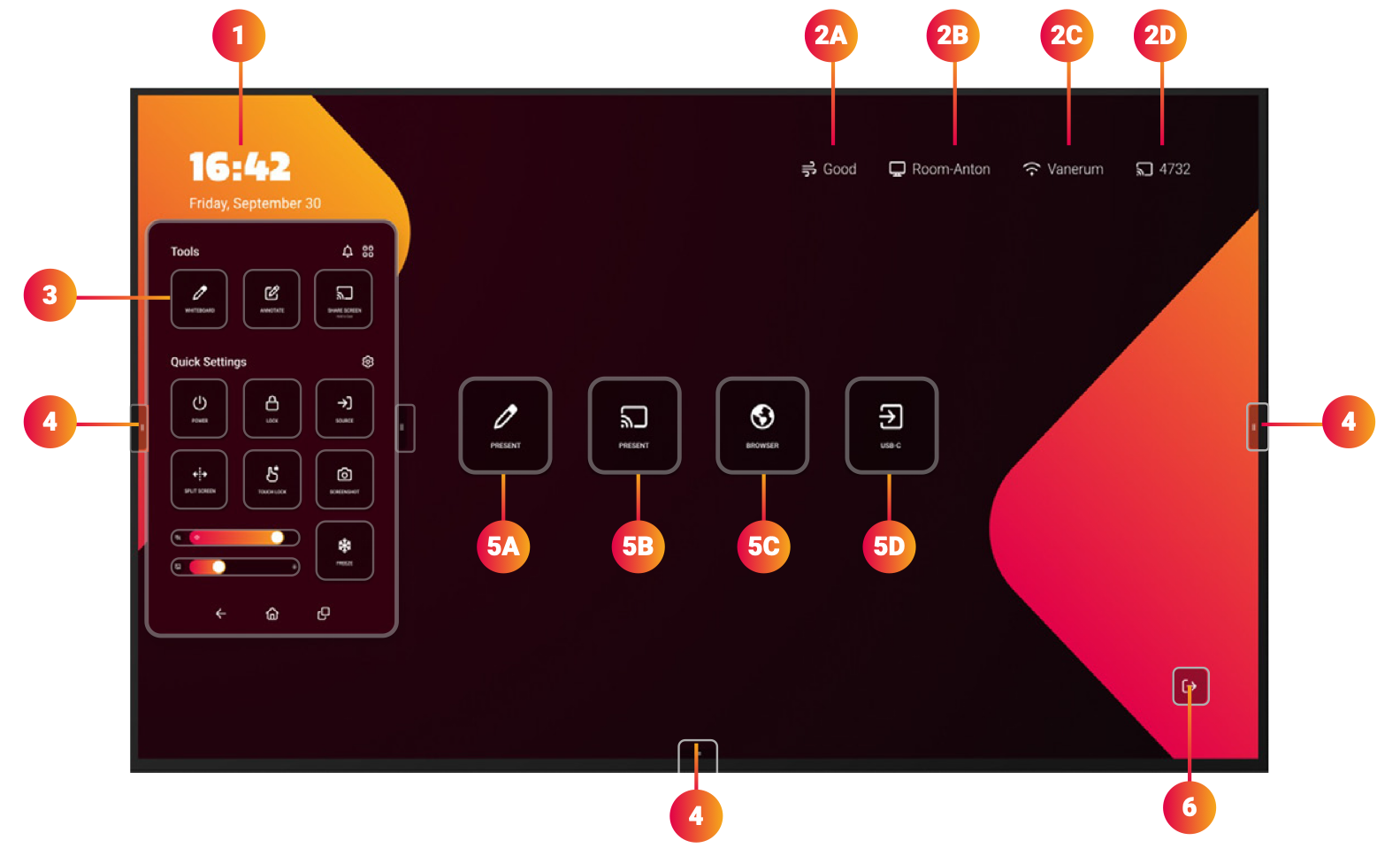
Clock and date widget: time flies when you’re having fun, so we help you to keep track of time.
-
Status bar:
-
i3CAIR air quality widget (needs optional i3CAIR sensor to monitor the air quality of the room that you are in)
-
Display name (the assigned name you set during installation)
-
WIFI status (name of connected network)
-
i3CONNECT AllSync PIN code (to wirelessly share your device’s screen)
-
-
Side bar menu (to access tools, setting, and warnings)
-
Side bar menu grip (Tap or swipe from the side to show and hide the side bar menu)
-
Widget tiles: Add and lauch favorite applications with one touch. Initial widgets may
vary upon the chosen preset ‘Educational’ or ‘Business’
-
Write (Use the display as a flipchart or whiteboard)
-
Present (Share content from your device and use the display to control it)
-
Browser (Browse the internet, annotate and share the information)
-
USB-C (Select the frontal input for wired connection)
-
-
Exit
Themes: Corporate, Education, and more…
Out of the box, Studio comes with two standard interfaces, an interface optimised for usage in corporate environments and another optimised for education environments. You can choose your preferred interface at first boot or through the setup wizard.
The Home screen is equipped with widgets that will assist you in quickly reaching the most frequently used applications. More themes can be chosen from the i3STUDIO configuration menu’s.
Corporate interface

Education interface