
This guide walks you through performing a factory reset using your remote control. Use these steps if you’re troubleshooting persistent issues or preparing the display for a new user. If your display is unresponsive or you can’t access the on-screen menus, these instructions may not help—contact i3CONNECT support for further assistance.
By the end of these steps, your i3TOUCH Ultra will be restored to its original factory settings. All user data and custom settings will be erased. If the reset does not complete or the display fails to reboot, please reach out to our support team.
Before you start
-
Make sure your i3TOUCH Ultra is powered on and you have the remote control.
-
Back up any important files or settings, as this process will erase all data.
Instructions
-
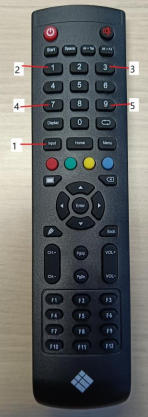
Using the remote, press the following buttons in order: Input, 1, 3, 6, 9.
-
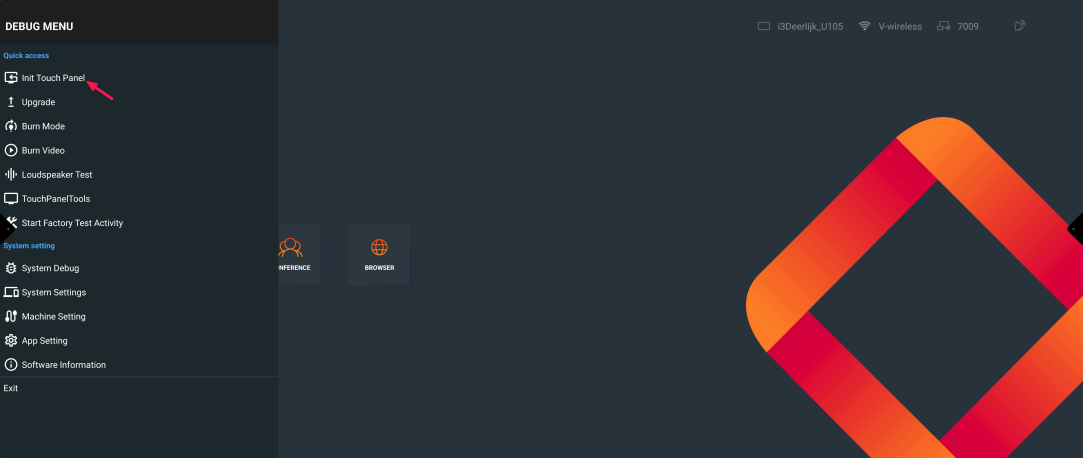
On the menu that appears, select Init Touch TV.
-
Wait for the display to reboot.
Do not touch the screen until the process is complete and the display has fully restarted.
This process will erase all user data and custom settings from your i3TOUCH Ultra. Make sure to back up anything important before proceeding.
If you see a confirmation prompt, follow the on-screen instructions to complete the reset.
Troubleshooting
-
If the display does not respond to the remote, check the batteries or try a different remote.
-
If the reset menu does not appear, ensure you are pressing the buttons in the correct order and at a steady pace.
-
If the display fails to reboot or remains unresponsive after the reset, contact i3CONNECT support for help.