
This guide walks you through a factory reset using the remote control. Use these steps if you’re troubleshooting persistent issues, preparing the display for a new user, or clearing all data before recycling or redeployment. If your display is unresponsive or you can’t access the remote, contact support for alternative reset methods.
Before you start
-
Make sure you have the i3TOUCH Ultra remote control.
-
Save any important files—this process erases all data and settings.
Instructions
-
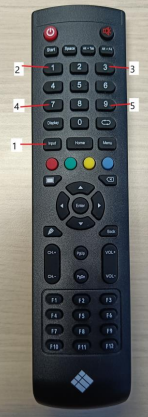
With the remote, press the following buttons in order: Input, 1, 3, 6, 9.
-
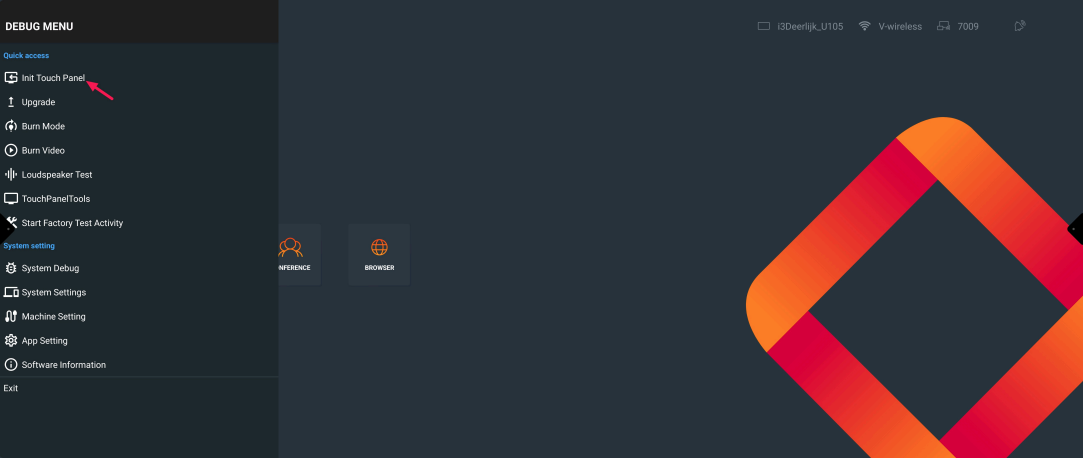
On the menu that appears, select Init Touch TV.
-
Wait for the display to fully reboot.
Do not touch the screen until the process is complete.
A factory reset will erase all user data, apps, and settings. This action cannot be undone.
Troubleshooting
-
If the reset menu does not appear, double-check the button sequence and try again.
-
If the display does not reboot or remains unresponsive, unplug the device for 30 seconds and retry.
-
If you’ve lost the remote or the display won’t respond, contact i3CONNECT support for help.