
Need to give a misbehaving app a fresh start? Clearing cache and data can solve issues like freezing, crashing, or login problems on your i3TOUCH Ultra. This guide is for anyone using apps on i3TOUCH Ultra who needs a quick fix before reinstalling or contacting support. If your app is working fine, or you’re troubleshooting hardware issues, this article isn’t for you.
By the end, your chosen app will be reset to its original state, and you should be able to launch it without previous glitches. If the app still doesn’t work, reach out to your IT admin or i3CONNECT support.
Video instructions
Instructions
-
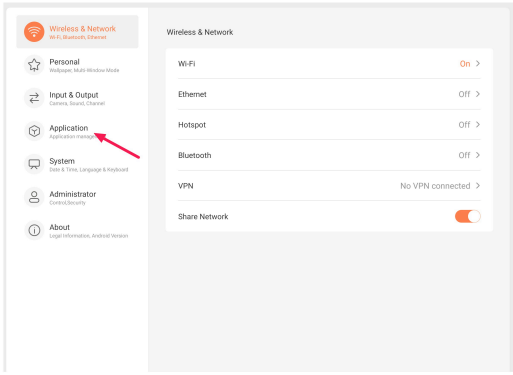
Open Android settings on your i3TOUCH Ultra.
-
Tap “Applications” or search for “Application”.
-
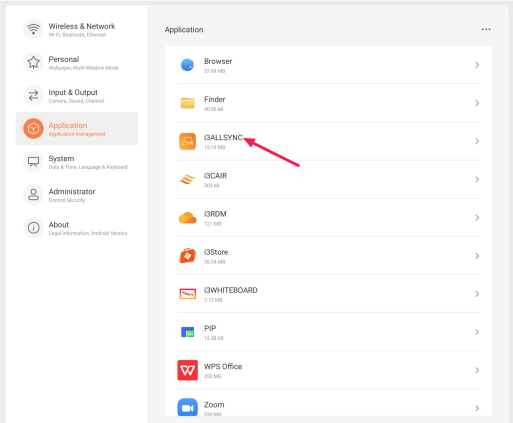
Find and select the app you want to reset.
-
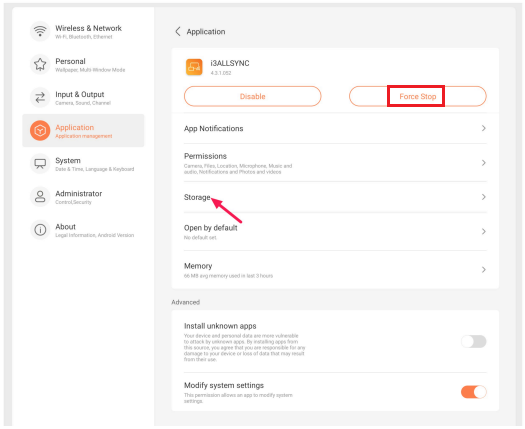
Tap Force Stop.
-
Tap Storage.
-
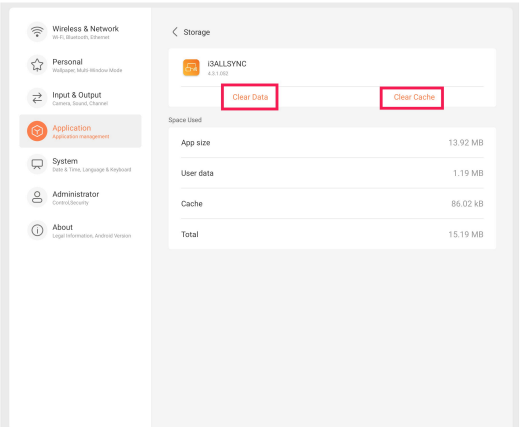
Tap Clear cache and then Clear data.
-
Exit settings and reopen your app.
Troubleshooting
-
If you don’t see your app in the list, tap the three dots in the top right corner and select ‘Show system’ to reveal system apps like i3CONNECT Studio.
-
If the app still misbehaves after clearing cache and data, try restarting your i3TOUCH Ultra.
-
If you can’t find the app, make sure you’ve enabled ‘Show system’ as described above.
-
Still stuck? Contact your IT admin or i3CONNECT support.