
If your touch input doesn’t match the image on your i3CONNECT display when using Windows 10, follow these steps to resolve the issue.
This guide is for anyone experiencing offset or inaccurate touch on an i3CONNECT interactive flat panel. This article is not for displays that are not recognized by Windows.
Expected outcome: Touch input aligns with the display image.
Before you start
-
Connect your laptop by USB-C cable, or by HDMI + TOUCH OUT cable. Follow these instructions if that is not immediately clear.
-
Check all cables are securely connected.
-
Confirm your device runs Windows 10.
Instructions
-
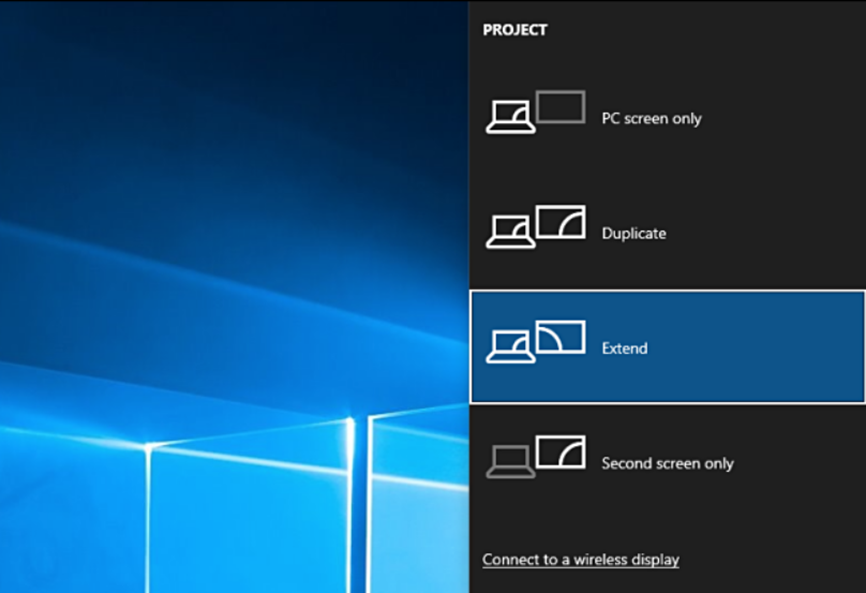
Press Windows logo key + P and select “Extend” (not “Duplicate”) to match aspect ratios.
-
This should already have solved your issue. If not, continue following there instructions.
-
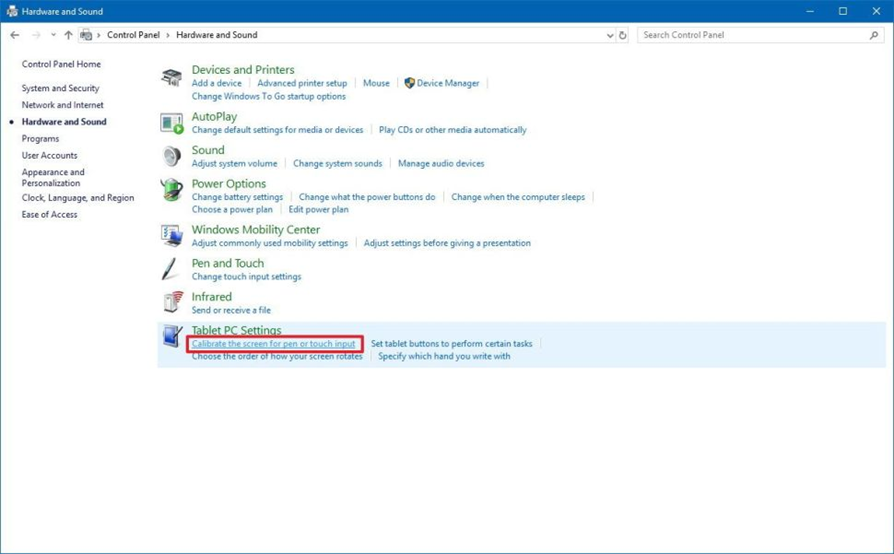
Open Control Panel → Hardware and Sound → Tablet PC Settings.
-
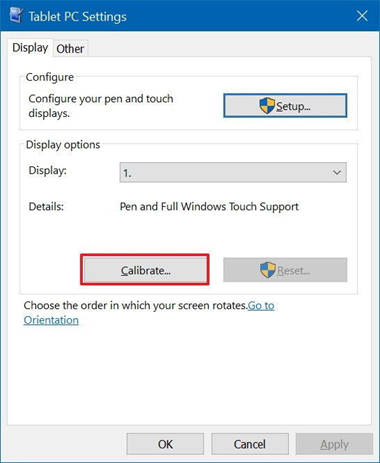
Select the i3CONNECT display, click Calibrate, choose Touch input, and tap the crosshairs as prompted.
-
If needed, in Tablet PC Settings, click Setup to assign touch to the correct display.
Troubleshooting
-
Restart your device and the display and repeat steps if touch is still inaccurate.
-
Try a different USB cable or port if the display isn’t detected as touch.
-
For ongoing issues, contact i3CONNECT support.