
When you cannot enter the debug menu, and you need to rewrite the systemFW.
Make sure all 3rd party devices are disconnected before you continue
SystemFW Power button method
STEP1: Prepare a USB 2.0 drive and format it with FAT32, copy the .BIN file to the root folder of USB drive
|
|
.BIN v1.1.2 [ January 2025 ] |
|---|---|
|
75inch |
|
|
86inch |
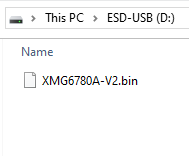
Make sure that there are no other files and folders on the USB stick besides the files you explained above. This means deleting extra folders that were created after using it once, an before using the same USB stick again.
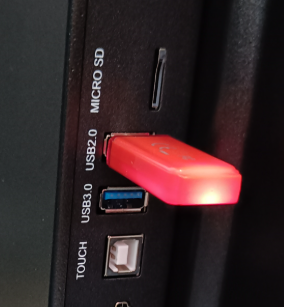
STEP2: Make sure the IFP is switched off. Connect the USB drive to the USB 2.0 port:
STEP3: Flip the power switch ON (at the back of the Display). Press and hold the power button of the display during the booting process.
STEP4: The upgrading process starts. Let go the power button when you see the progress bar.
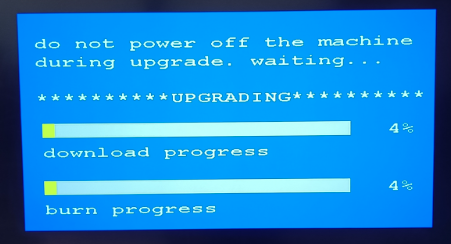
STEP5: Wait until the process is finished. You need to restart after first boot to correct it's model type:
first boot
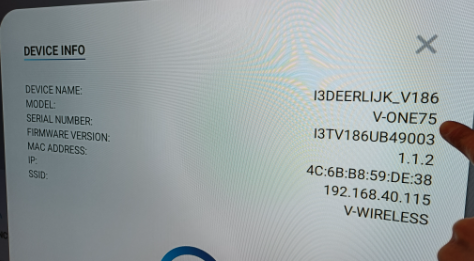
After reboot
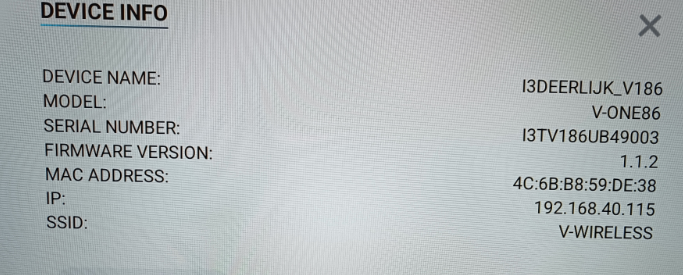
The TV will upgrade first. When finished, the screen will reboot and upgrade MCU automatically. It will take +- 5 minutes to complete the upgrade procedure.
Do not interrupt the firmware upgrade process in any way:
-
Do not touch the i3TOUCH display (due to potential touch recalibration)
-
Do not disconnect the i3TOUCH from power.
-
Do not pull out the USB drive