
This article is only for the TX45-H AllSync Transmitter Dongle. Using these steps on other models may cause issues. Other models include TX45-C and TX46-C.
Keep your AllSync Transmitter Dongle (RX45-H) running smoothly with the latest firmware.
Before you start
-
Make sure you have an HDMI AllSync Transmitter Dongle (model TX45-H).
-
Connect the dongle to your computer before starting.
-
Download the latest firmware update file from the link below.
Download
|
Description |
Link |
Last updated |
|---|---|---|
|
Firmware update for HDMI dongle |
Instructions
-
Connect the AllSync Transmitter Dongle to your computer.
-
Download the latest firmware update for the HDMI dongle.
-
Unzip the downloaded file.
-
Open UpdateFW.exe (choose the most recent version if there are multiple).
-
In the update tool, select “Connect”.
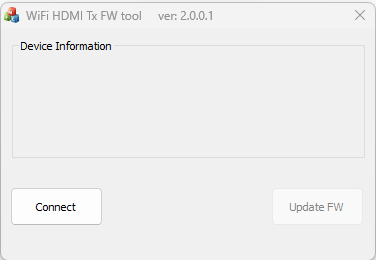
-
Click ‘Update FW’ and choose the suggested ‘.BRN’ file (in the same folder as the update tool).
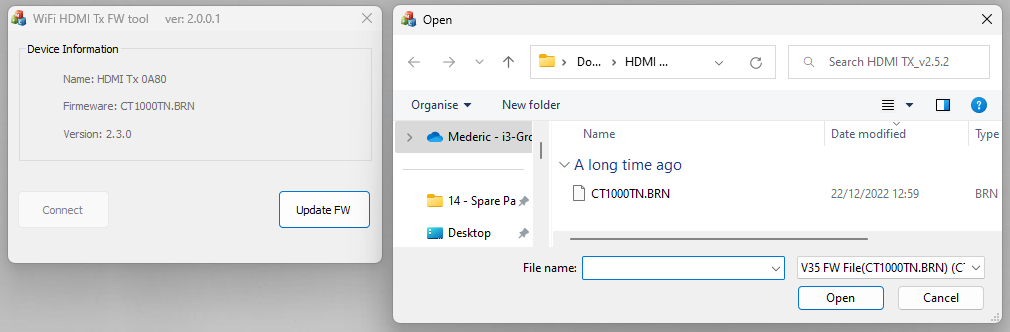
-
Select ‘OK’ to start the firmware update process.
Do not disconnect the dongle or your computer while the LED is blinking purple.
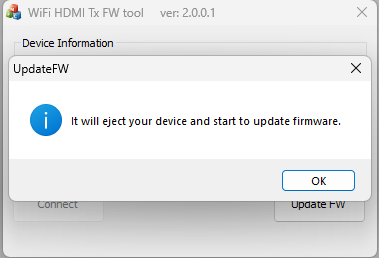
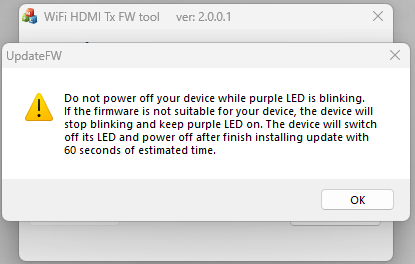
-
The AllSync Transmitter will reboot automatically when the update is complete.
Troubleshooting
-
If the dongle is not recognized, try a different USB port or restart your computer.
-
If the LED does not blink purple during the update, stop and check your connections.
-
If the dongle does not reboot after the update, unplug and replug it.