
Use this guide if you experience performance issues (such as lag, low frame rate, or poor video quality) when using the i3ALLSYNC app with your i3CONNECT display. This article is for IT admins, support staff, or advanced users who need to test network speed, check frame rate/bitrate, or record video streams for troubleshooting.
Before you start
-
Ensure your AllSync Receiver Module is running version 4.3.1.010 or higher.
-
You’ll need access to the factory settings menu (see instructions below).
-
For network testing, install the “Network Tools” app on an Android device connected to the same network as the AllSync Receiver.
-
For video recording, have a USB storage device ready to retrieve files.
Test network speed with iperf server
-
Access the factory menu from the AllSync display app.
-
Install the “Network Tools” app on your Android device and connect to the same network as the AllSync Receiver module.
-
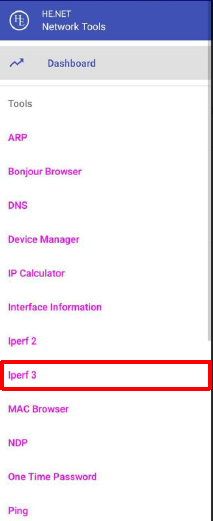
Open Network Tools and select “iperf3” from the list to test bandwidth and speed.
-
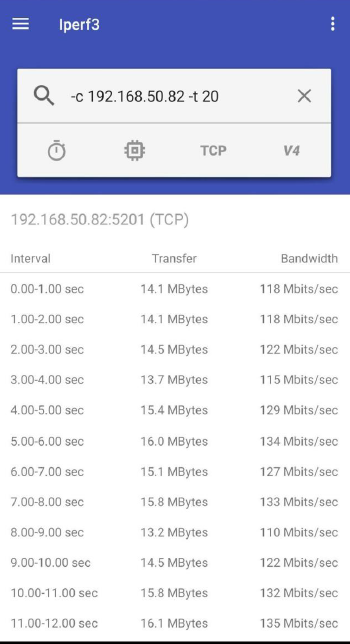
Enter the command:
-c [RX IP] -t [number of tests] (e.g., -c 192.168.50.82 -t 100). -
Tap the

Check FPS and bitrate
-
Enable “fps/bitrate” in the factory menu to display frames per second (FPS) and bits per second (BPS) in the top left corner of the RX screen during mirroring.
Record video stream from TX
-
Allow storage permission: Go to Settings > Apps & notifications > App info > i3ALLSYNC > Permissions > Storage.
-
Start mirroring from Transmitter. Receiver will automatically begin recording the video stream.
-
Stop mirroring to end the recording.
-
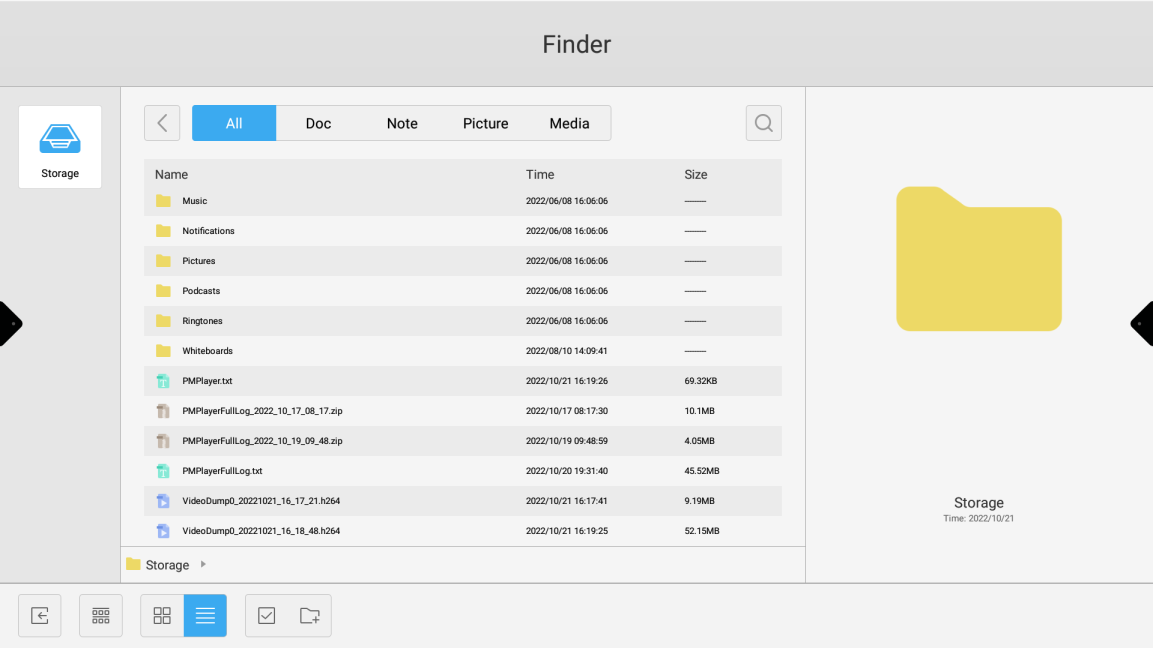
Retrieve the video file: Open File Manager, locate the file named:
VideoDumpX_yyyymmdd_hh_mm_ss.h264
-
Copy it to a USB storage device to share with customer service.
Troubleshooting
-
If you cannot access the factory menu, ensure you tap the version number exactly three times.
-
If the “Network Tools” app is unavailable, try another iperf3-compatible app.
-
If video recording fails, double-check storage permissions and available space.