
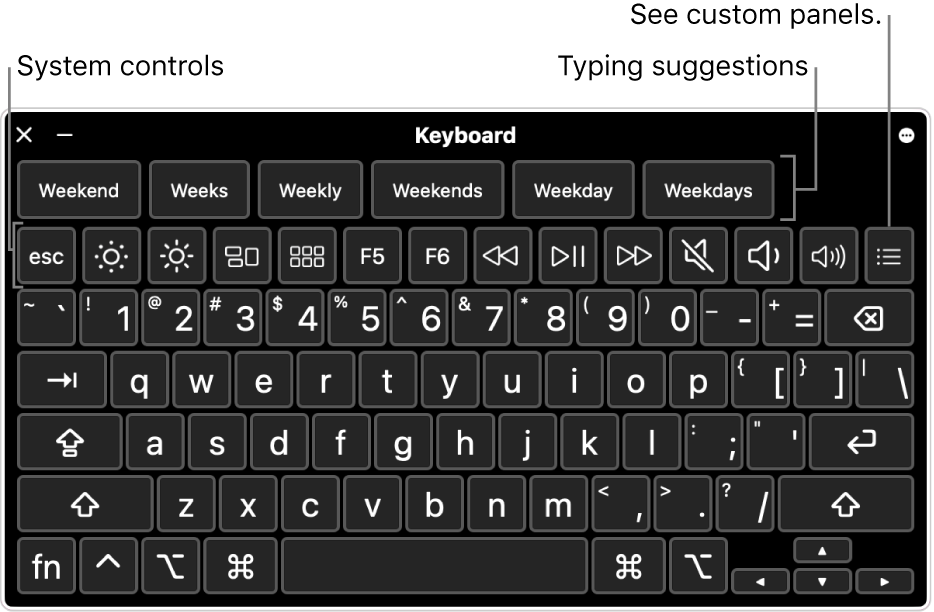
The Accessibility Keyboard is an onscreen keyboard that lets you use your Mac without a physical keyboard. It will let you type by tapping the keys on your touch screen.
You need to install a driver to use Touch functionality on Mac devices:
Instructions: enable on-screen keyboard
Main method
-
On your Mac, choose

-
Click on

-
click Keyboard > Viewer
-
Select “Enable Accessibility Keyboard”.
Alternative method
-
You can also turn on the Accessibility Keyboard by clicking the Input menu in the menu bar,
-
then choosing Show Keyboard Viewer.
-
The Input menu is identified in the menu bar by the

-
Instructions: disable on-screen keyboard
Main method
-
In the top-left corner of the Accessibility keyboard on your Mac,
-
click the Close button

Alternative method
-
Go to Keyboard preferences
-
click Viewer
-
Deselect “Enable Accessibility Keyboard”.
Information above is applying to macOS 12 (Monterey). For additional information or instructions on other OS versions please visit their support site
macOS and Mac including the apple logo and icons are registered trademarks of Apple Inc and are only used for instructional purposes.