
Problem
The problem you are trying to troubleshoot appears to be challenging. The support team at i3CONNECT may ask you to share an Android bug report of your display so that they can further diagnose the challenge.
Solution
-
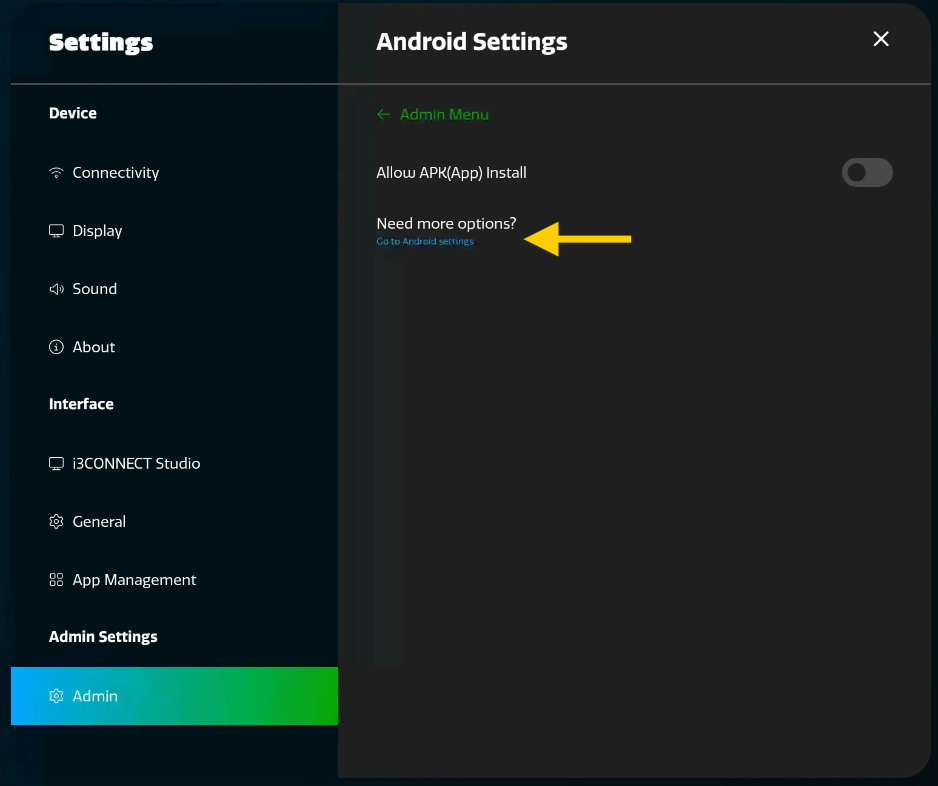
Open the Settings app and visit Admin > Need more options?
-
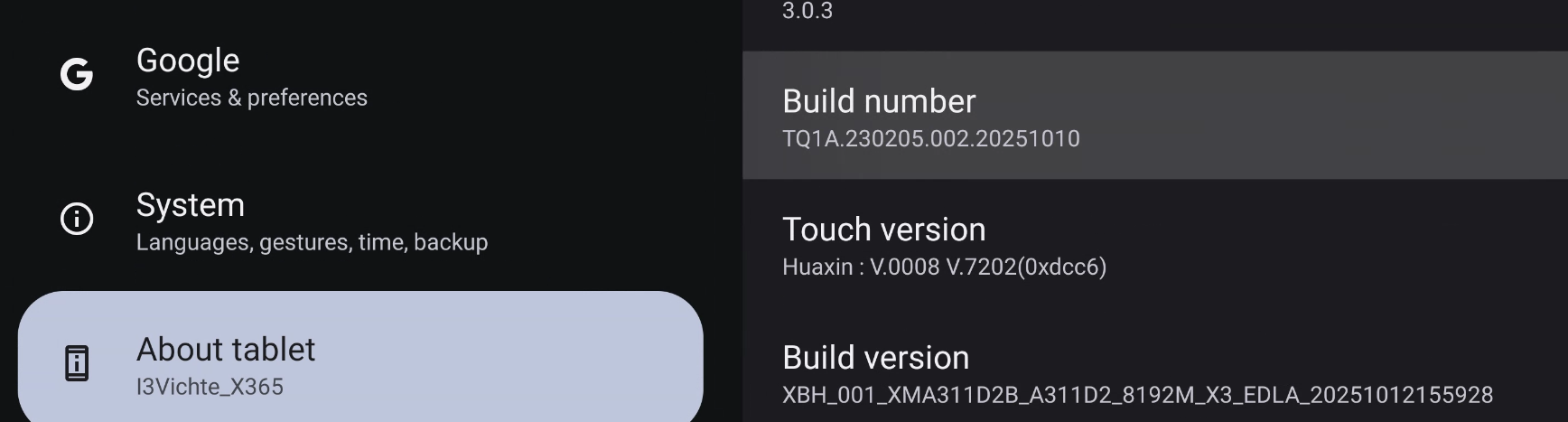
Inside the Android Settings app choose About tablet and Tap Build number 8 times to become a developer.
-
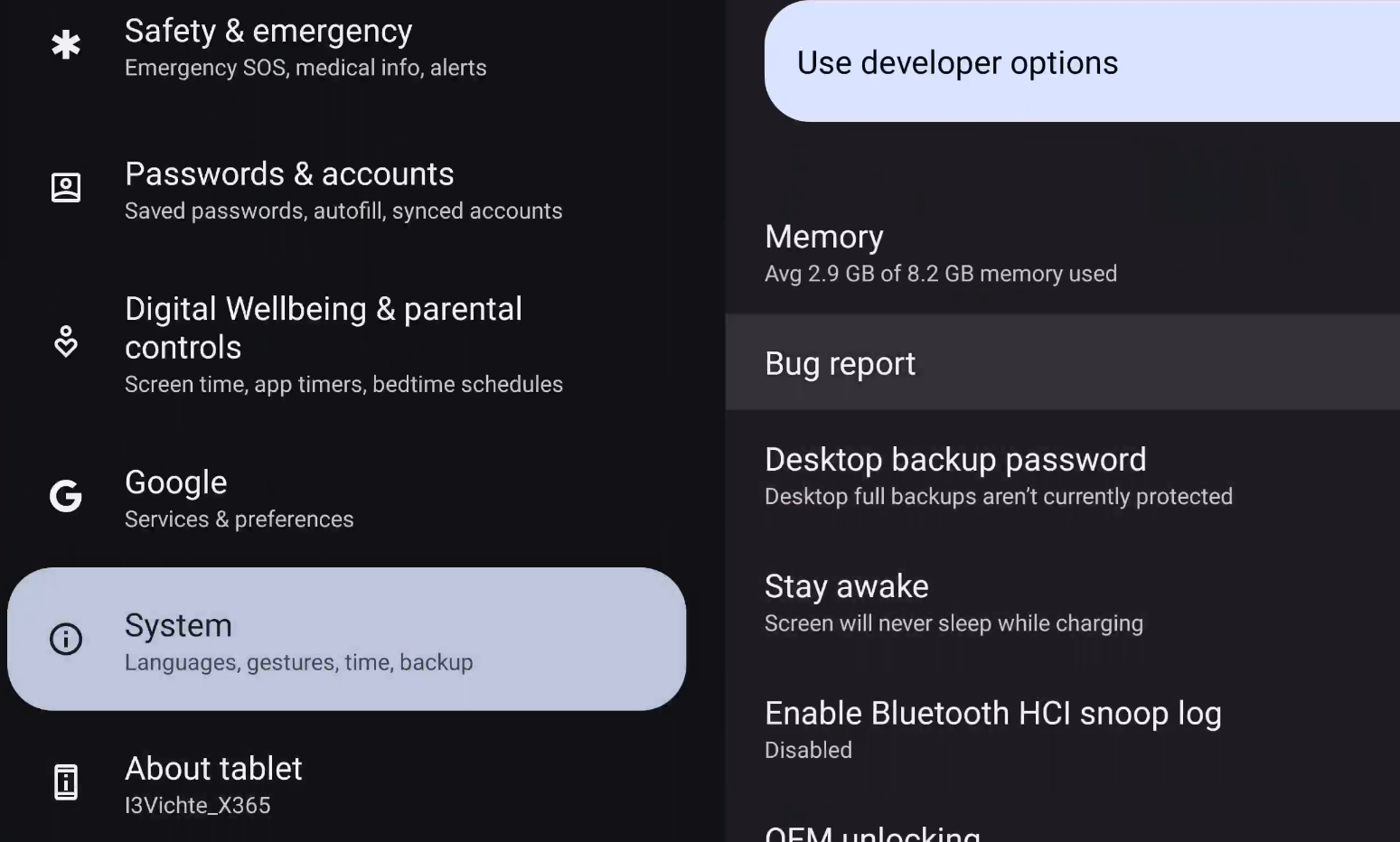
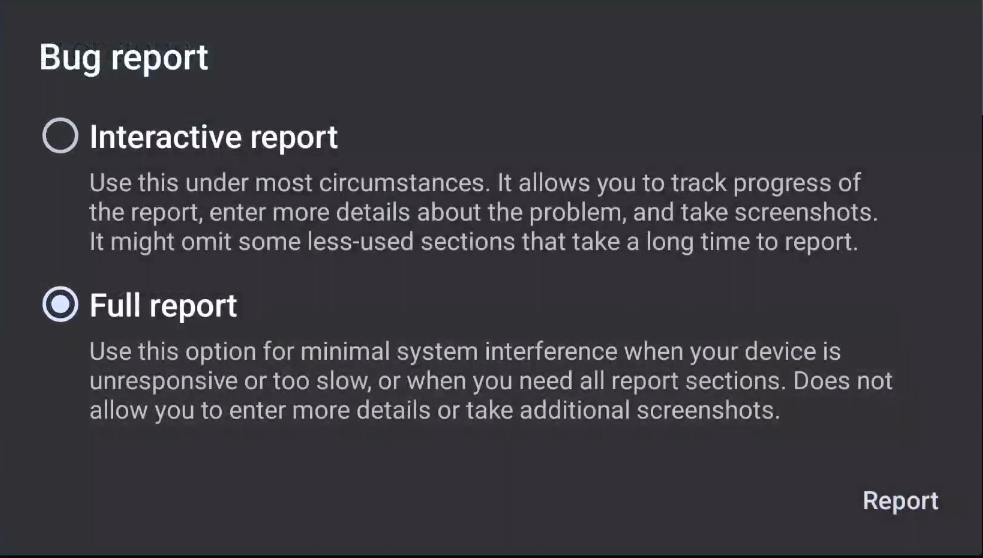
Within the Android Settings go to System > Developer options and then select Bug report. Select Full report and click on the button Report.
It takes 3-5mins to generate the Full report.
-
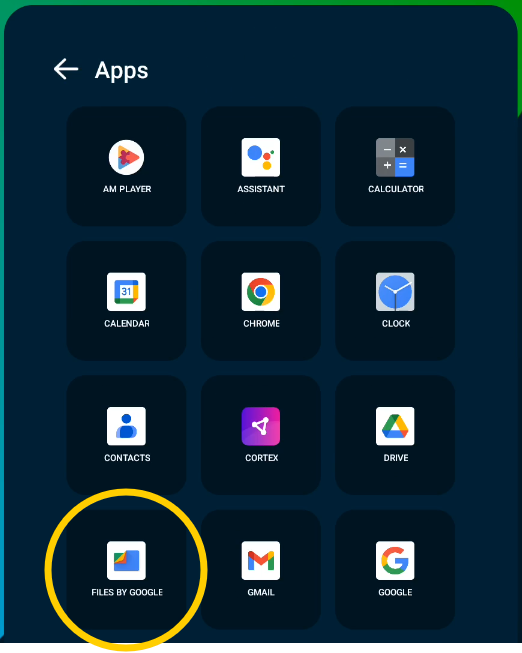
Open the side-menu by swiping from the right. Then tap in the top right op the side-menu to open the app tray and choose the Files by Google app.
-
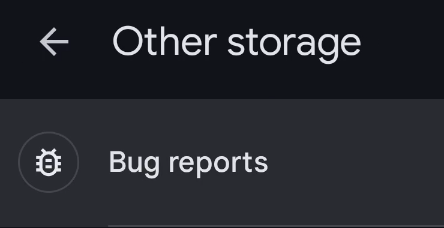
On the left hand side of the Files app, scroll all the way down to Other storage. On the right hand side, you will find Bug reports.
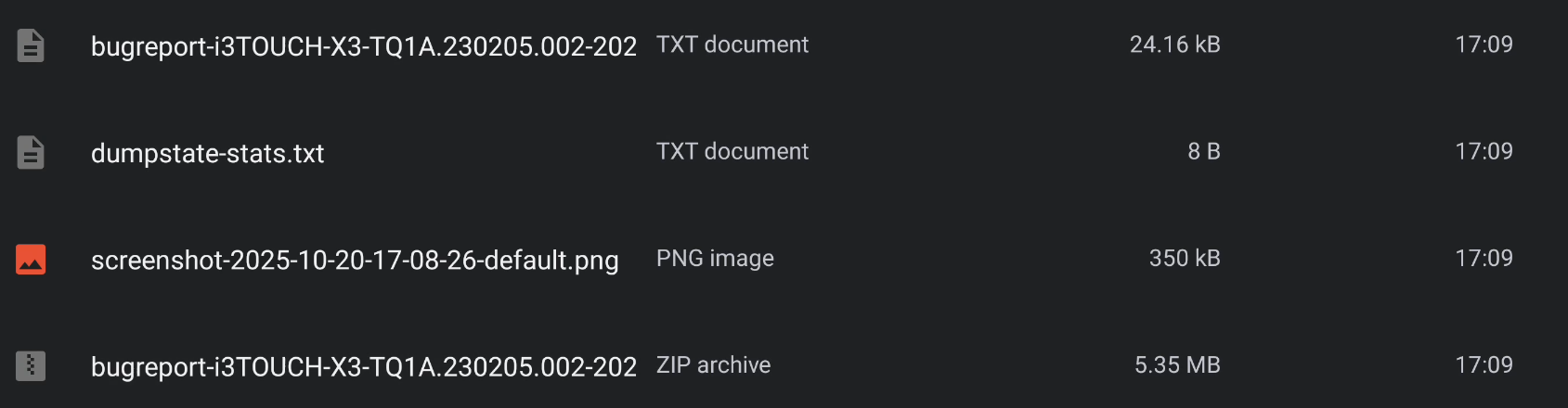
If you are super fast, the report will still be in progress. If you see a very long file-list, the Bug report is still being made. Wait until you only see 4 files, which will include a .ZIP file.

-
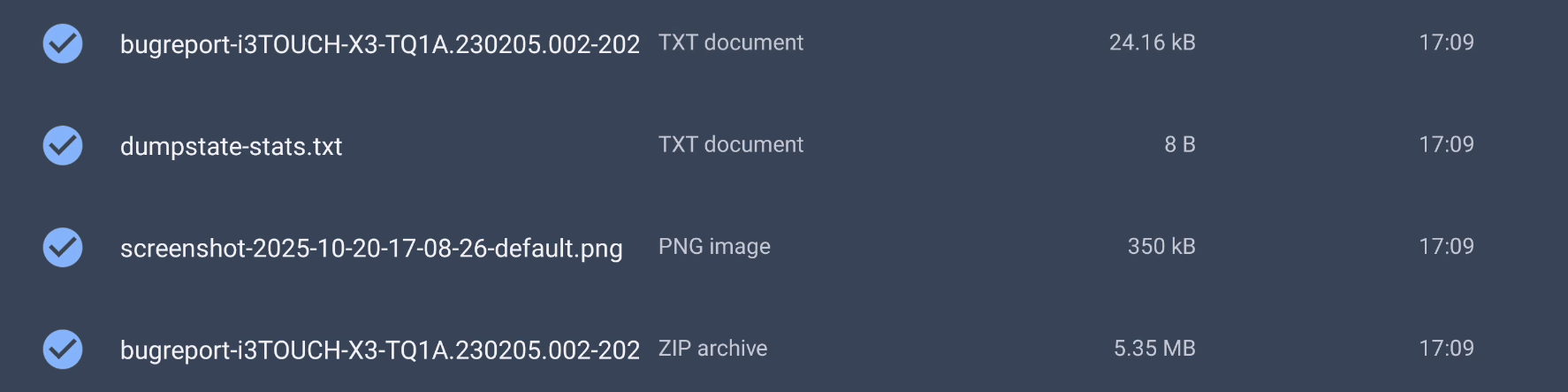
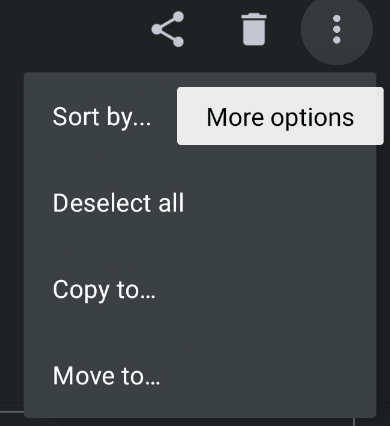
Click and hold an item to select it. Then select the other 3 files as well. On the top right hand side, choose More options > Copy to…
-
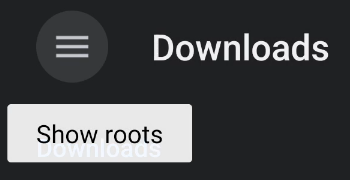
On the top left hand side, choose Show roots and select your USB stick. Finally hit Copy on the bottom to copy the Bug report on your USB stick.


-
Share the files to your i3CONNECT contact via your ticket on the Customer support portal.
http://support.i3-connect.com/