This article explains how to expand the capabilities of your i3CONNECT display by installing new applications. Whether you are looking for core i3CONNECT tools or third-party apps from the Google Play Store, these instructions will guide you through the process.
Before you start
-
Ensure your display is connected to the internet.
-
For Google Play Store apps, ensure your device supports Google EDLA (e.g Aspen 4, Elm 2 and i3SIXTY 3).
-
Have your Google account credentials ready if you plan to use the Play Store. We recommend a dedicated email per display. In larger organizations you could consider workspace.google.com to manage these emails.
Updating installed i3CONNECT apps via i3STORE
The i3STORE is your hub for i3CONNECT software. It provides access to core apps like Whiteboard, AllSync, Annotate, and the Browser.
-
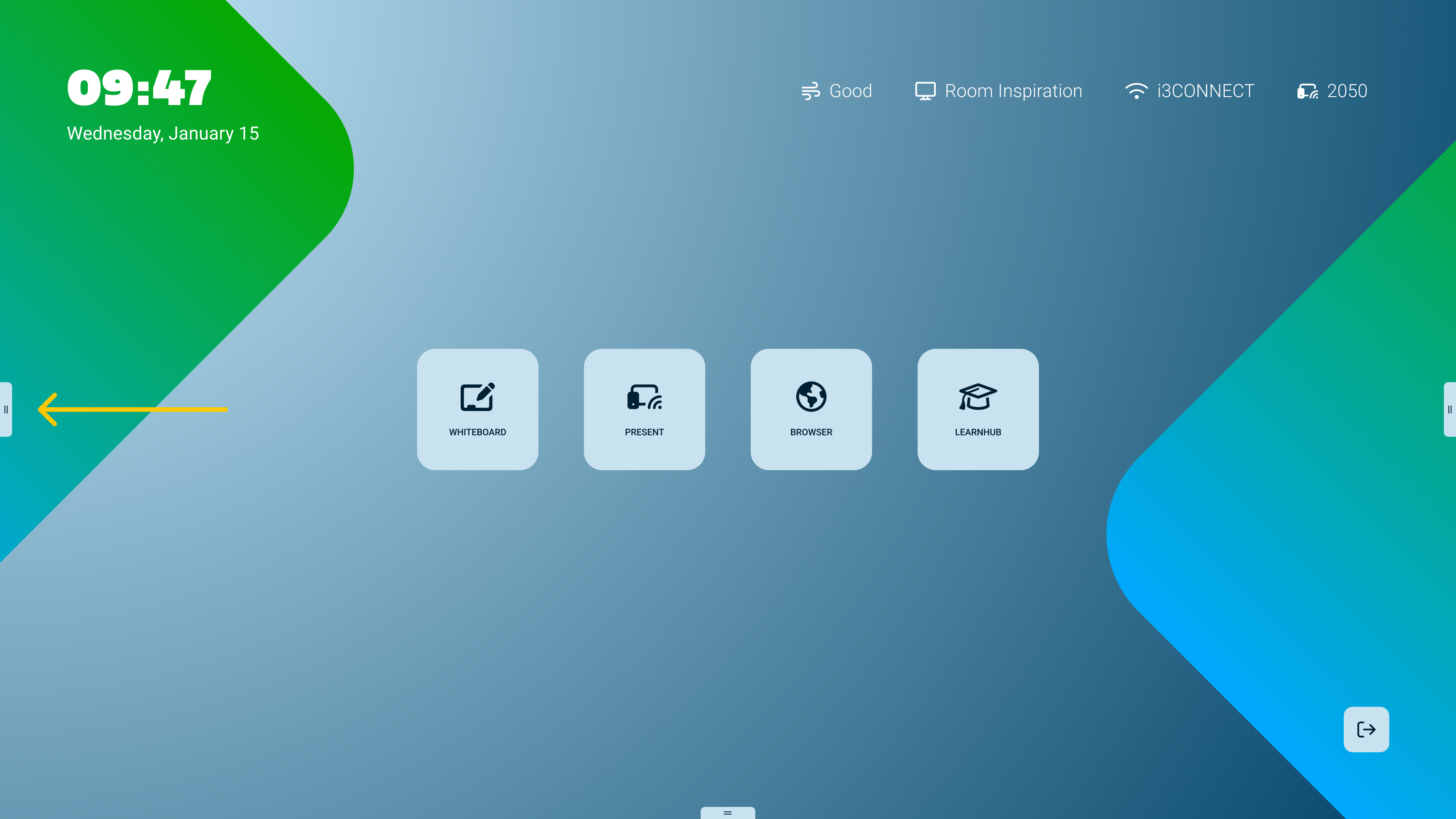
Tap on the side-menu gripper found on the left or right side of the screen, and sometimes at the bottom in the middle.
-
Tap on the Apps icon in this side-menu
-
Then select the app i3STORE
-
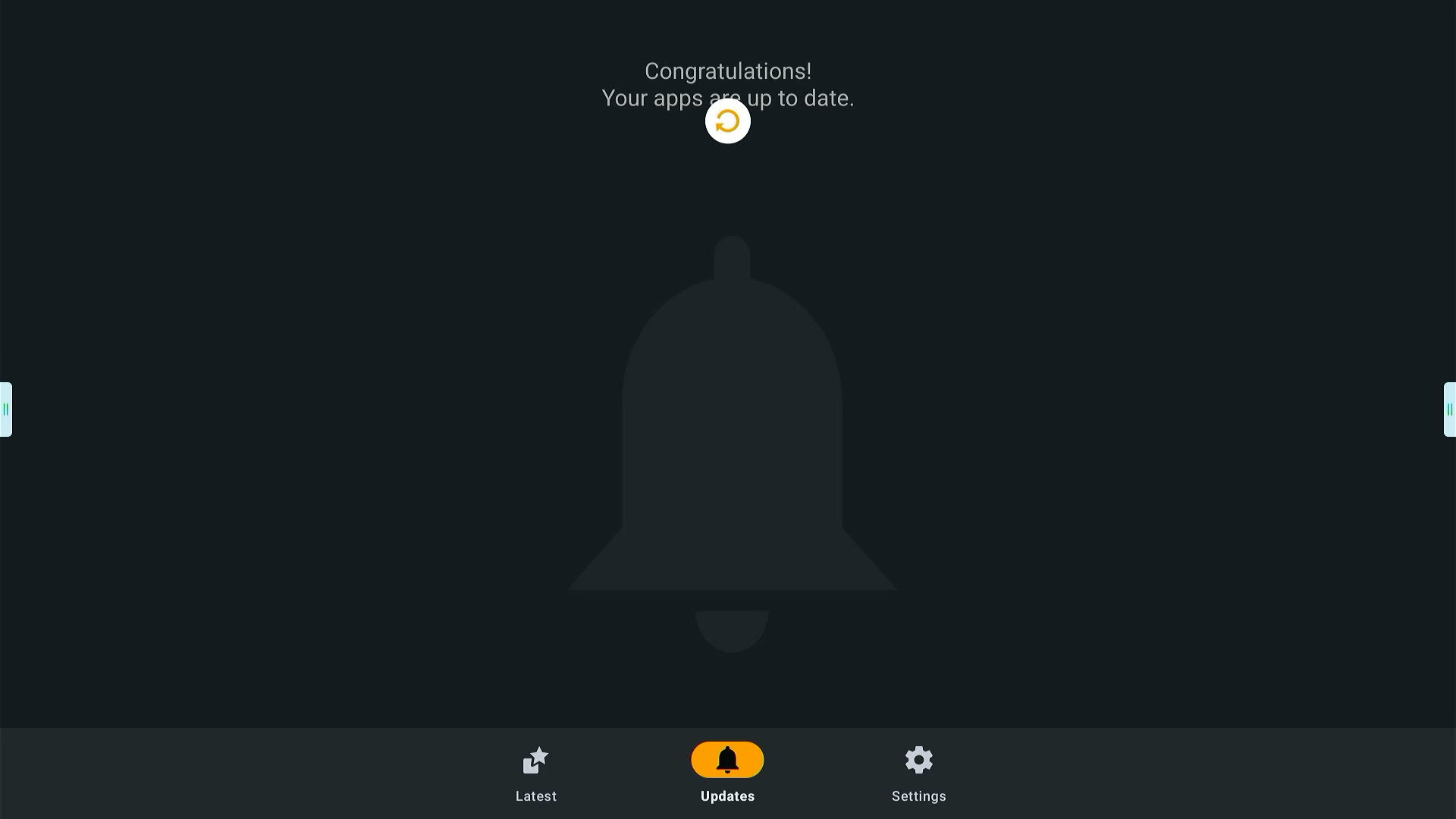
Tap on the Updates tab. If you don’t see any apps, swipe down from the top area of the screen to refresh the overview.
-
Tap Update on any apps that require an update.
Remote management via i3CONNECT Cortex
Managing apps across a fleet of displays can be done via the Cortex console, but the method depends on the app type:
-
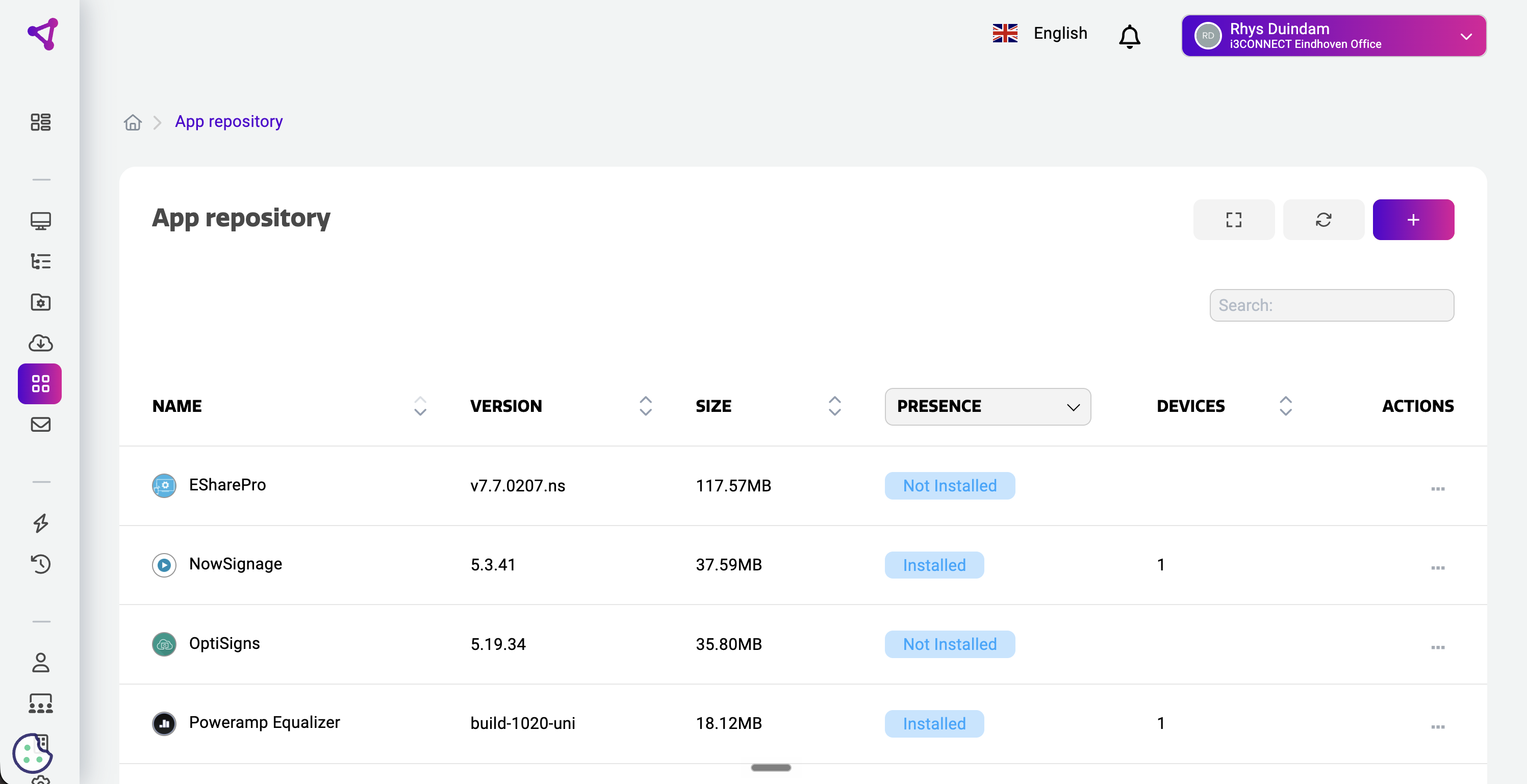
i3STORE Apps: These are automatically included in the Cortex app overview for easy management.
-
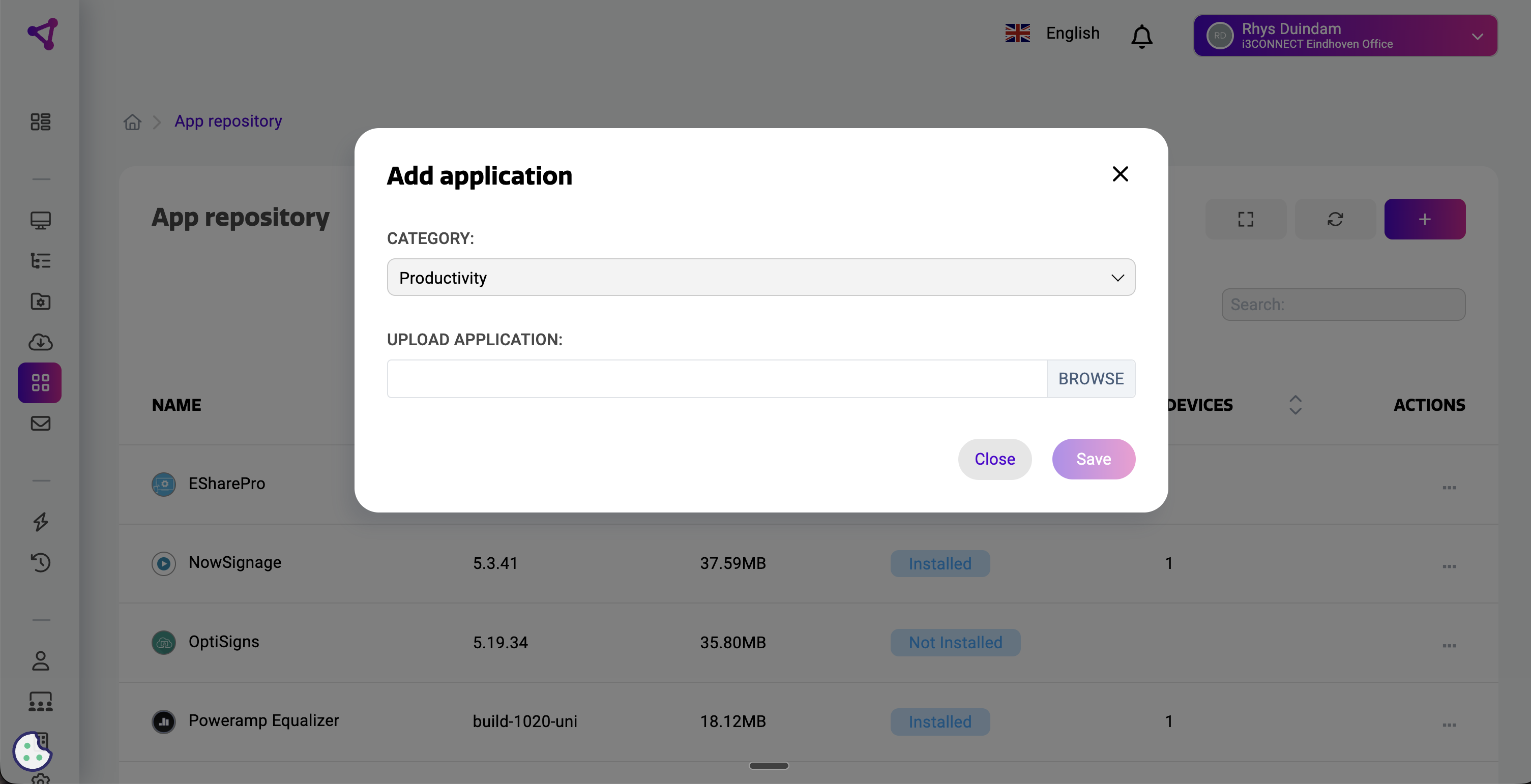
APK Apps: Third-party APKs can be managed directly from the Cortex dashboard and added by pressing on the + button. After that they are available globally to all displays but not installed. You choose which displays to install it on.
Installing 3rd party apps via Google Play Store
For displays with Google EDLA support, you can access the vast library of the Google Play Store.
-
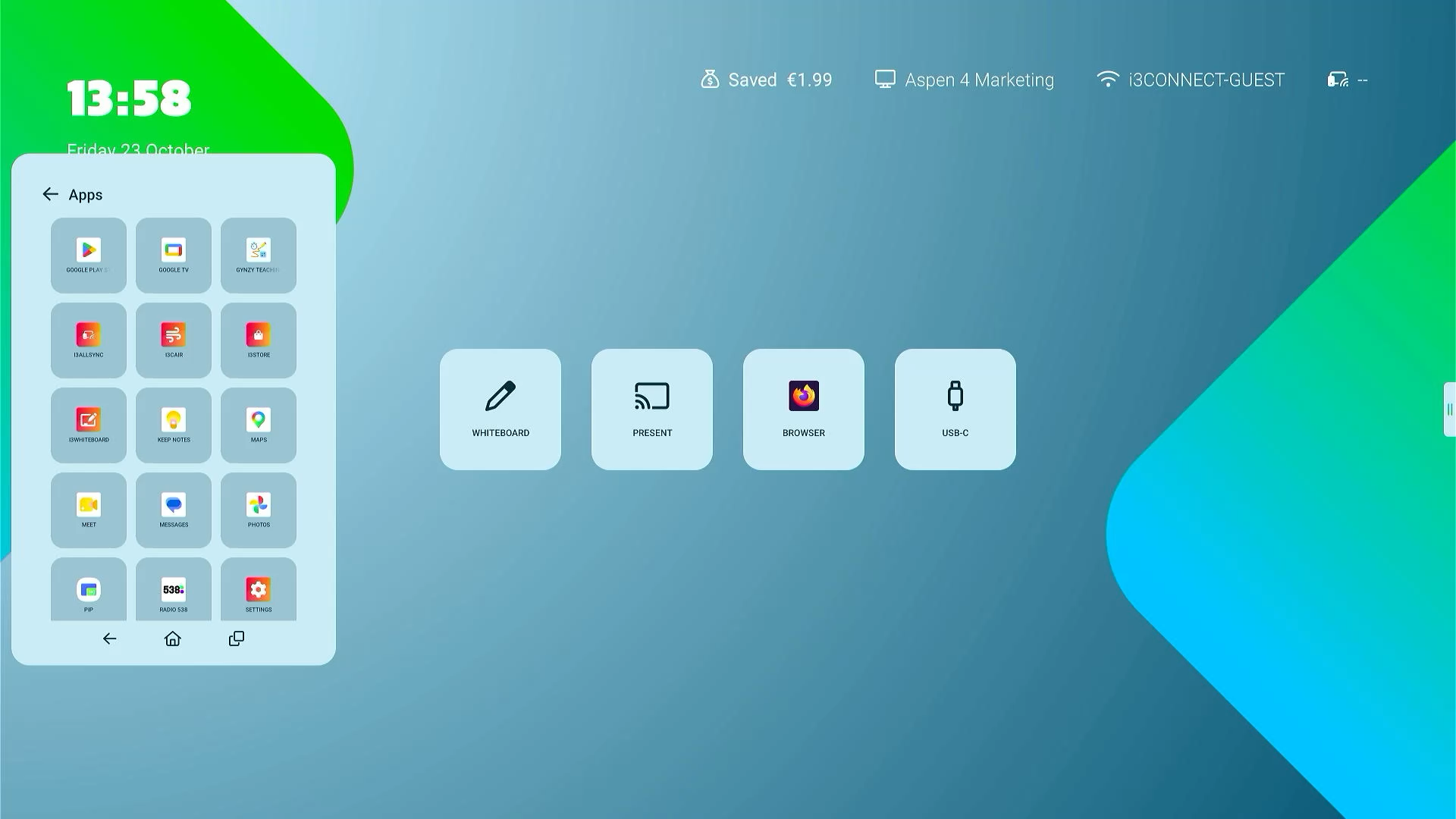
Open the Google Play Store from your app overview.
-
Sign in with your Google account
Remember that this is often a shared display and that it will remember your Google Account. We recommend making a seperate email for the display if possible.
-
Search for the application you wish to install.
-
Tap Install.
The Play Store on i3CONNECT displays only shows apps optimized for Android tablets. Apps designed exclusively for phones, iOS, or macOS will not be available.
Updating 3rd party apps via Google Play Store
-
Open the Google Play Store from your app overview.
-
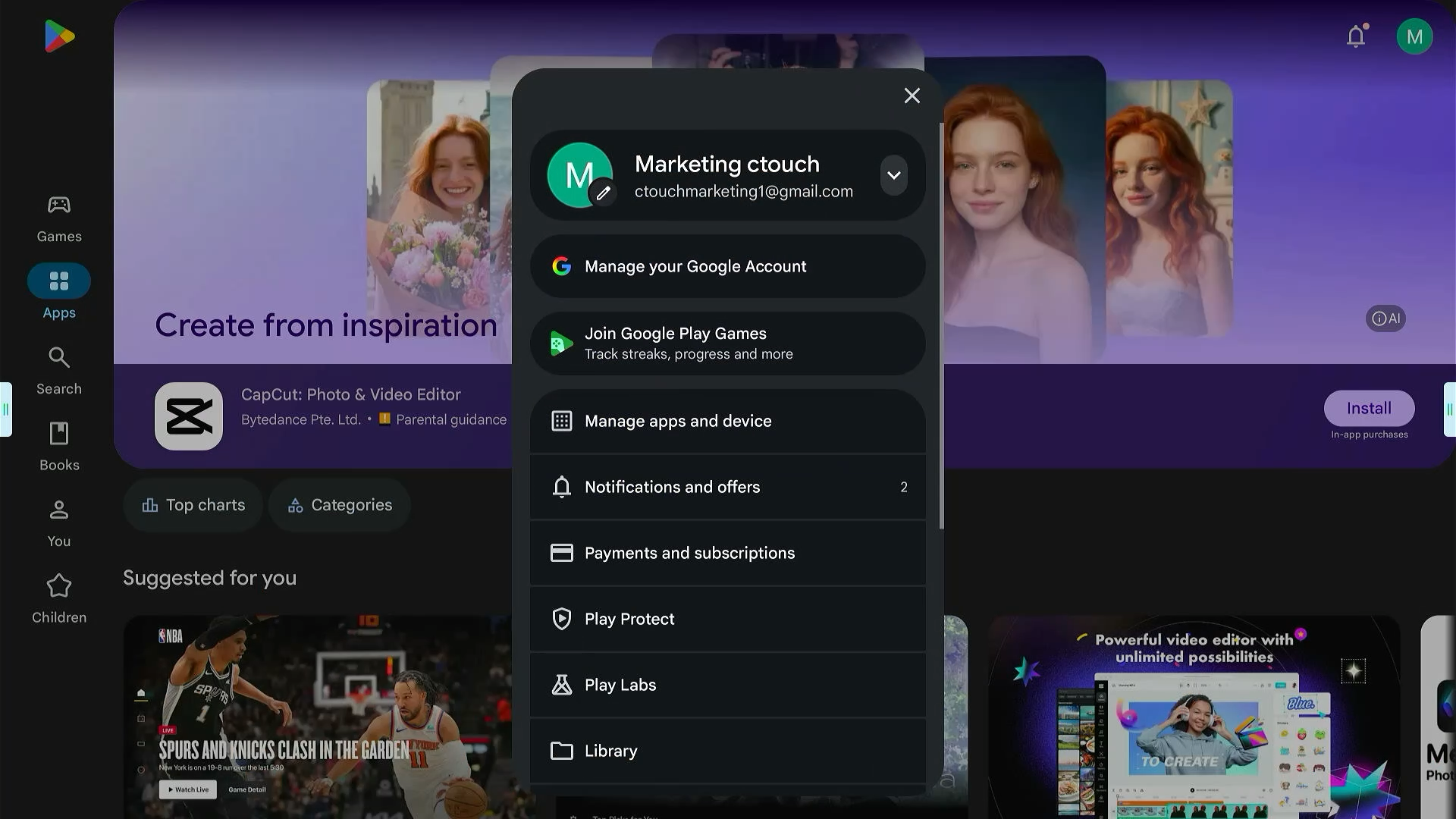
Tap on your profile icon in the top right corner.
-
Tap on manage apps and device.
-
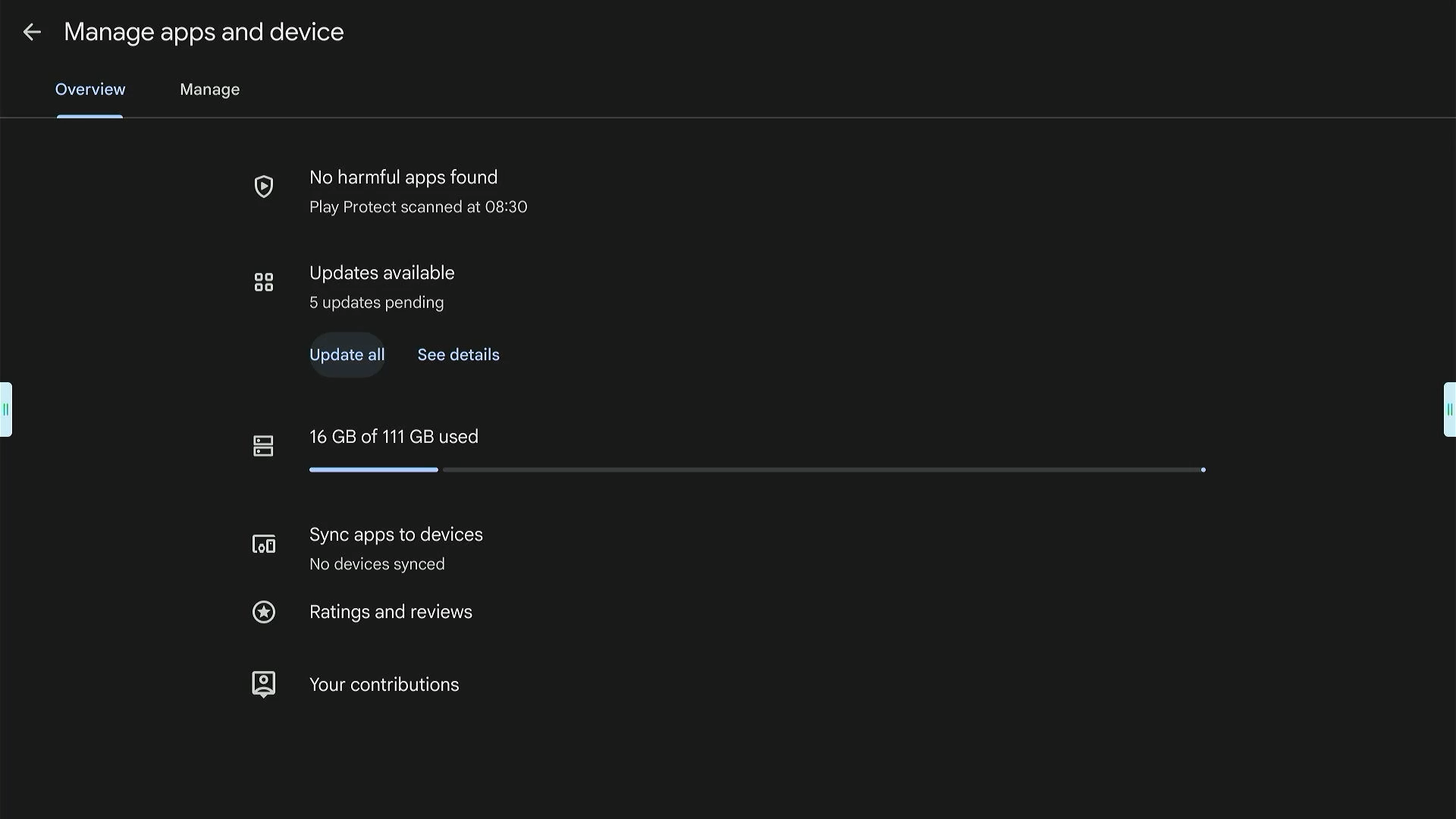
If apps can be updated it will mark this on the second row. Press on Update all.