
i3CONNECT Studio allows you to personalise your display. You can choose between predefined themes that choose the colour scheme. By the end of these instructions, you will be able to select a specific accent colour for your interface.
Before you start
-
Have your login credentials ready if you are using a personalised profile.
-
Ensure your display is running i3CONNECT Studio and not i3STUDIO. See screenshots below to ensure it looks similar in layout (background may differ).
Before you start
-
Ensure your display is running i3CONNECT Studio.
-
Note that switching between the Education and Business layouts can only be done during the initial Startup Wizard or remotely via i3CONNECT Cortex. In Cortex, navigate to the display's General > Launcher settings.
Instructions
-
Open the side menu by swiping inward from either the left or right edge of the screen, or swipe up from the bottom.
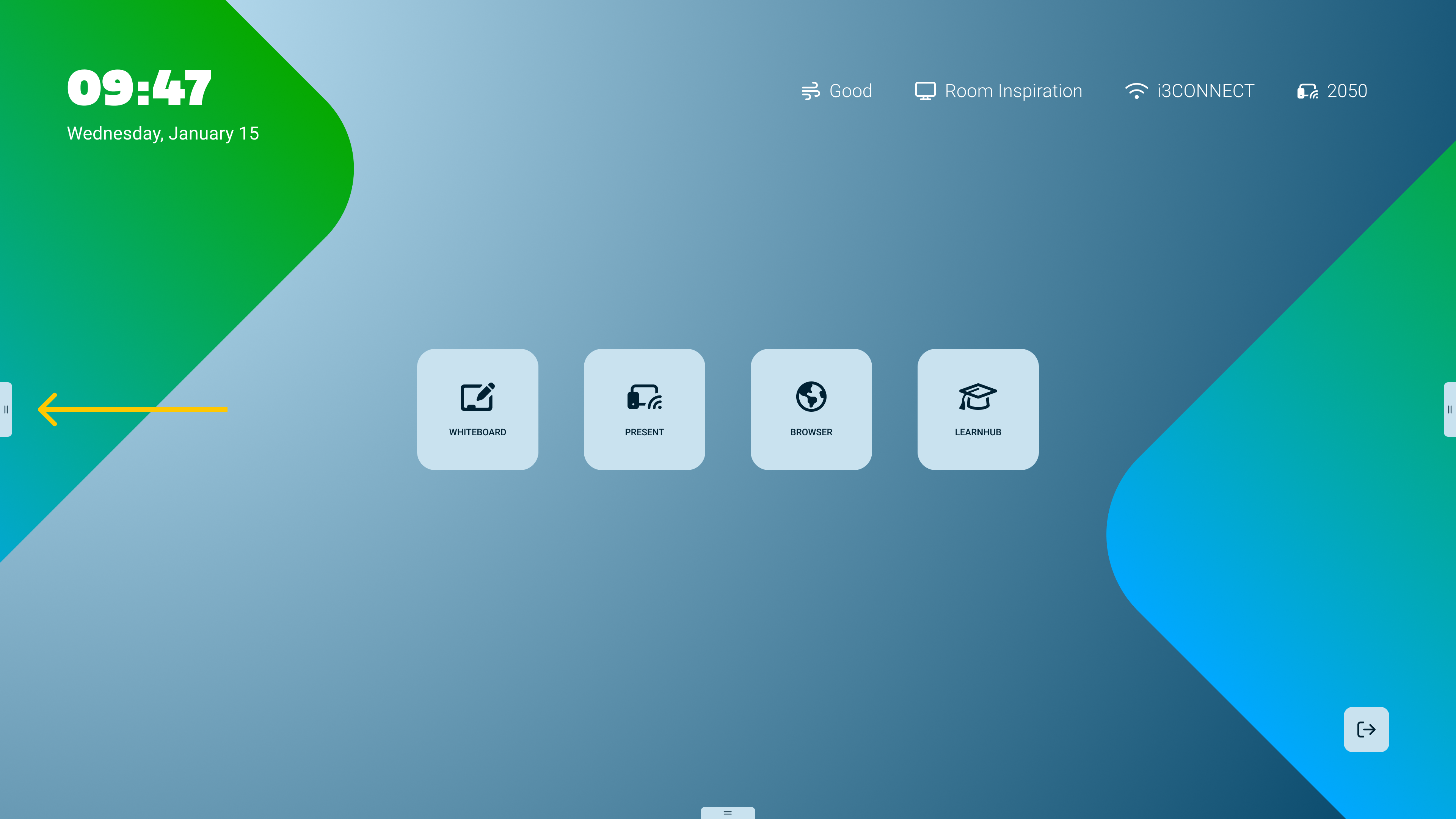
-
Tap the Cogwheel icon to open the Quick Settings menu.
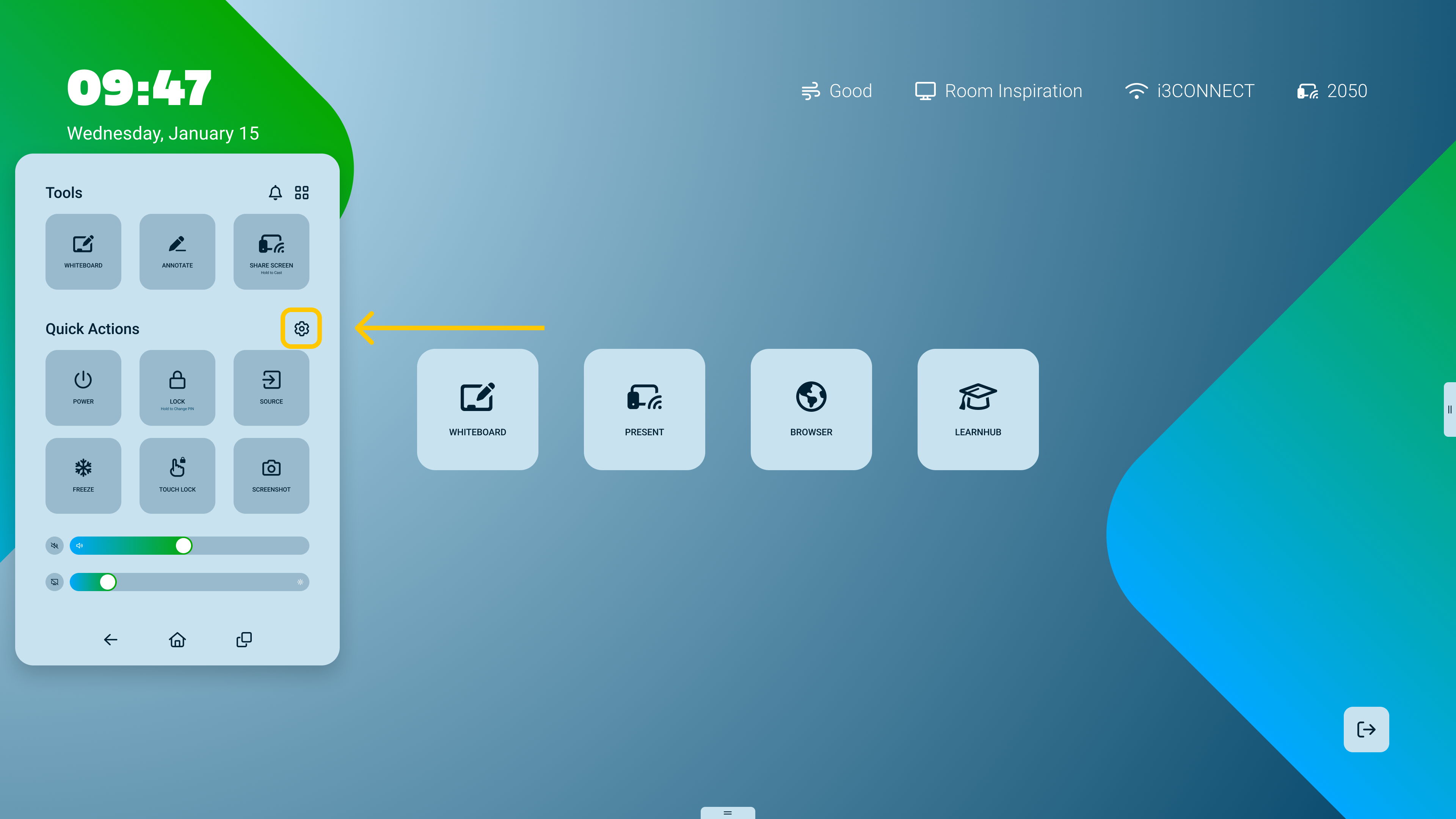
-
Select the Launcher tab, which is the first tab that appears by default.
-
Locate the Theme section at the bottom of the menu.
-
Choose your preferred accent colour:
-
Saffron Blaze: A vibrant orange.
-
Electric Aqua: A fresh green-blue.
-
Purple Nova: A deep purple.
-
-
Tap APPLY to confirm your selection.
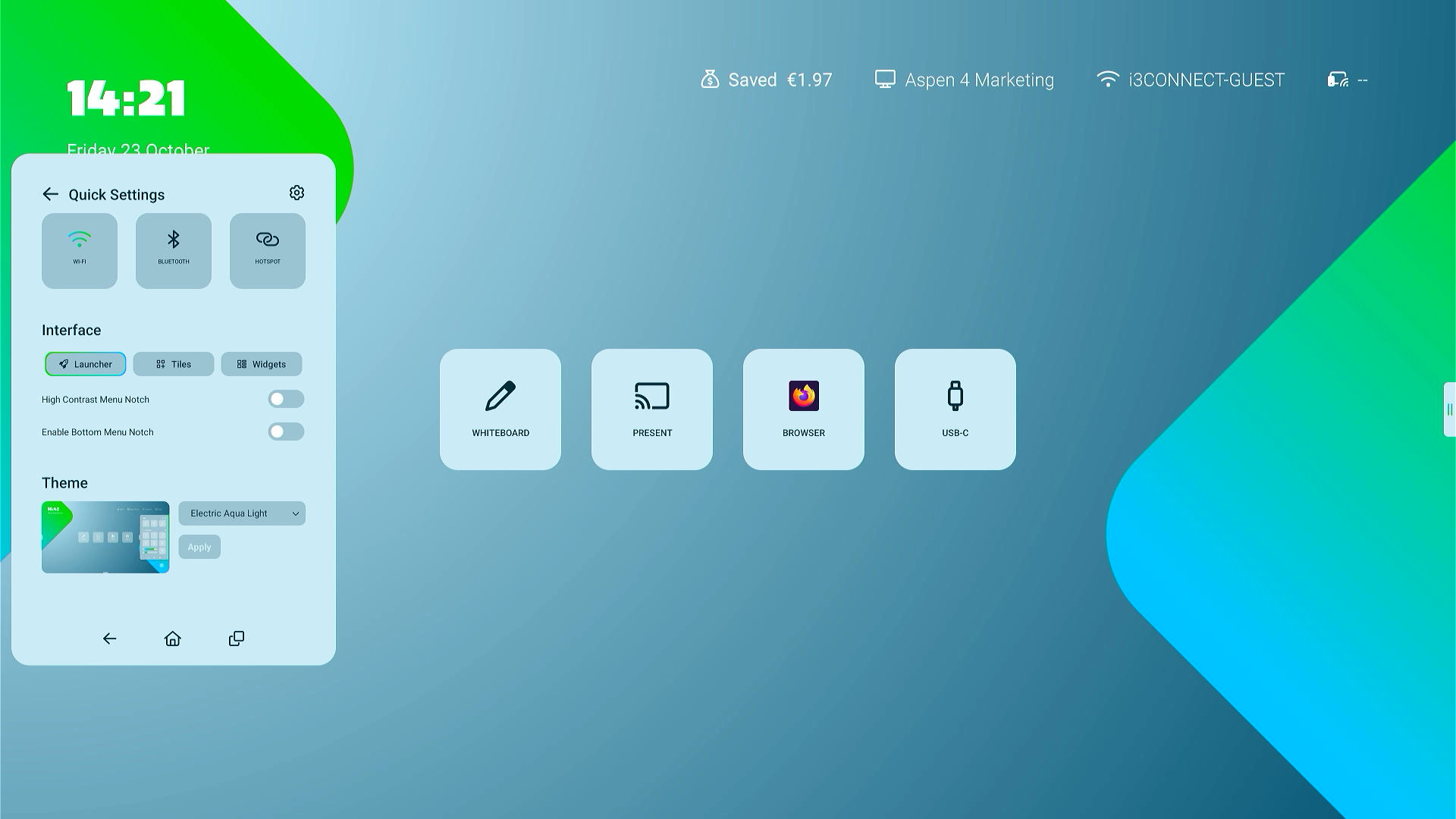
What you see on the screen
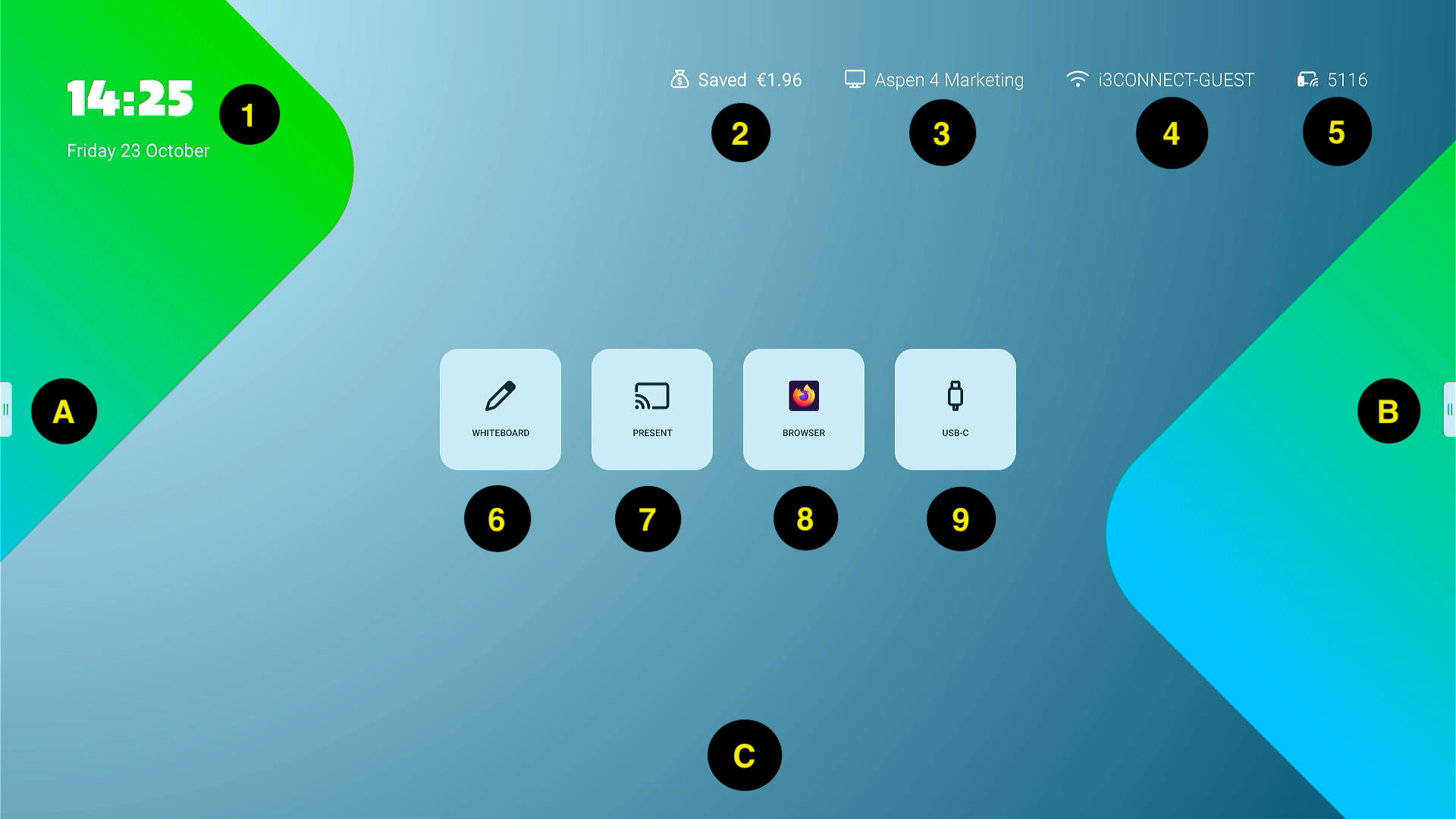
A/B/C = Location to open side-menu. C is an optional location
-
Time and date
-
Energy saved (only available on certain models e.g. Aspen 4)
-
Screen name
-
Network SSID (name)
-
AllSync (or EShare) wireless sharing code
-
Whiteboard
-
Present: can be AllSync or EShare)
-
Browser: by default Chromium
-
Other tiles e.g. a source opening button to the USB-C source.
Troubleshooting
-
Cortex Access: If you need to switch between the Business and Education layouts and do not have access to Cortex, please contact your IT department.