
This is a sub-tool of the Tool menu in i3ANNOTATE. Learn more about where to find this here:
Text tool
Whilst in the annotation tool, on the top left side you should see a menu on your screen. The fifth icon is the shape tool.
Use the text tool to type text on the canvas using the on-screen keyboard.
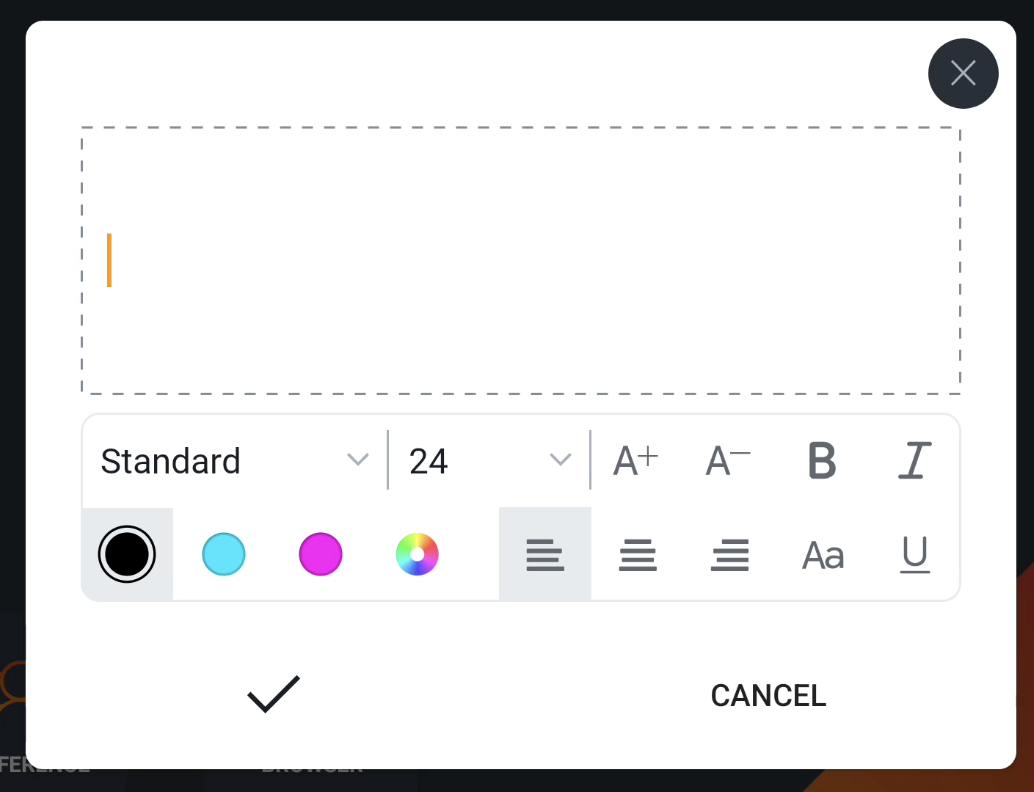
Rich text options
When you add a new text field, it’ll load a modal dialog with a rich text editor inside. This gives you the option to still edit your text afterwards. This rich text field editor allows you to:
-
Enter and/or edit text. You can do that by setting the cursor on a word to edit it or in between words to add/ delete words
-
Set the formatting of the text using one or several of these parameters:
-
Font style: choose any of the given font styles in the drop down field -
Font size: Set a given size or use the increment ( + )/ decrement icons ( - ). Alternatively, you can also resize the text field on the canvas.
-
Bold
-
Italic
-
Change the color using any of the document colors or the color picker
-
Alignment icons (left, center and right)
-
Toggle between UPPER-, lower- or Sentence-case
-
Underline
-