
i3ANNOTATE allows you to annotate over other apps and take screen captures. These screen captures can then be sent to the i3WHITEBOARD.
How to annotate
-
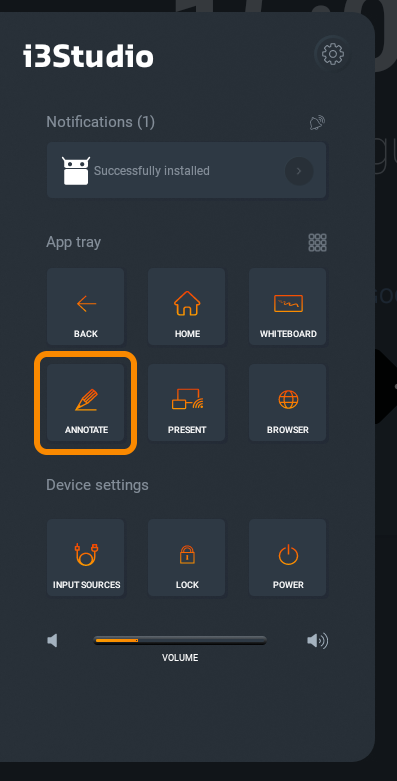
Tap on the marker on the left or right of the screen to open the side menu.
-
Tap on the annotate icon from the side menu
Quick tip! Assign the annotation or whiteboard tool to the multi-function button so you can start in one tap!
-
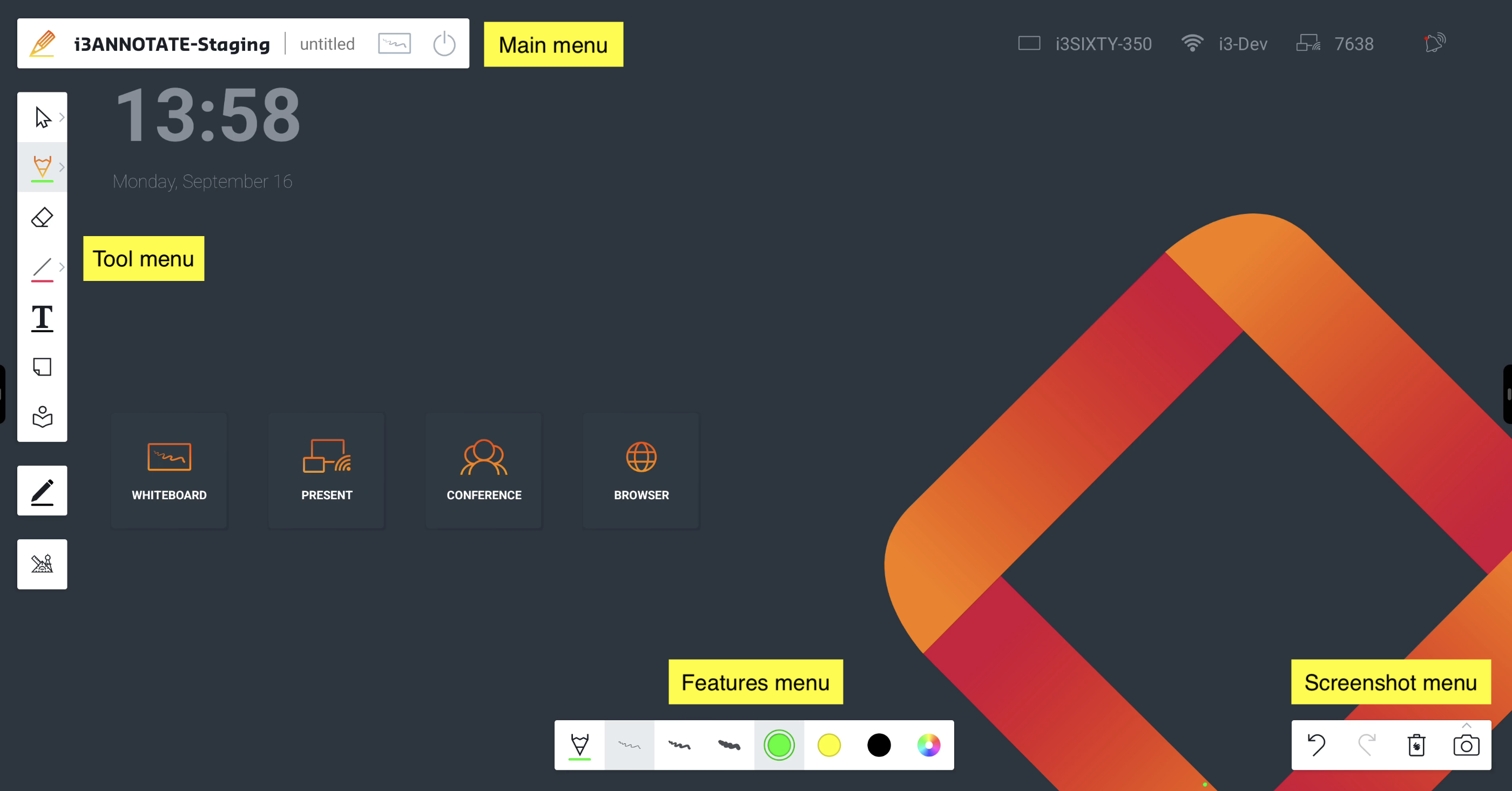
Annotation starts up. Your screen content will remain as it currently is, but you should see the whiteboard menu bars appear at the top left of the screen, as well as at the bottom of the screen
-
-
Write or draw with your pen
-
Move around the canvas, or drag post-its with your finger
-
Erase big areas by wiping across the screen with your palm
-
-
Assign different tools to your pen and finger.
-
Pen: write in blue
-
Finger: pan or select or write in red
-
-
Save your work:
-
Take a screenshot to capture annotations
-
Or send your notes to Whiteboard for more editing and sharing
-
Troubleshooting
Nothing appears on screen
It may look that way, but check that the whiteboard menu’s haven’t already appeared in the top left of the screen. If you only see a circle ball in the top left, then press on that to show the menus.
Pen or finger is not doing what you expected
Using your pen, tap on the tool you wish to assign to your pen. Then try it out on the whiteboard. Repeat the process for your finger by using your finger to tap on another tool (we recommend the select tool or the erase tool).
You need notes saved inside a file
Use the app’s built-in tools if they exist (for example PowerPoint’s pen tools or a PDF annotation app). However, not every app has these annotation tools included.