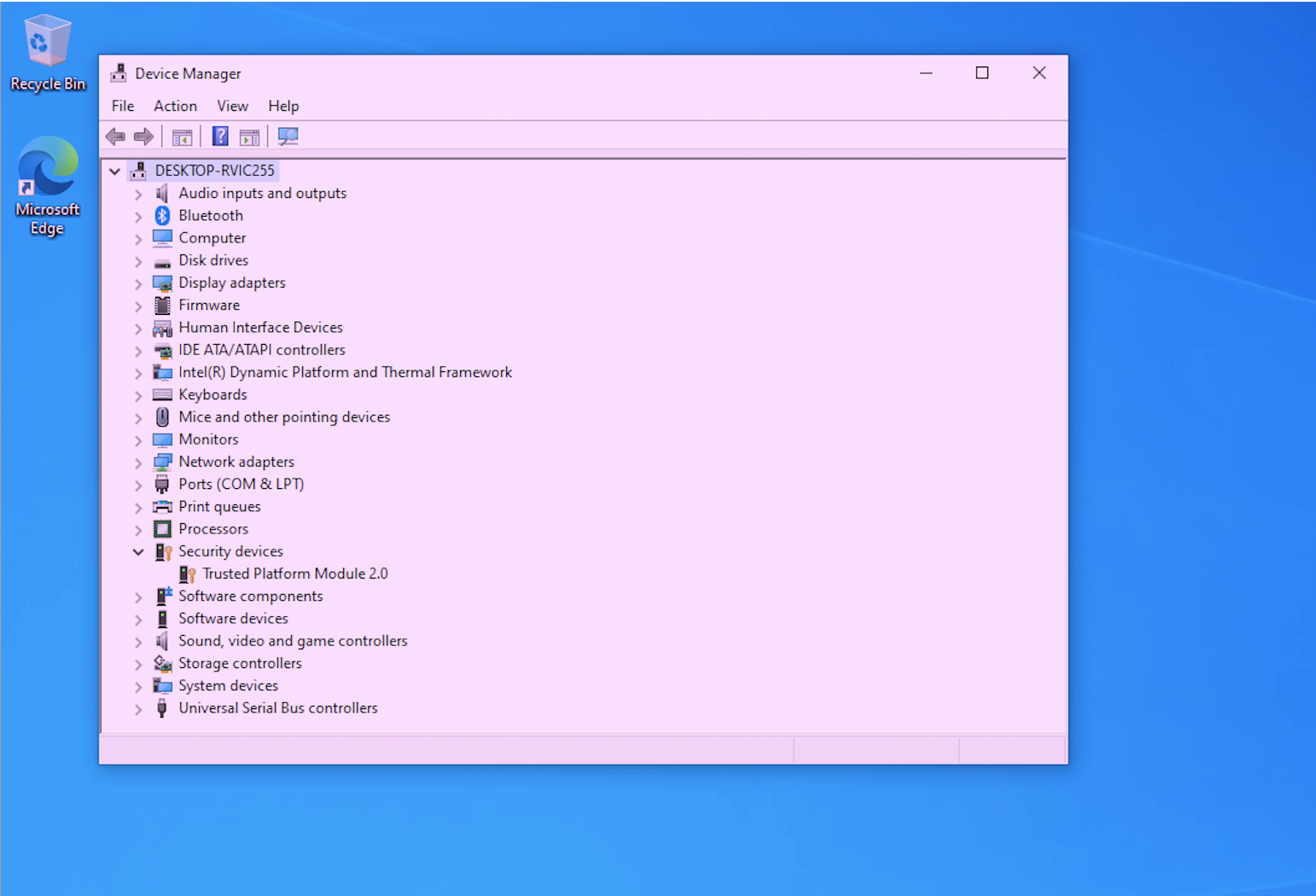
In case there is no support for TPM 2.0 in your BIOS please check if there is an update available for your model in this article: Which CTOUCH OPS supports Windows 11
Instructions
After updating your BIOS note that you must enable TPM in your settings in order to use it:
-
Restart Windows in case your already booted the OPS PC and press DEL key to enter the BIOS setup
-
Navigate with the arrow keys to [Advanced] tab en press Enter button to select.
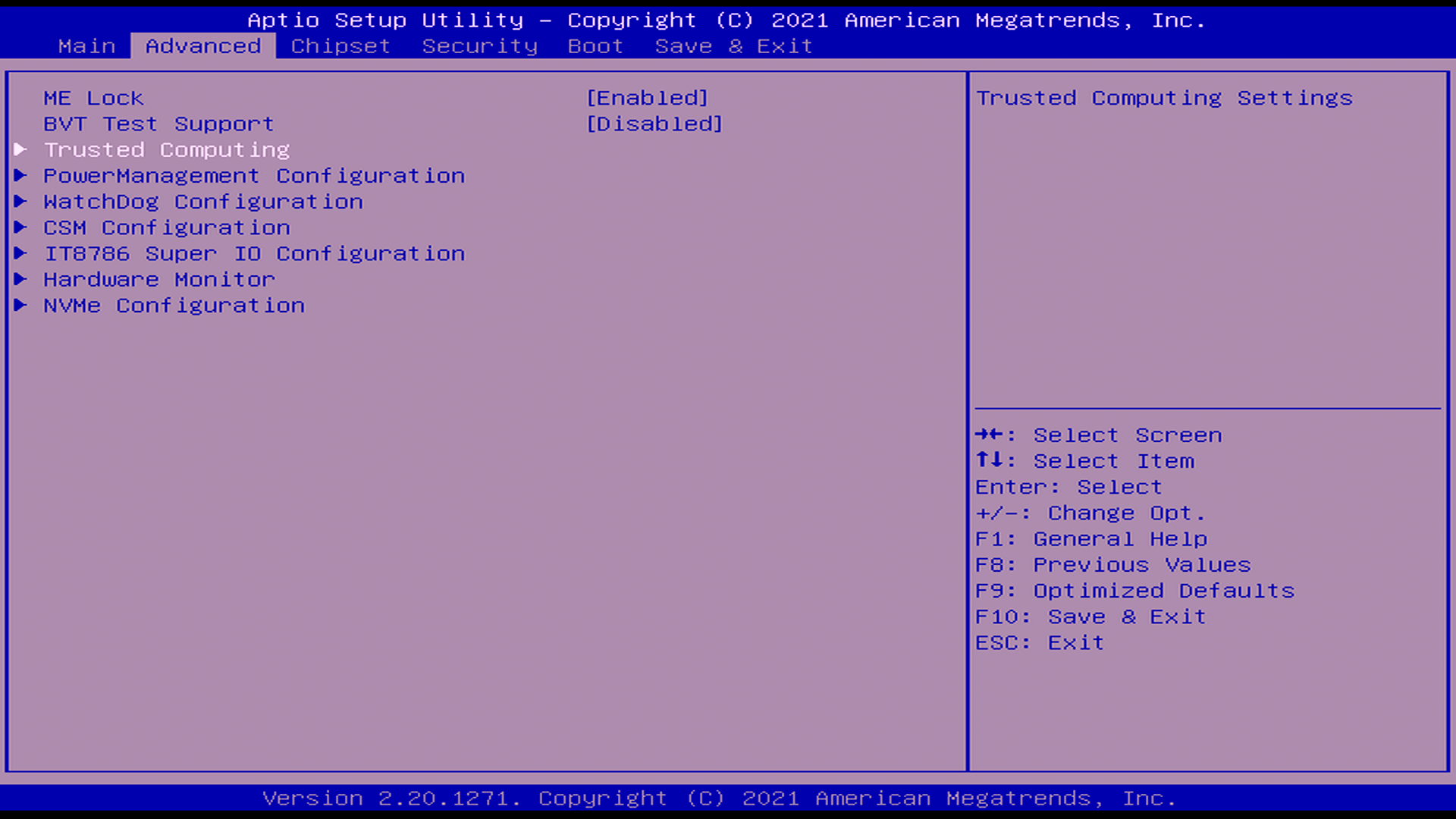
-
Depending on the exact model you can now either Select Enable or TPM 2.0 using the arrow keys.
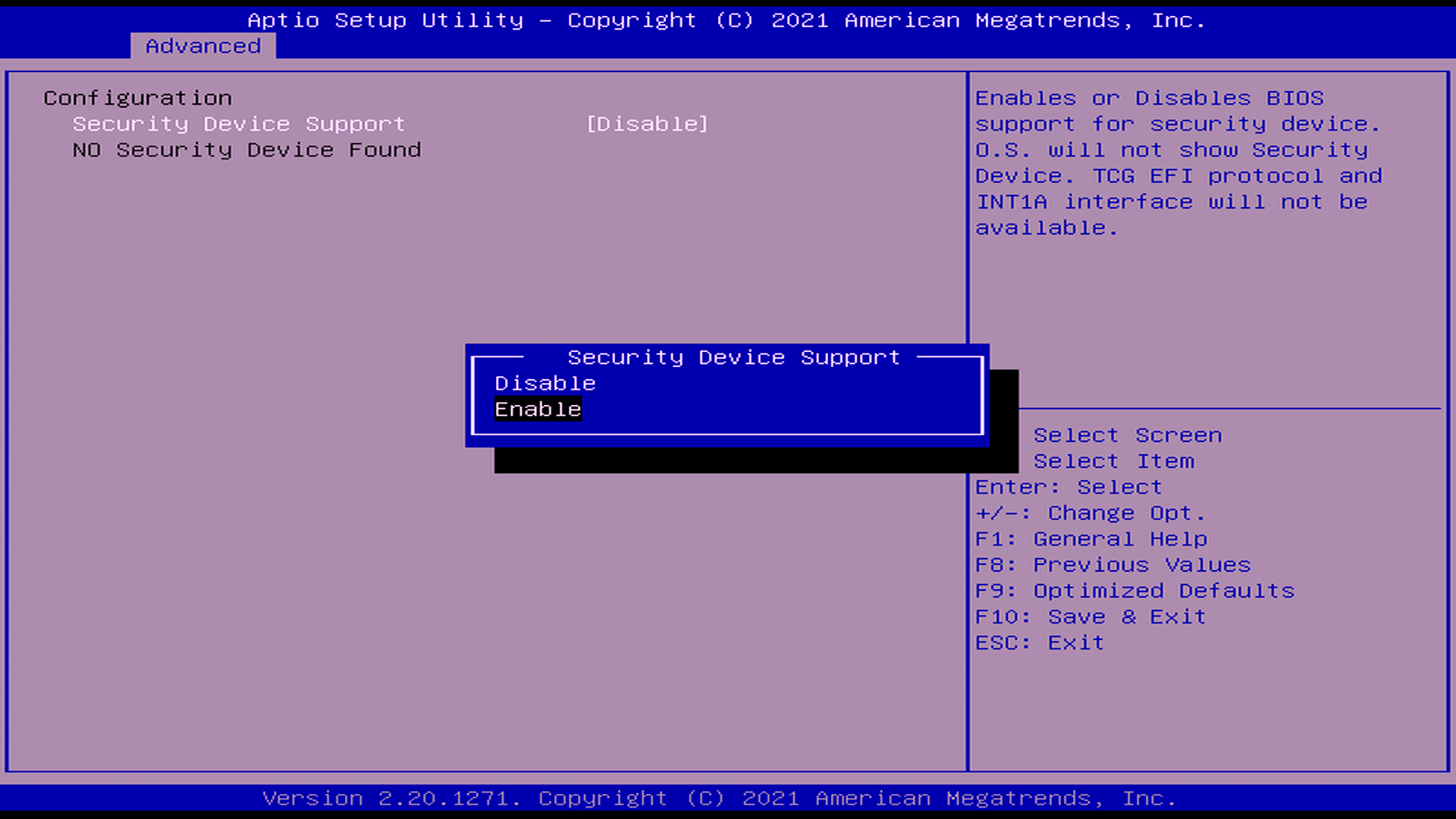
-
Press F10 key to save and Exit
-
Windows will restart now and TPM 2.0 should pop op in the device manager under Security Devices.