
Need to reset an app that’s acting up or running slow on your i3SIXTY 3? Clearing the cache and data can give it a fresh start—no tech wizardry required. This guide is for anyone using i3SIXTY 3 who wants to quickly resolve app glitches or free up space. If you’re troubleshooting system-wide issues or hardware problems, check out our broader troubleshooting articles instead.
By the end of these steps, your chosen app will be reset to its original state, and you should be able to launch it as if it were just installed. If the app still misbehaves after following these steps, contact i3CONNECT support for further help.
Before you start
-
Make sure you know which app you want to reset.
-
Be aware: clearing data will remove all app settings and saved information for that app.
Instructions
-
Open “Android settings” from your i3SIXTY 3 home screen.
-
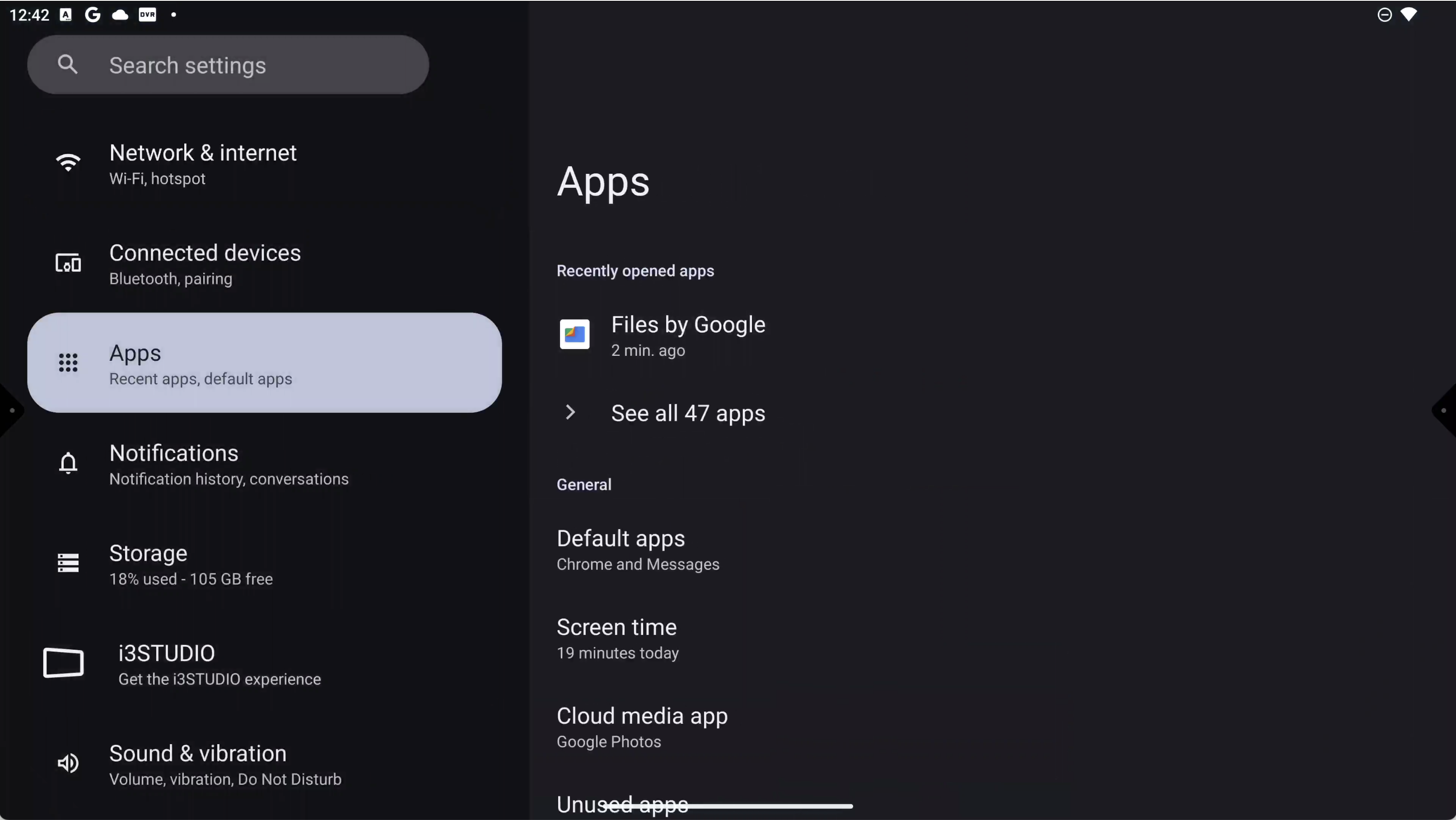
Tap “Apps” to view your installed applications.
-
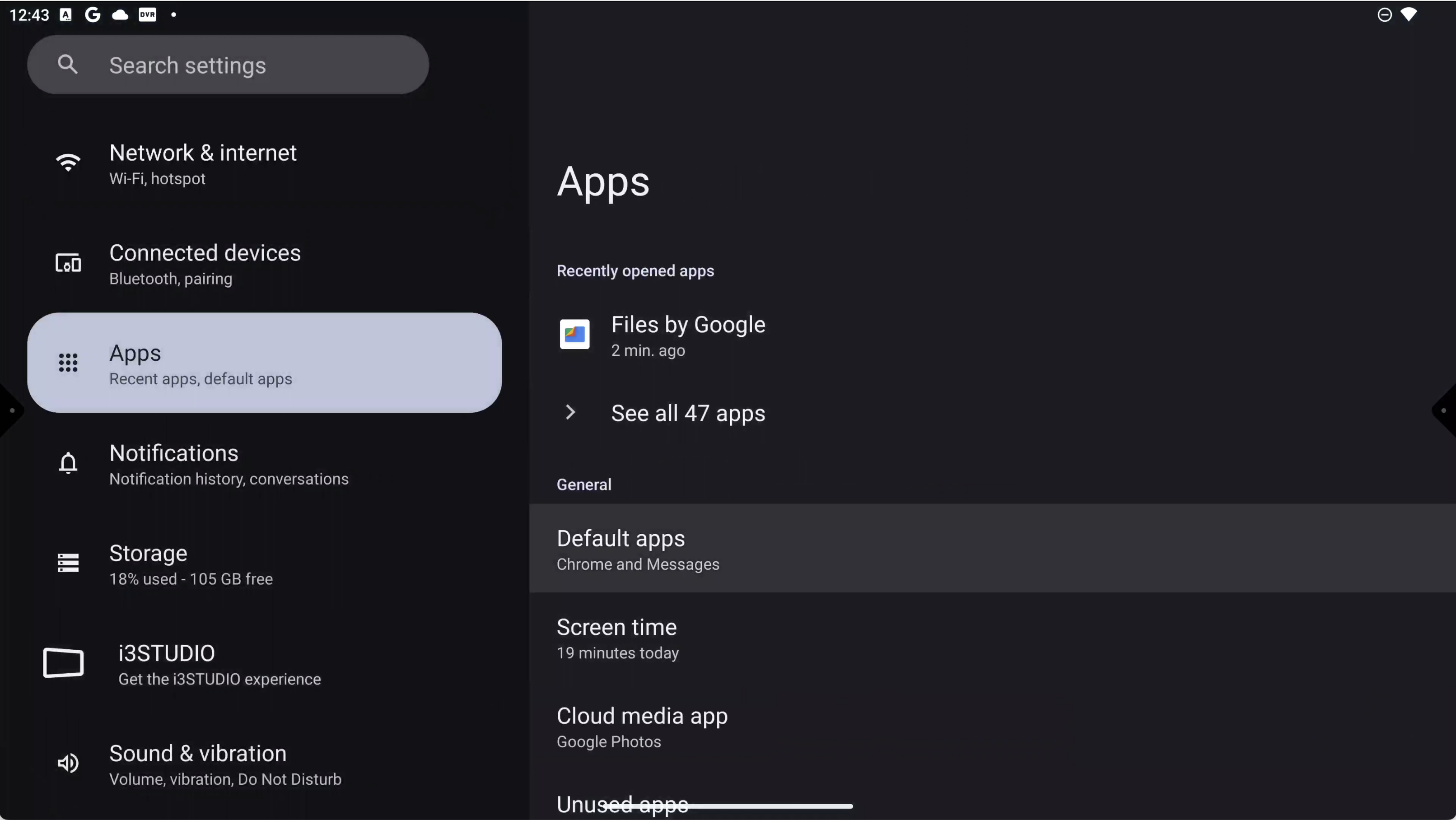
Select “See all apps” to display the full list.
-
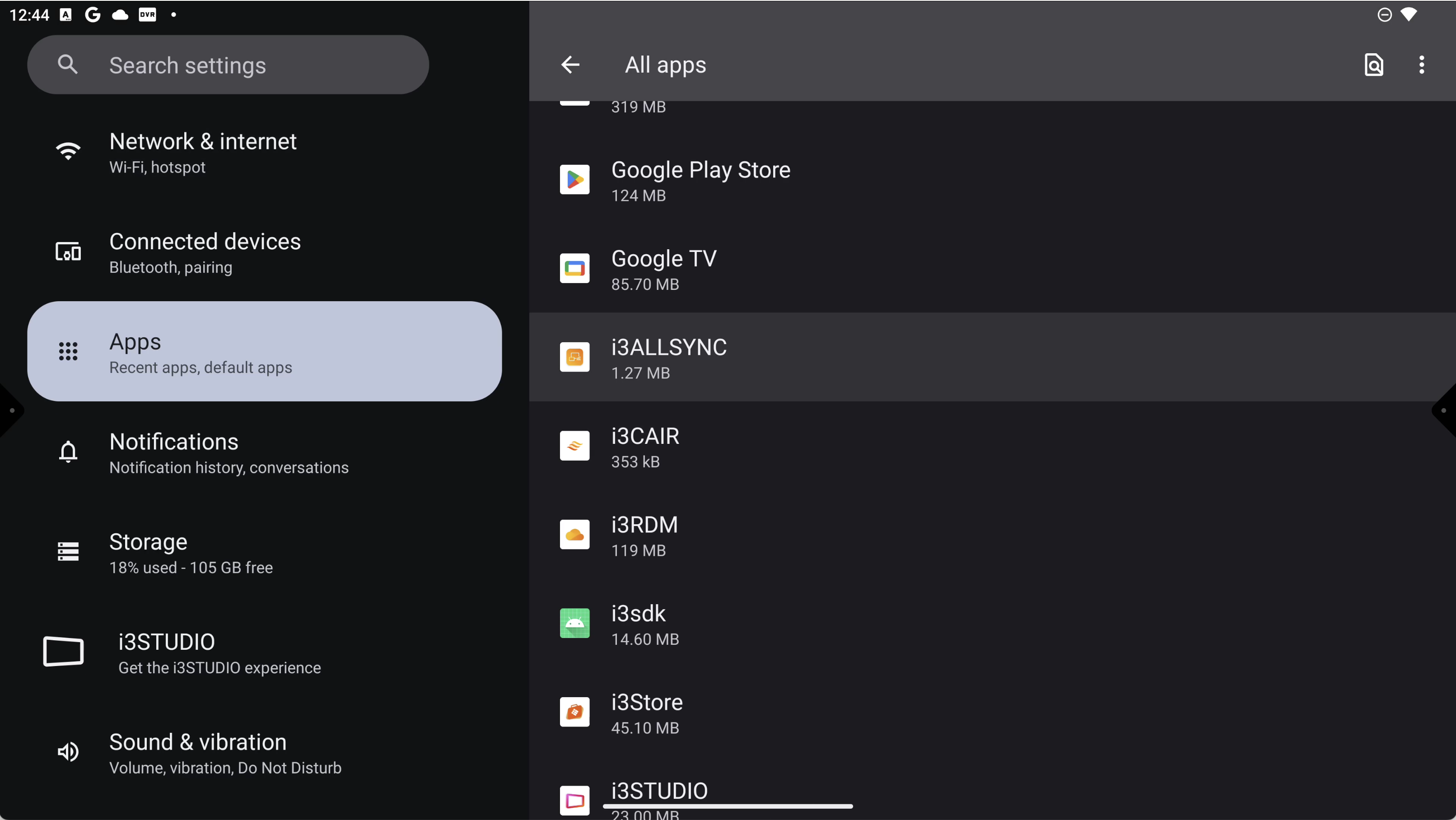
Find and tap the app you want to reset (for example, AllSync).
-
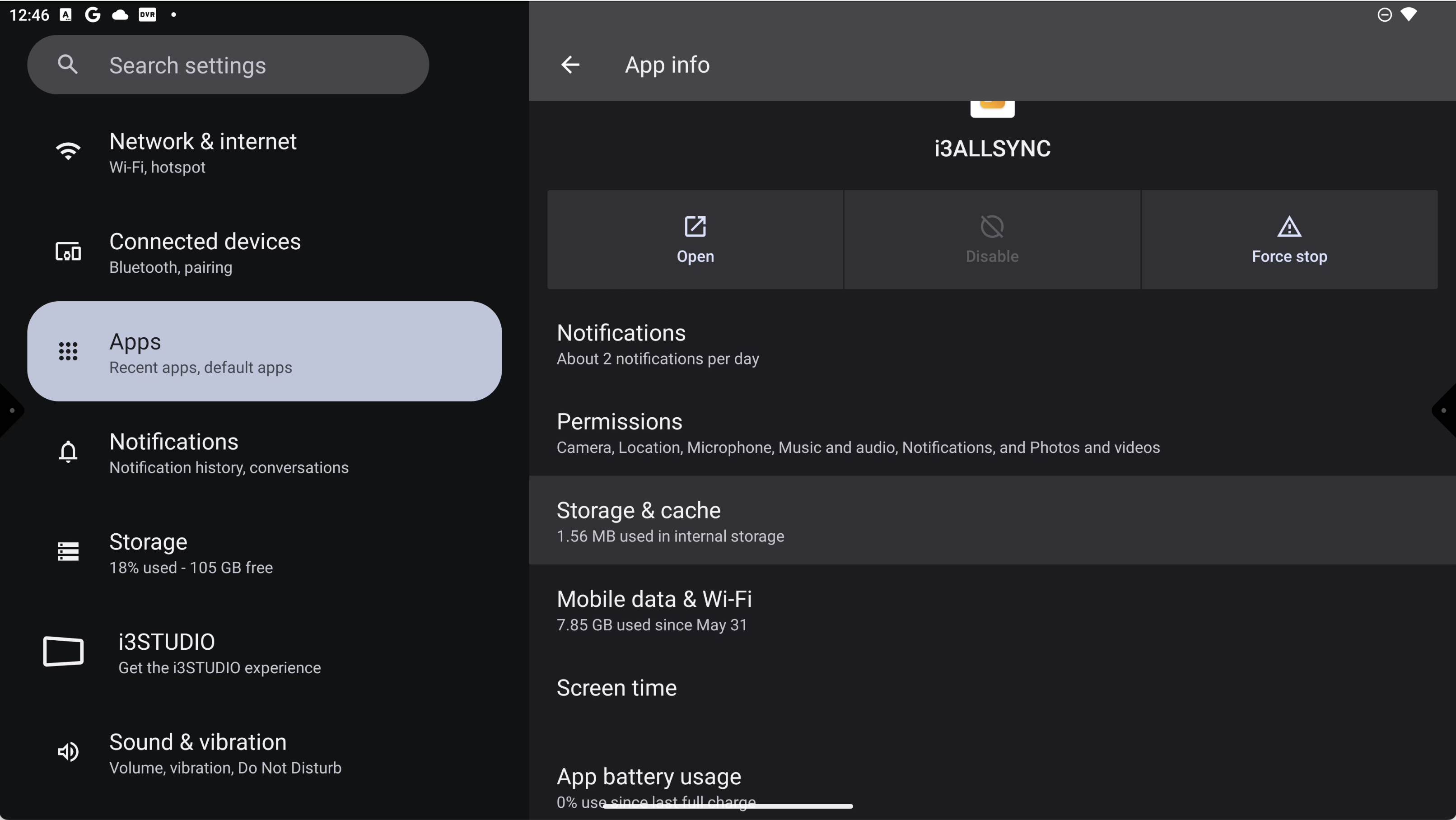
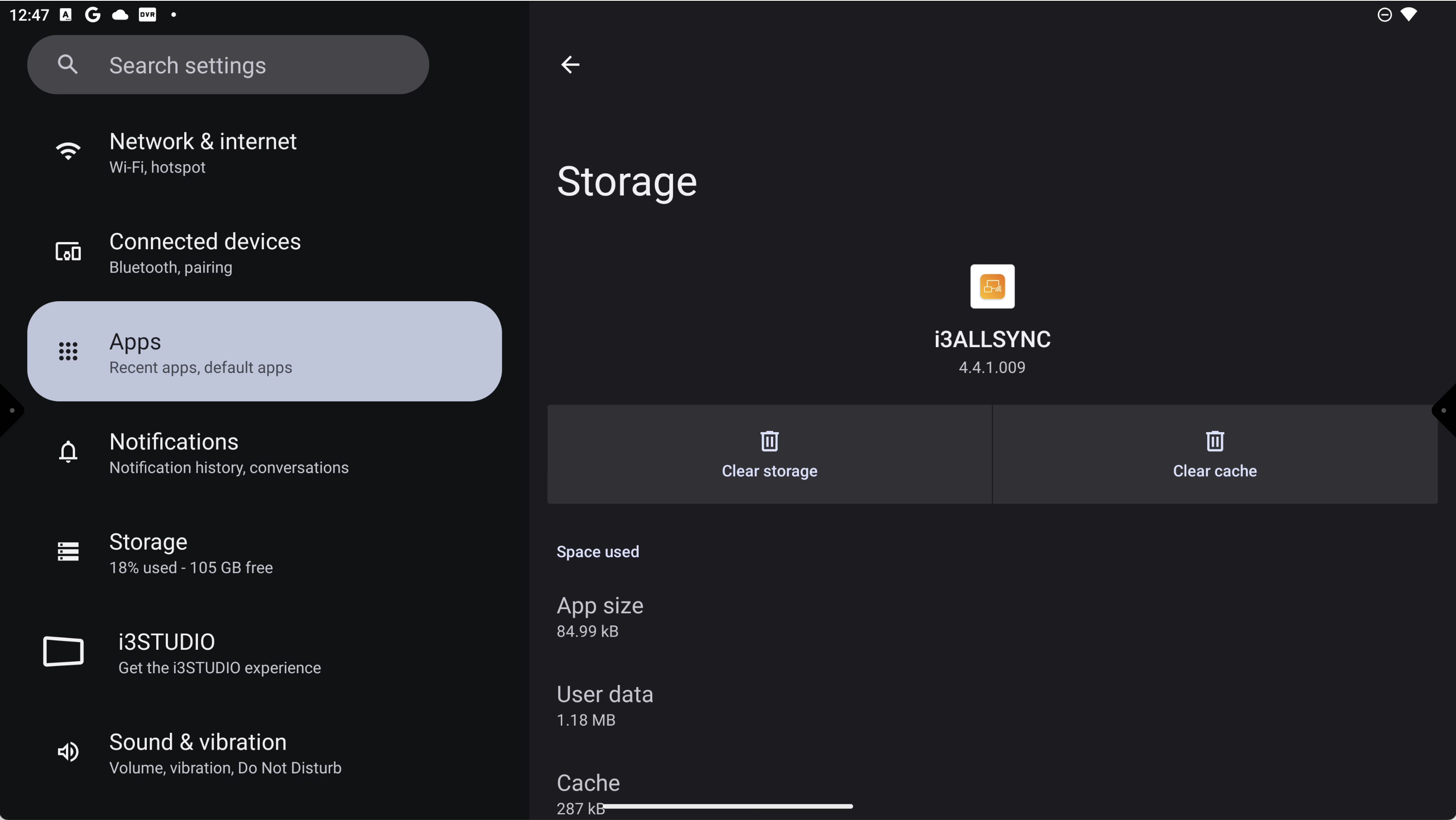
Tap “Storage & cache”.
-
Tap “Clear cache” to remove temporary files.
-
Tap “Clear storage” to reset the app completely.
-
Exit settings and relaunch the app to check if the issue is resolved.
Troubleshooting
If the app still doesn’t work as expected after clearing cache and data:
-
Double-check you selected the correct app.
-
Restart your i3SIXTY 3 and try again.
-
If problems persist, the issue may be with the app itself or the device firmware. Reach out to i3CONNECT support for advanced troubleshooting.