
Stay up to date with the latest features, security patches, and performance improvements by checking for OTA system firmware updates on your i3SIXTY 3 interactive display. This guide is for anyone responsible for maintaining i3SIXTY 3 devices in classrooms, meeting rooms, or shared spaces. If your device is managed remotely via i3CONNECT Cortex, check with your IT administrator before performing manual updates.
By the end of these steps, you’ll know how to check for and identify available firmware updates. If no update appears or you encounter errors, see the troubleshooting section below.
Video Instructions
Instructions
-
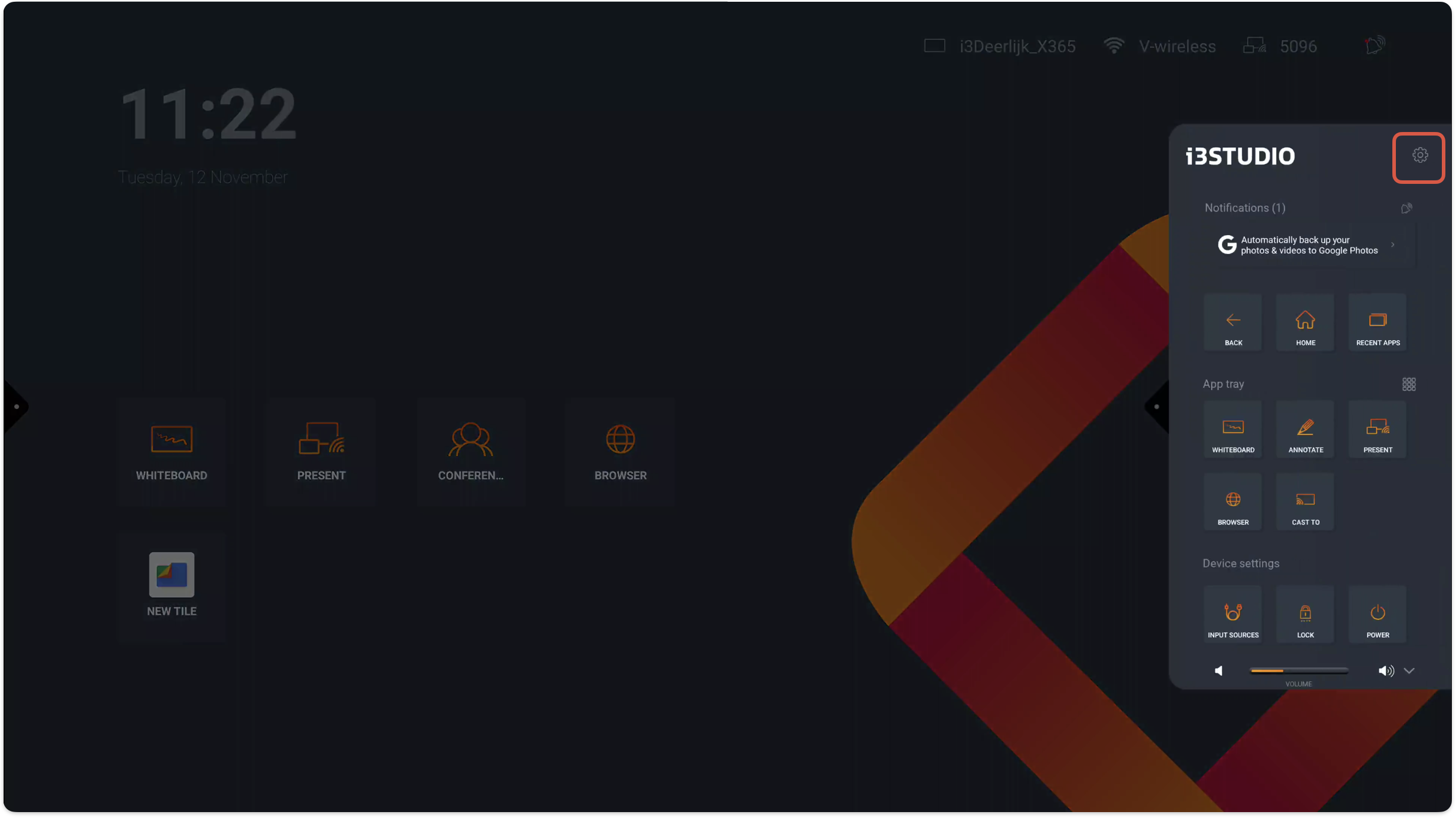
Open the Android settings by selecting the side menu, then tap the Settings cogwheel, and choose Android.
-
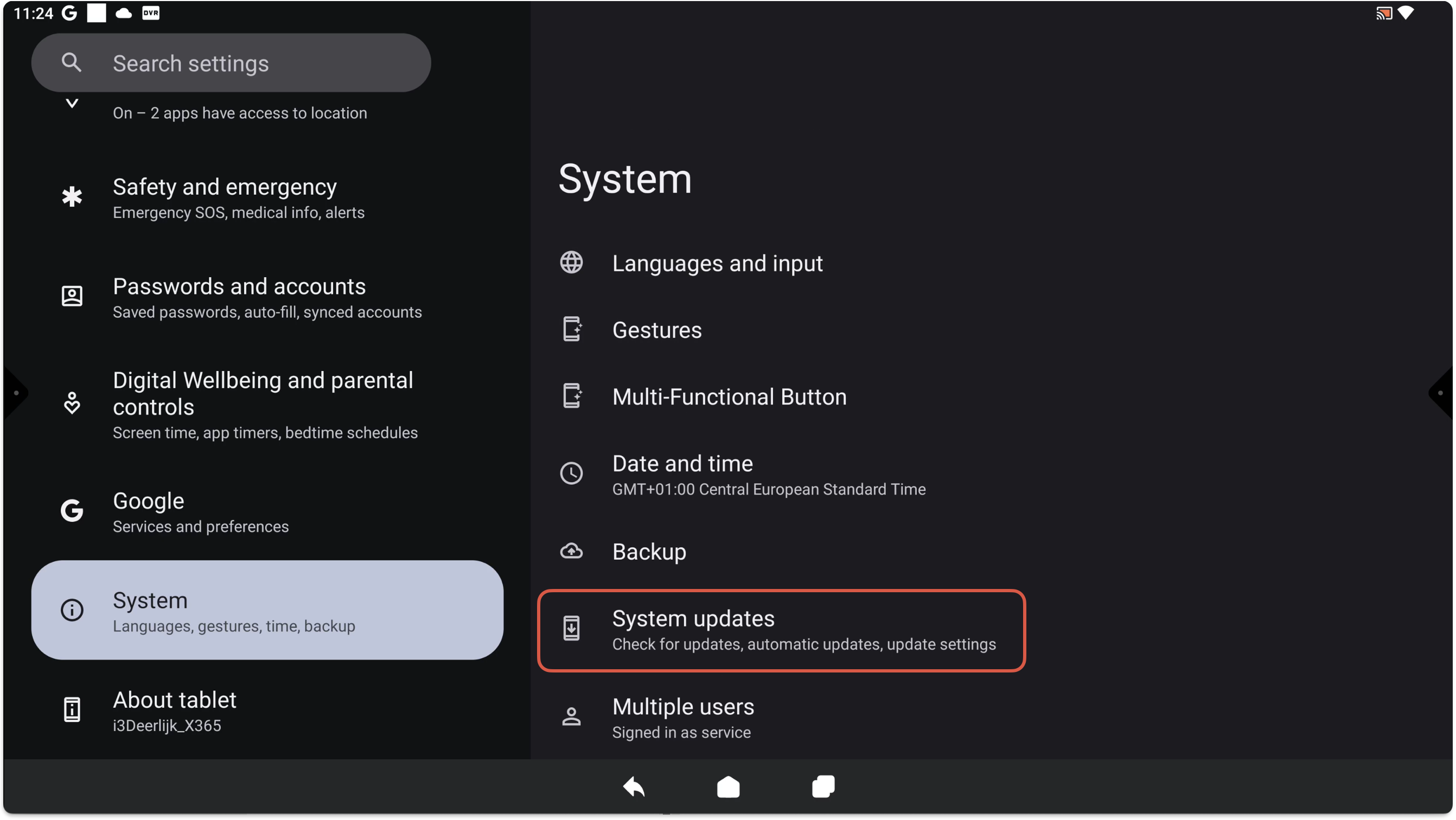
Go to System and select System updates.
-
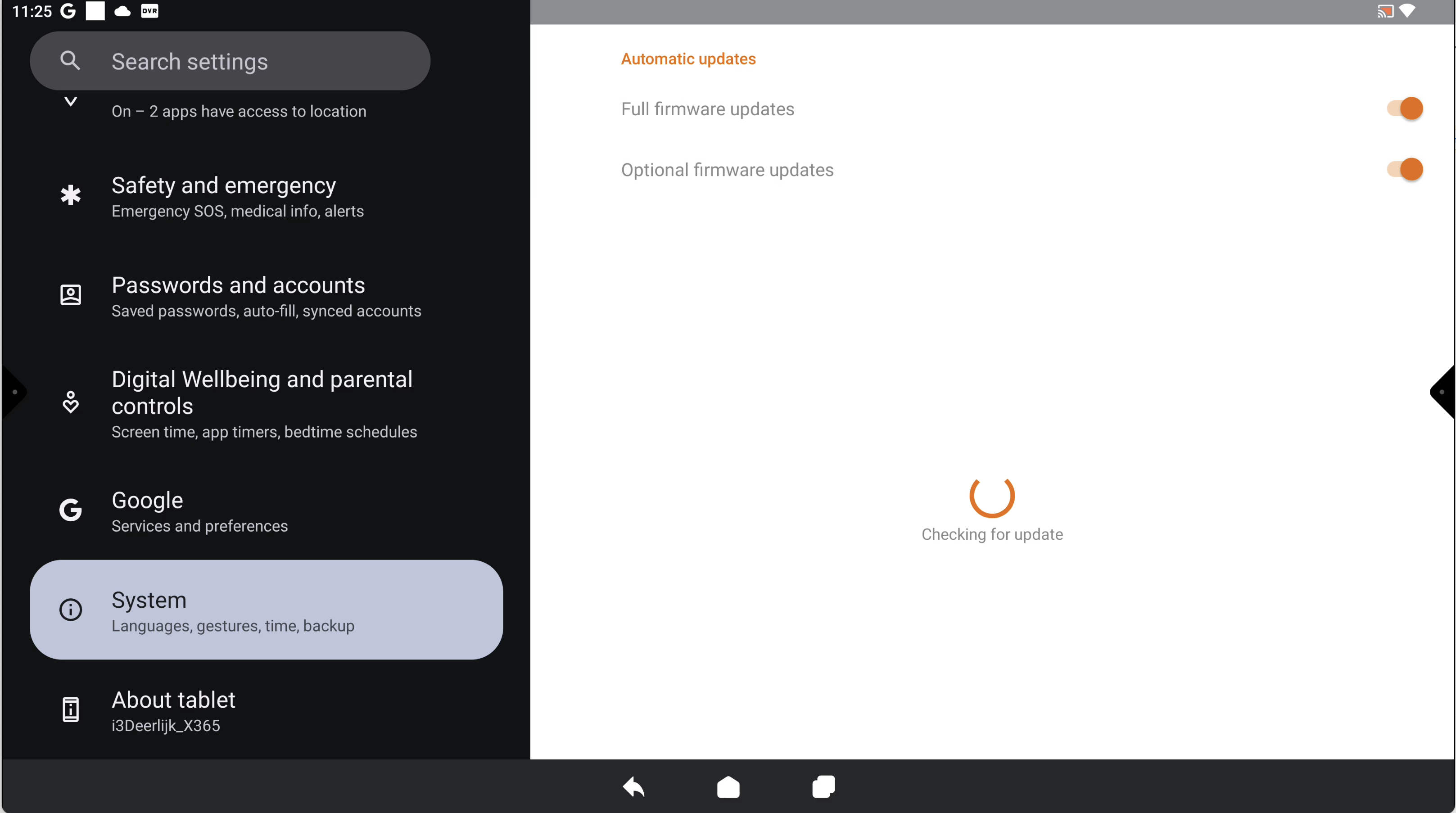
If a firmware update is available, it will be displayed on this screen. Follow the on-screen prompts to proceed.
Troubleshooting
-
If no update is shown but you believe one should be available, ensure your i3SIXTY 3 is connected to the internet.
-
If you see an error or the update fails, restart your device and try again.
-
For devices managed by IT, updates may be controlled remotely—contact your administrator if you cannot access updates.
-
If issues persist, contact i3CONNECT support for further assistance.