
If your EDLA OPS isn’t playing sound or picking up your microphone when starting a conference in Google Meet or Microsoft Teams, you’re not alone. This article helps you quickly adjust the right settings so you can be heard and hear others in your meetings.
This guide is for anyone using the EDLA OPS with conferencing apps. If you’re using a different OPS or a Windows-based module, please refer to the relevant support articles for your device.
By following these steps, your sound and microphone should work in your conference app. If you still have issues after completing the steps, see the troubleshooting section below.
Before You Start
-
Make sure you are using the EDLA OPS.
-
Confirm your conferencing app (Google Meet or Microsoft Teams) is up to date.
Instructions
For Google Meet
-
Start your conference in Google Meet.
-
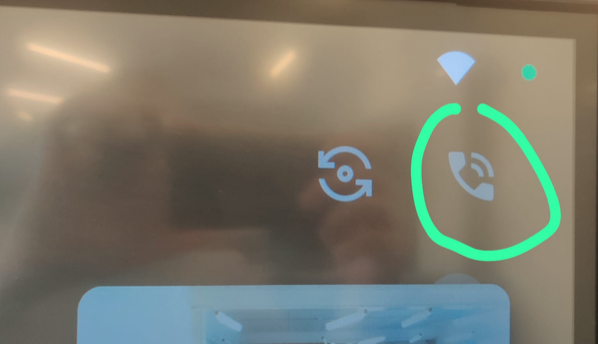
Tap the “Phone” icon in the meeting controls.
-
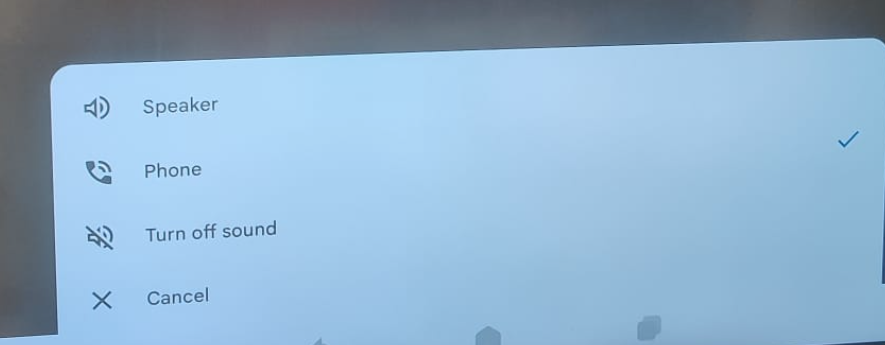
Select “Phone” as the audio source.
-
This routes audio and microphone through the correct device.
-
For Microsoft Teams
-
Start your conference in Microsoft Teams.
-
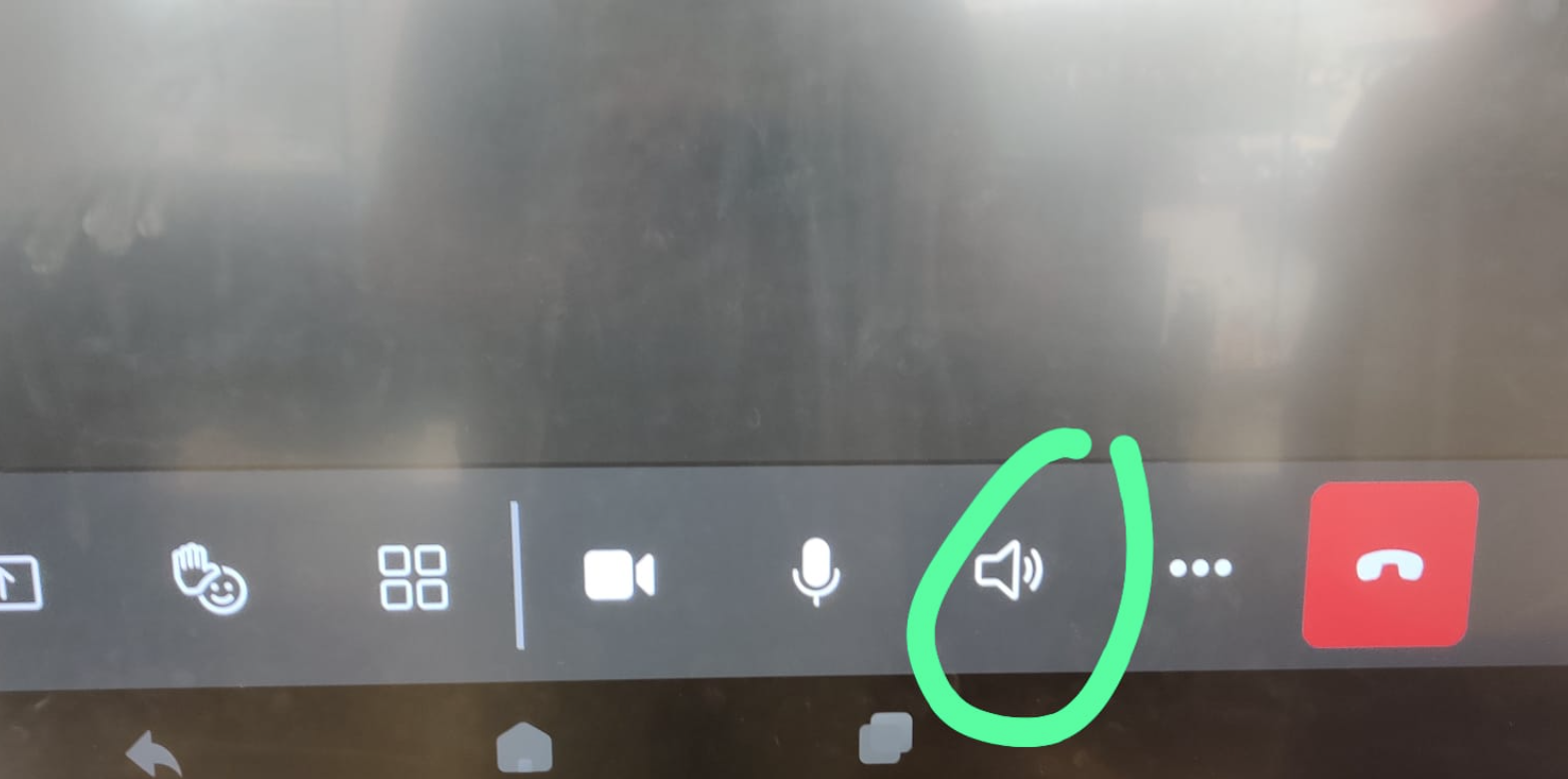
Tap the “Phone” icon in the meeting controls.
-
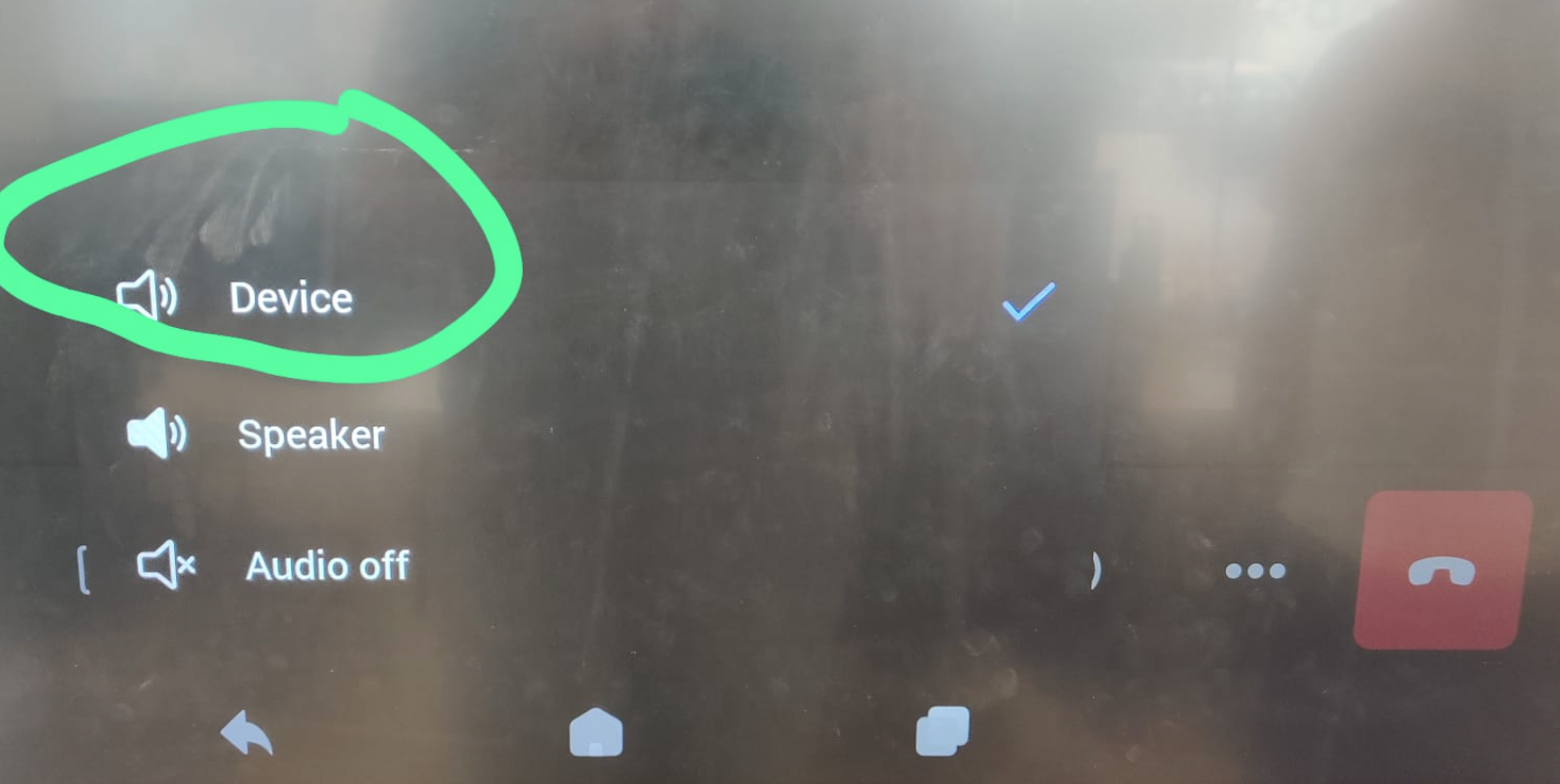
Select “Device” as the audio source.
-
This ensures Teams uses the OPS’s built-in audio and microphone.
-
If you see an audio device selection pop-up, always choose the option that matches your OPS or “Device.”
Troubleshooting
-
If you still don’t hear sound or your microphone isn’t working after following these steps, restart your EDLA OPS and try again.
-
Make sure your display’s volume is turned up and not muted.
-
If the issue persists, check if other apps have sound or microphone access. If not, your OPS may need a system update or further support.
-
For persistent issues, contact i3CONNECT support with your device details and a description of the problem.