
Need to reset your OPS computer to its original state? This guide walks you through a factory reset using Windows tools. In the Android settings of the display, there is a setting that is configured by default to turn off the OPS by itself. This manual explains how to disable this setting.
Do not use these steps if you only want to remove a single user account or app. Refer to user or app removal instructions instead.
Before you start
-
Back up any important files. This process will erase all data on the OPS computer.
-
Make sure the OPS computer is inserted in the display
-
Make sure the display is connected to power and powered on
Instructions
-
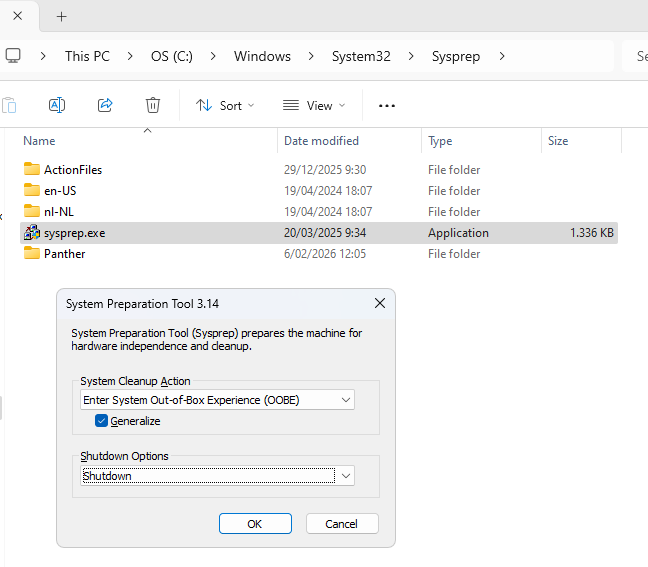
Open File Explorer on the i3CONNECT OPS and go to C:\Windows\System32\Sysprep.
-
Double-click sysprep.exe to launch the System Preparation Tool.
-
In the Sysprep window, select the following options:
-
System Cleanup Action: Choose “Enter System Out-of-Box Experience (OOBE)”
-
Shutdown Options: Choose “Shutdown”
-
Check the box for “Generalize”
-
-
Click OK to start the reset process. The OPS computer will shut down when finished.
-
Power on the OPS computer. It will start as if it’s brand new, ready for setup.
Do not interrupt the process once it is started.
Troubleshooting
-
If Sysprep fails or shows an error, make sure all Windows updates are installed and no apps are running in the background.
-
If the OPS computer does not restart or gets stuck, hold the power button for 10 seconds to force a shutdown, then try again.
-
For persistent issues, contact i3CONNECT support.