
If your i3TOUCH X2 display isn’t responding to touch as expected, this guide will help you run a touch test to diagnose the issue. Use this article if you notice missed touches, erratic touch behavior, or need to confirm the display’s touch accuracy for support or warranty purposes. This guide is intended for IT staff, installers, or anyone troubleshooting touch issues. Do not use this test if your display has visible physical damage—contact support directly in those cases.
Expected outcome: By the end, you’ll know if your i3TOUCH X2’s touch system passes or fails the test. If the test fails, you’ll have the evidence needed to share with support.
If the test software does not run, or you cannot connect your computer, please contact i3CONNECT support.
Before you start
-
You’ll need a Windows 10 or 11 computer with USB and HDMI ports.
-
Download the IRTouchTestApp.exe from the link below.
-
Have a phone or camera ready to record your results.
Instructions
-
Connect your Windows computer to the i3TOUCH X2 using both USB (to the TOUCH OUT port for touch) and HDMI (for video). Make sure they are in the correctly matching ports. Refer to the documentation of the product if you are unsure.
-
If you do not do this you will see this error message:
-
-
Download and open the IRTouchTestApp.exe from here:
20211222.IRTestApp.MinGW_32.V10111-V0003.zip -
Launch the test application to enter the testing interface.
-
Do not touch the display during the test.
Touching the screen during the test may cause inaccurate results.
-
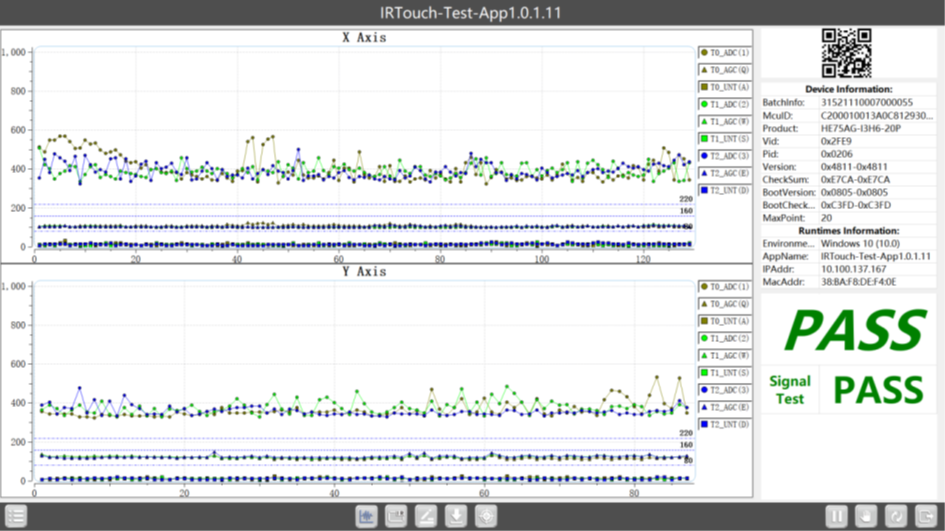
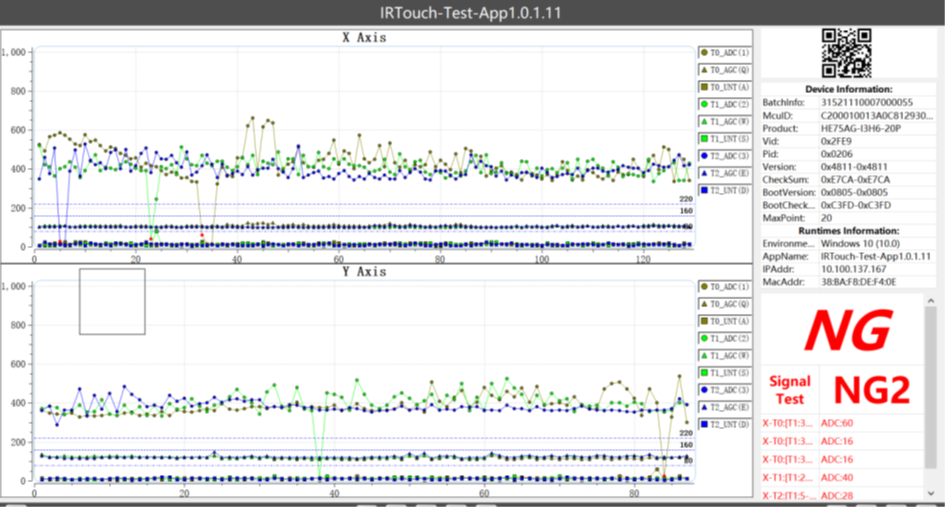
Wait for the test to complete. The result will show as ‘PASS’ (touch is working) or ‘NG’ (touch issue detected).
|
PASS (Touch is working) |
NG (No go - touch issue detected) |
|---|---|
|
|
-
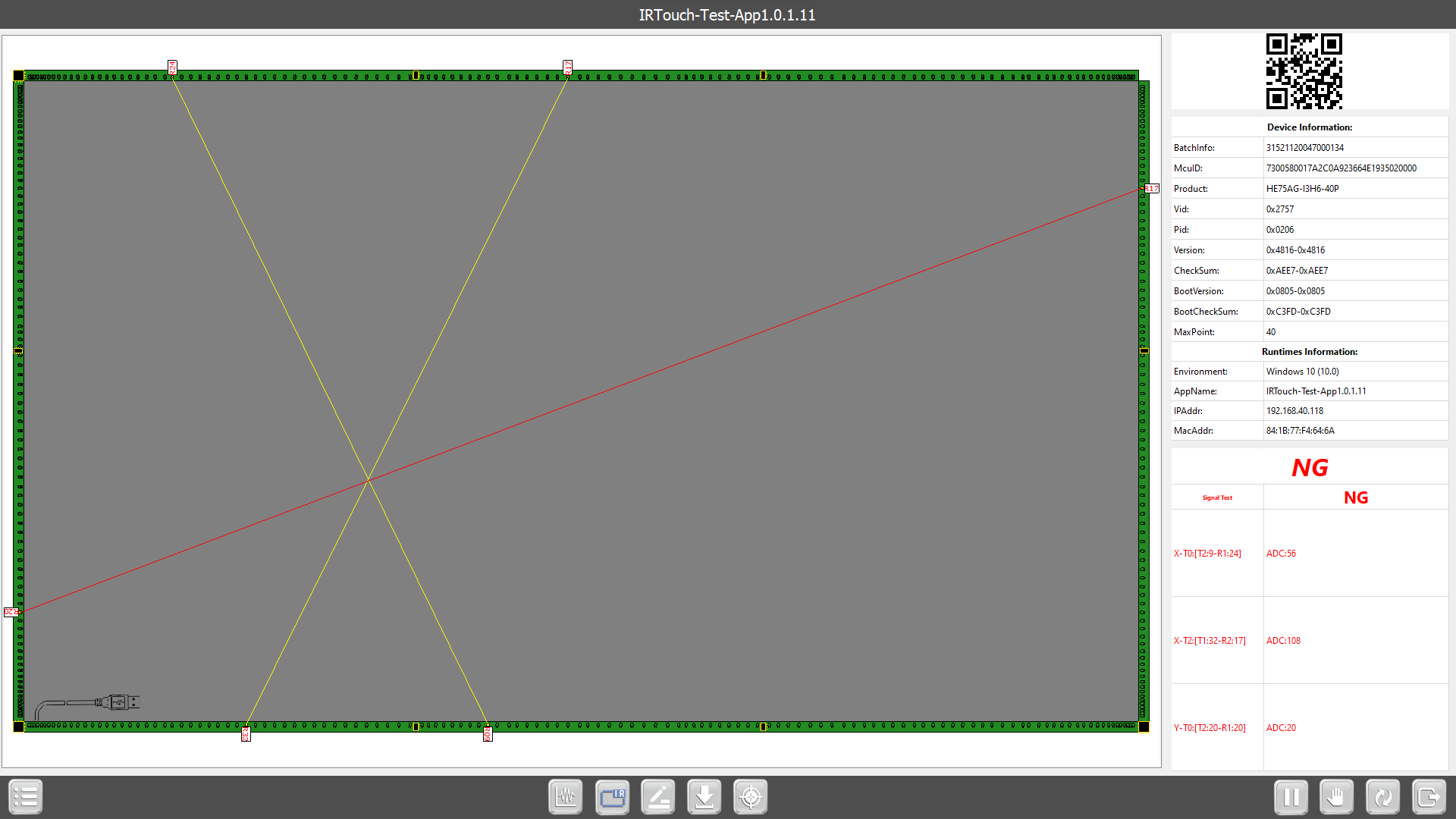
If you see ‘NG’, press on the IR button and take a video of the result and save any files in the Data Folder so you can transfer it to your laptop.

-
Send the photo/video and Data Folder files to i3CONNECT support for further assistance.
Troubleshooting
-
If the test does not start, check your USB and HDMI connections.
-
If you get an ‘NG’ result, do not attempt repairs, send your evidence to support. Press on the IR icon:
-
If your display is physically damaged, skip this test and contact support immediately.
-
For persistent issues or unclear results, reach out to i3CONNECT support.