
Clearing an app’s cache and data can help resolve glitches, speed things up, or reset an app to its original state. This guide is for anyone using i3TOUCH X2 who wants to troubleshoot app issues or start fresh with an app. If your app is crashing, running slowly, or not updating content, these steps are for you.
By the end of these steps, your chosen app will be reset, and any temporary files or stored data will be removed. If the app still doesn’t work as expected after following these steps, see the troubleshooting section below.
Before you start
-
Make sure you know which app you want to reset—clearing data will remove all app settings and sign-ins.
-
You’ll need access to the Android Settings menu on your i3TOUCH X2.
Instructions
-
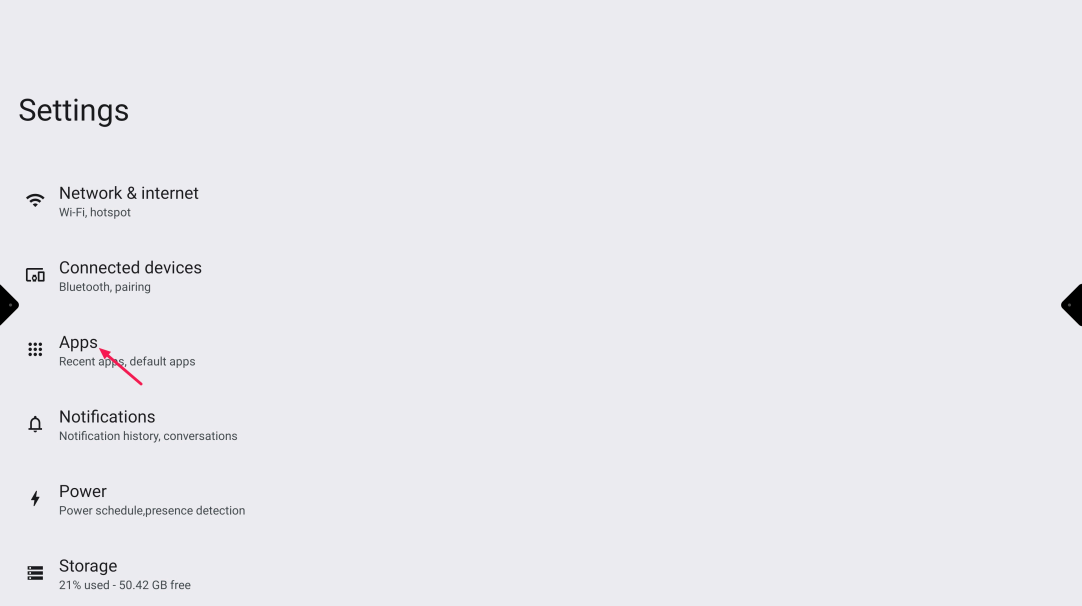
Open Android Settings on your i3TOUCH X2.
-
Select “Apps” from the menu.
-
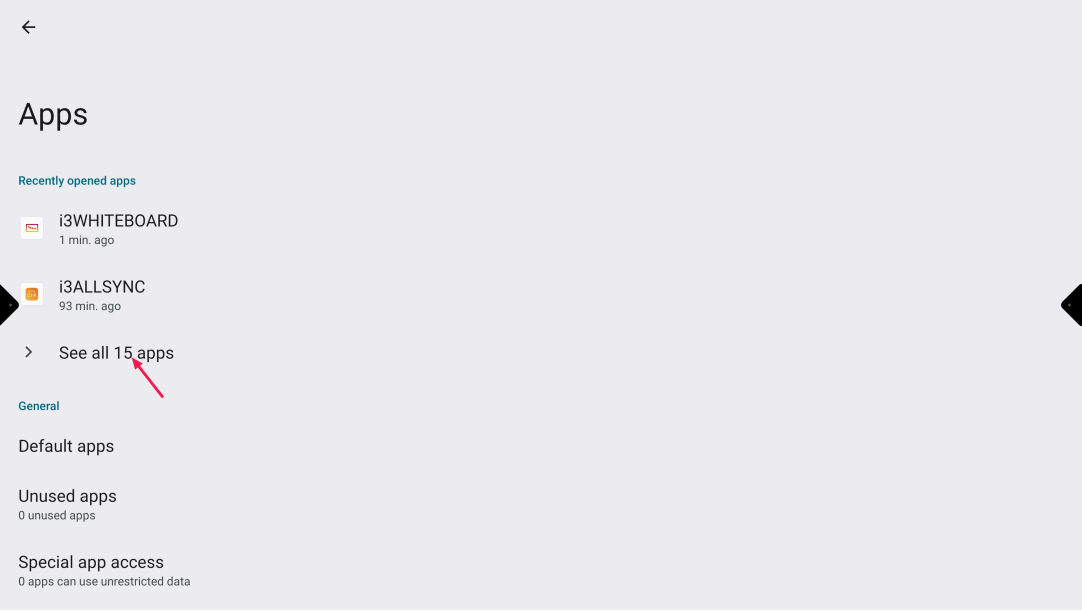
Tap “See all apps” to view the full list.
-
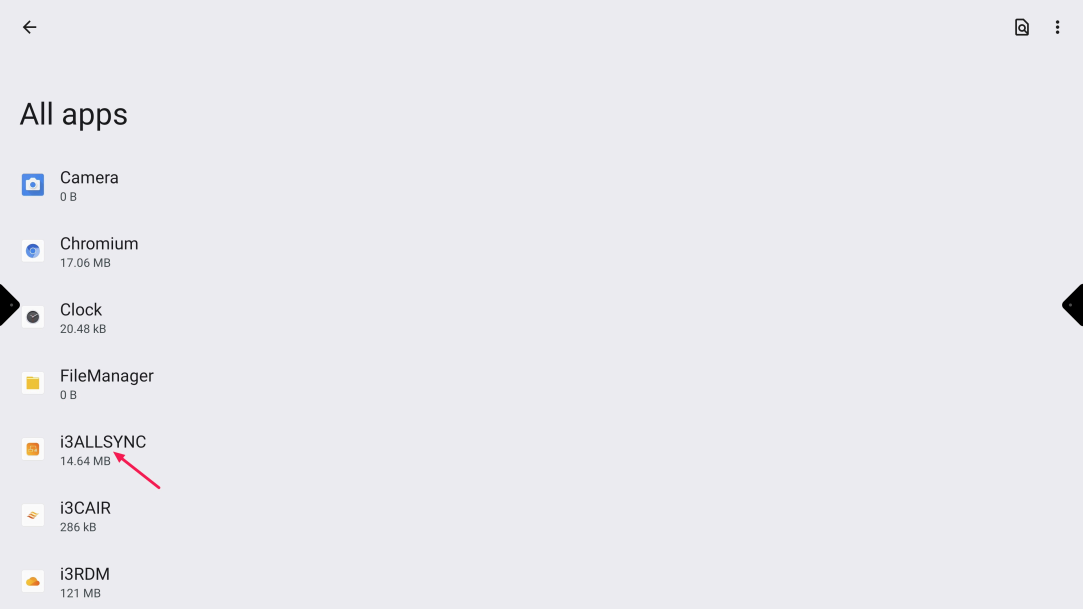
Find and select the app you want to reset.
-
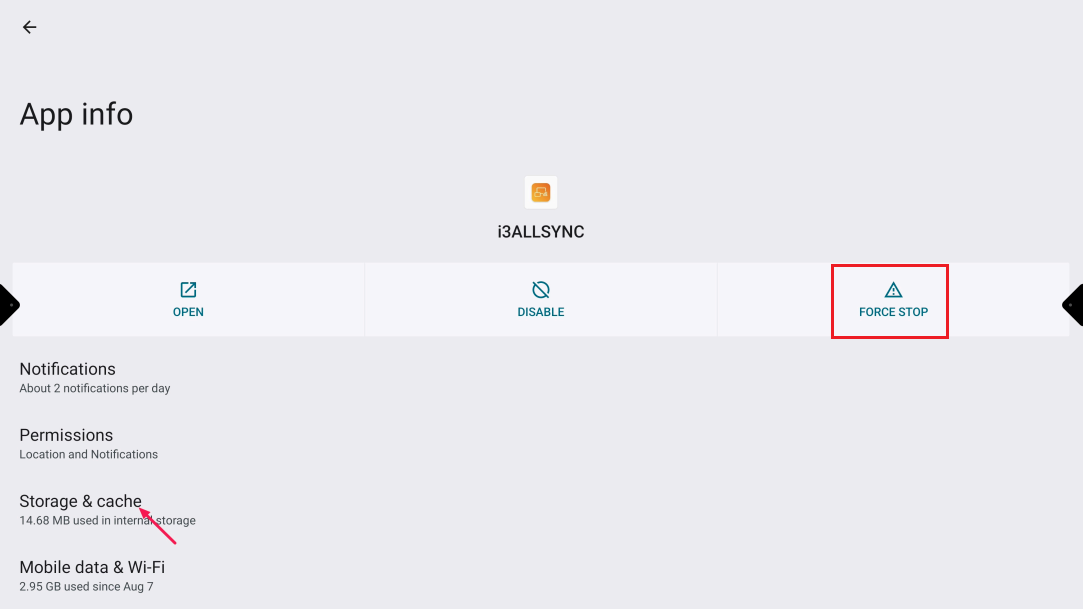
Tap “Force Stop” to close the app completely.
-
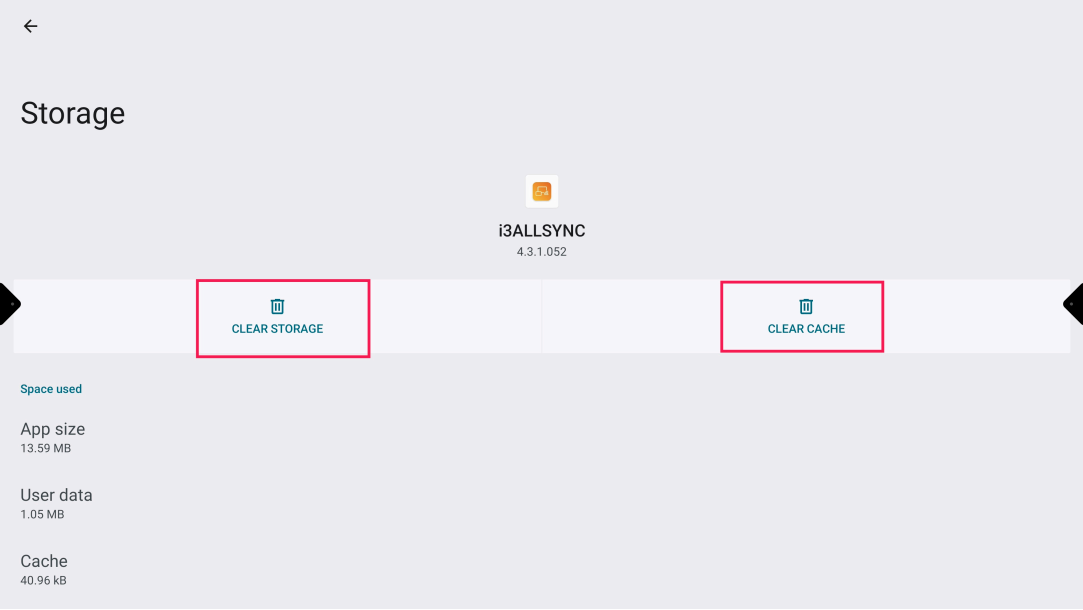
Go to “Storage & cache” (or just “Storage”).
-
Tap “Clear cache” to remove temporary files.
-
Tap “Clear data” to reset the app to its original state.
-
Exit Settings and reopen the app to check if the issue is resolved.
You can refer to the following images for visual guidance:
Troubleshooting
If the app still doesn’t work after clearing cache and data:
-
Restart your i3TOUCH X2 and try again.
-
Check for app updates in the Google Play Store.
-
Uninstall and reinstall the app if possible.
-
If problems persist, consult our support team or see articles on system troubleshooting.