
Need to connect AllSync transmitters directly to your i3TOUCH X2? This guide walks you through enabling the display’s built-in hotspot, perfect for situations where you want a secure, direct connection, no external Wi-Fi required. This article is for IT admins, teachers, or anyone preparing the display for wireless sharing with AllSync transmitters.
Do not use these steps if you plan to connect via an existing Wi-Fi network; instead, follow the standard wireless sharing setup.
By the end, your i3TOUCH X2 will broadcast a hotspot ready for transmitter pairing. If the hotspot doesn’t appear or transmitters can’t connect, see Troubleshooting below.
Before you start
-
Make sure you have physical access to the i3TOUCH X2 display.
-
You may need to unplug the Ethernet cable from the display.
Instructions
-
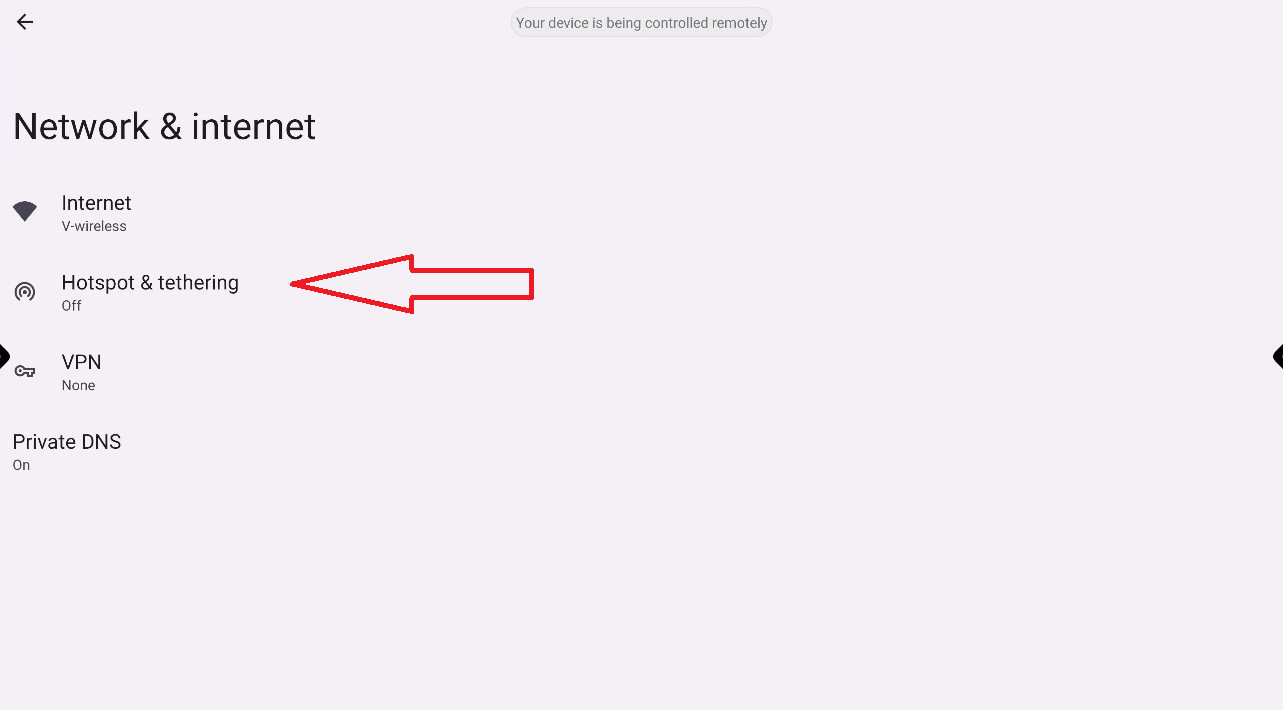
Open Android Settings on your i3TOUCH X2 and select “Network & Internet”.
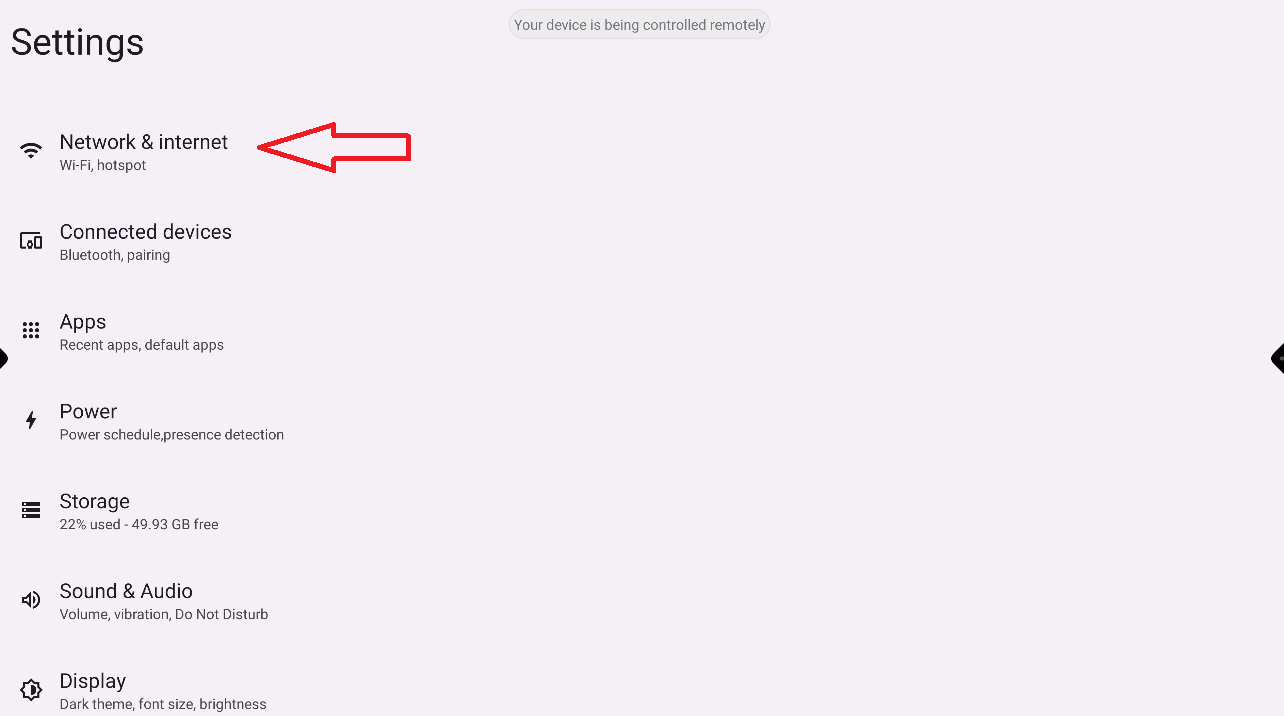
-
Turn off Wi-Fi and Ethernet.
-
In settings go to “Network & Internet > Internet” and toggle off Wi-Fi
-
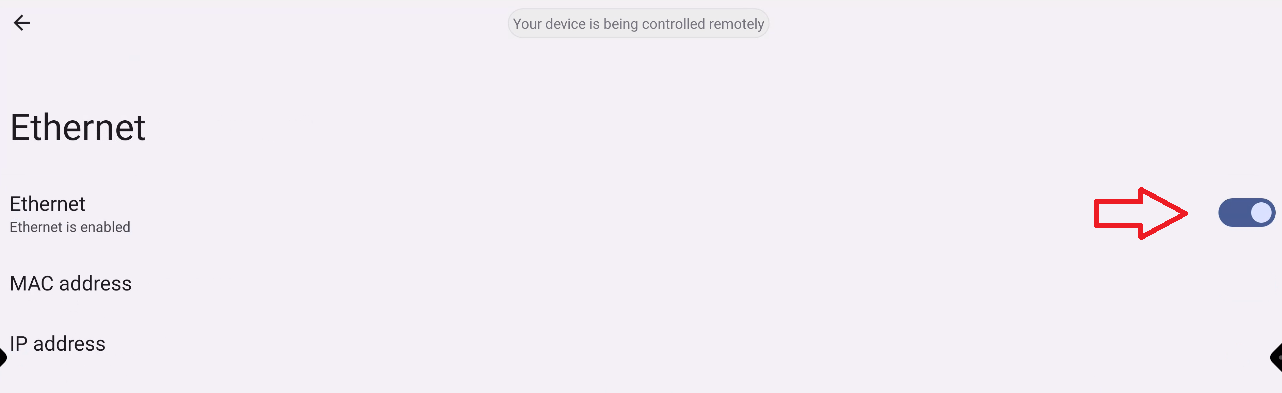
Then Tap on “Ethernet” and toggle off Ethernet
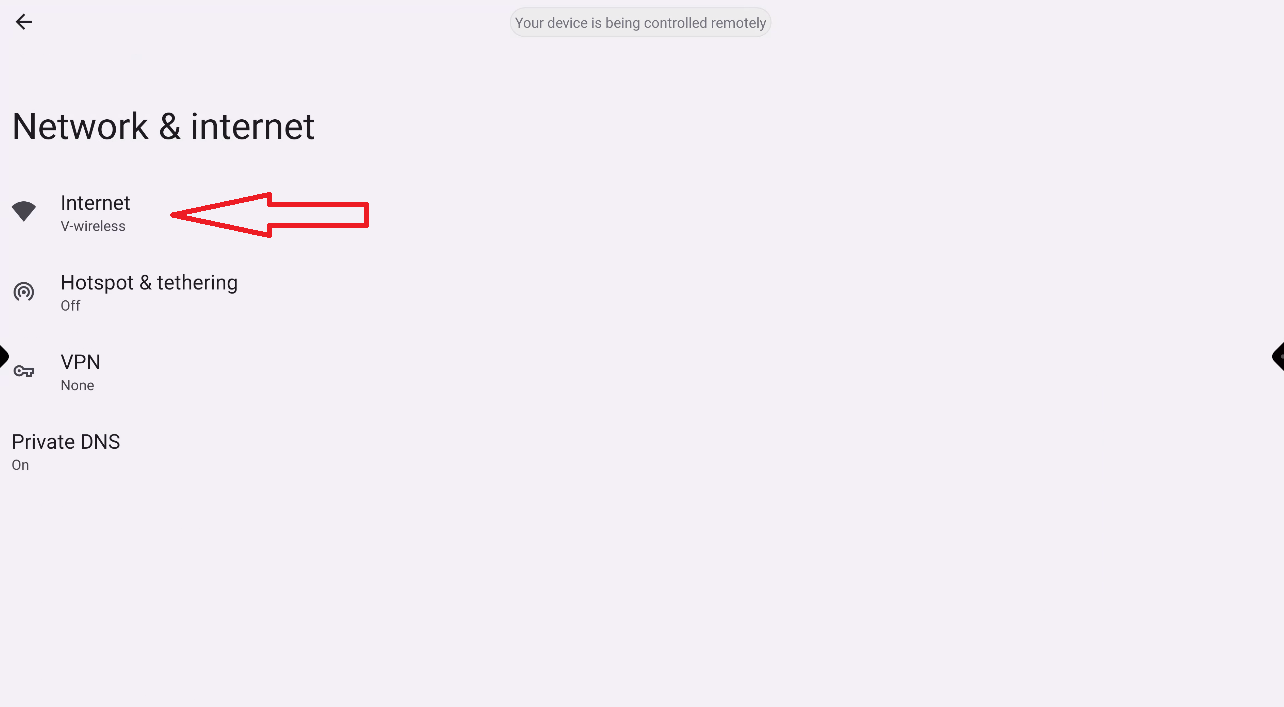
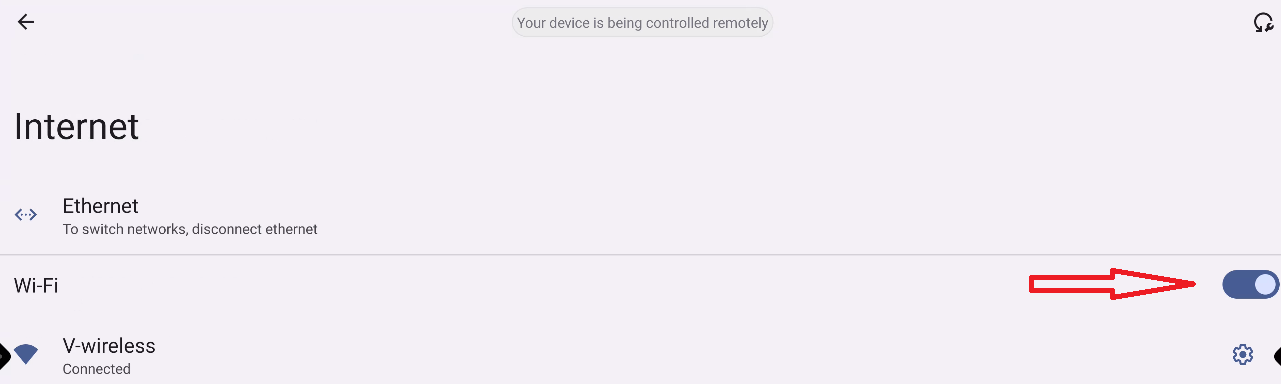
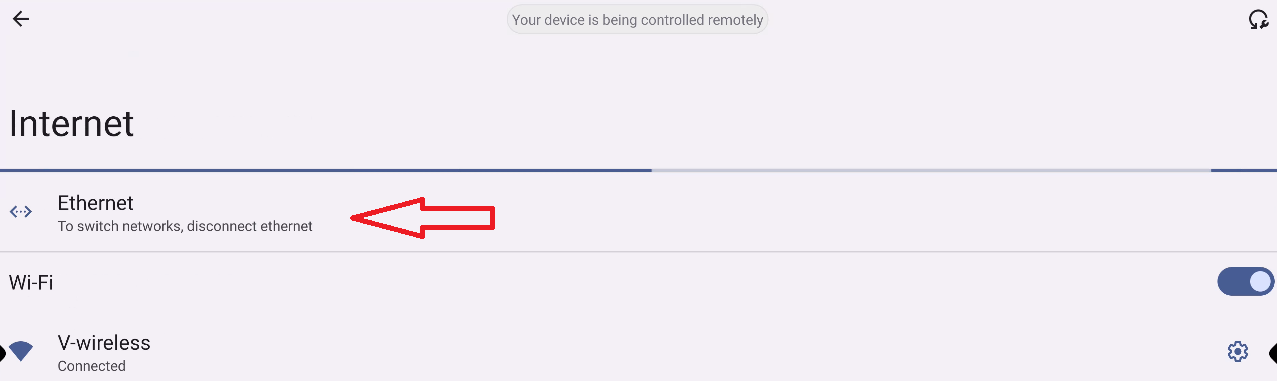
-
To fully disable Ethernet, you must unplug the Ethernet cable from the display. There is no software option to disable Ethernet on i3TOUCH X2.
-
Go back and select “Hotspot & Tethering”.
-
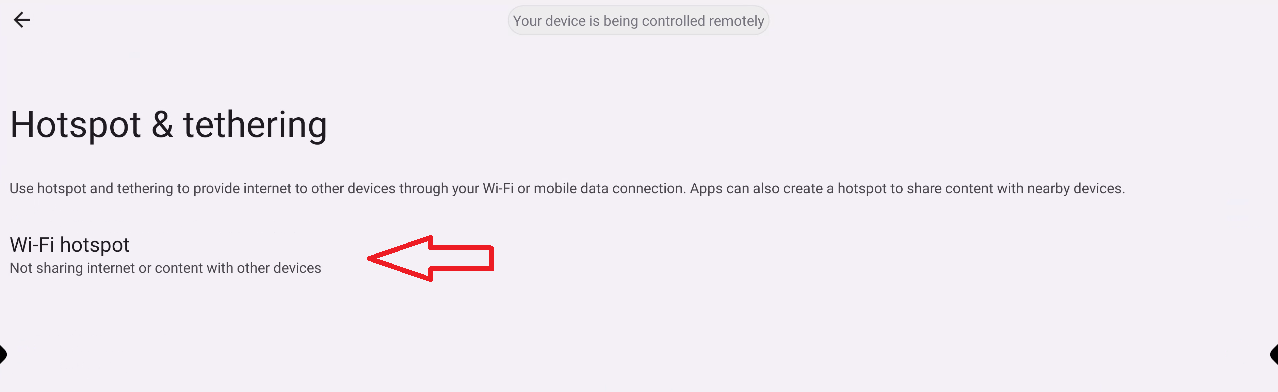
Select “Wi-Fi hotspot”.
-
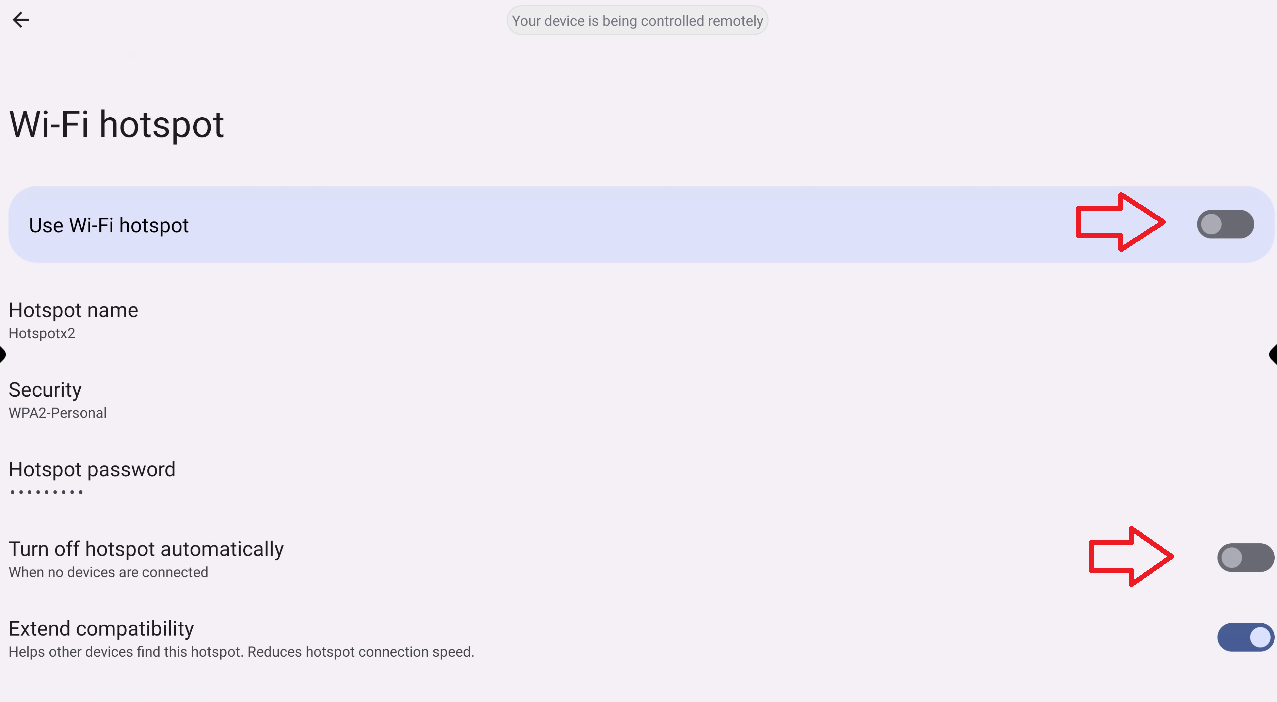
Turn on the hotspot and disable the setting “Turn off hotspot automatically”.
-
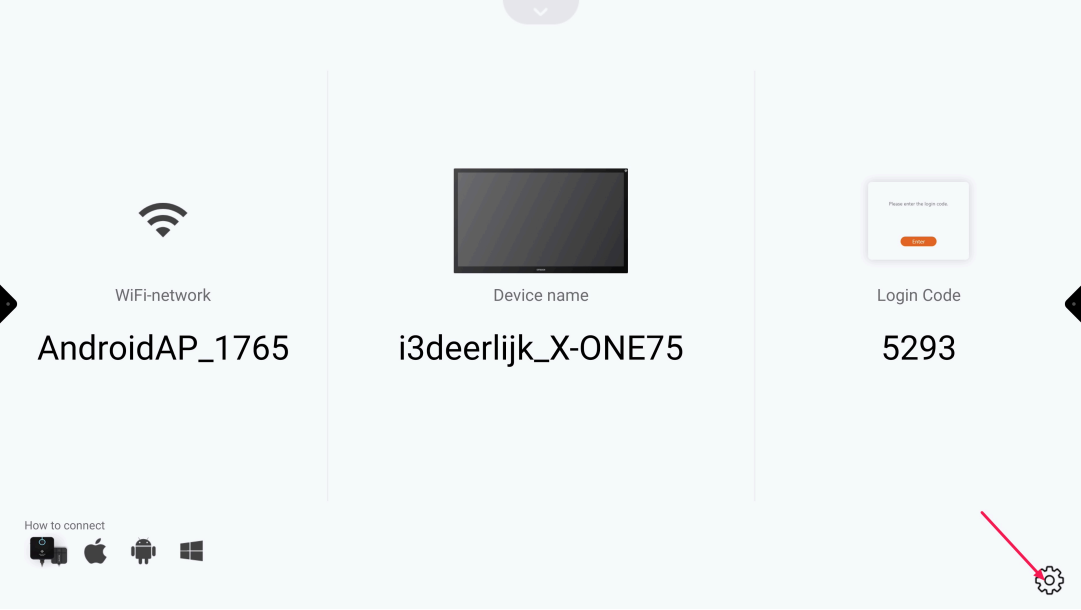
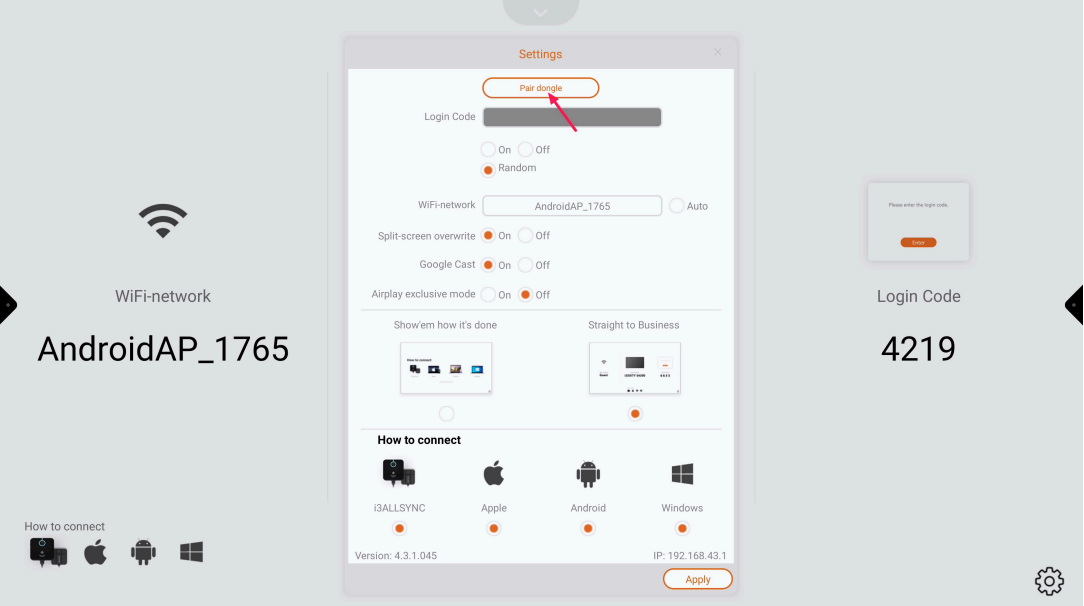
Open the Present app and tap the settings cog-wheel.
-
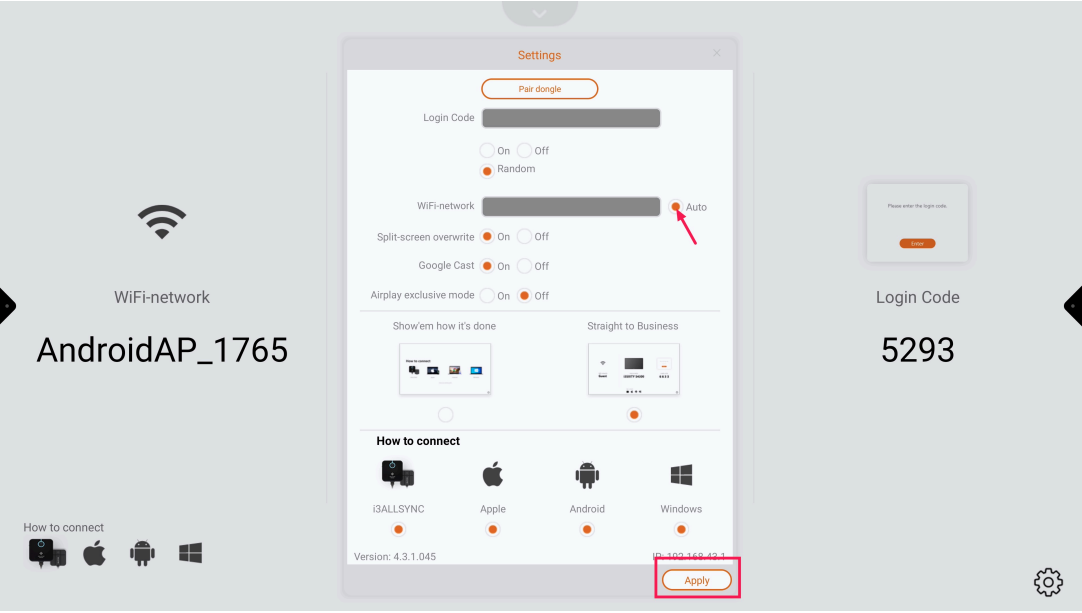
Deselect “Auto” and press “Apply”.
-
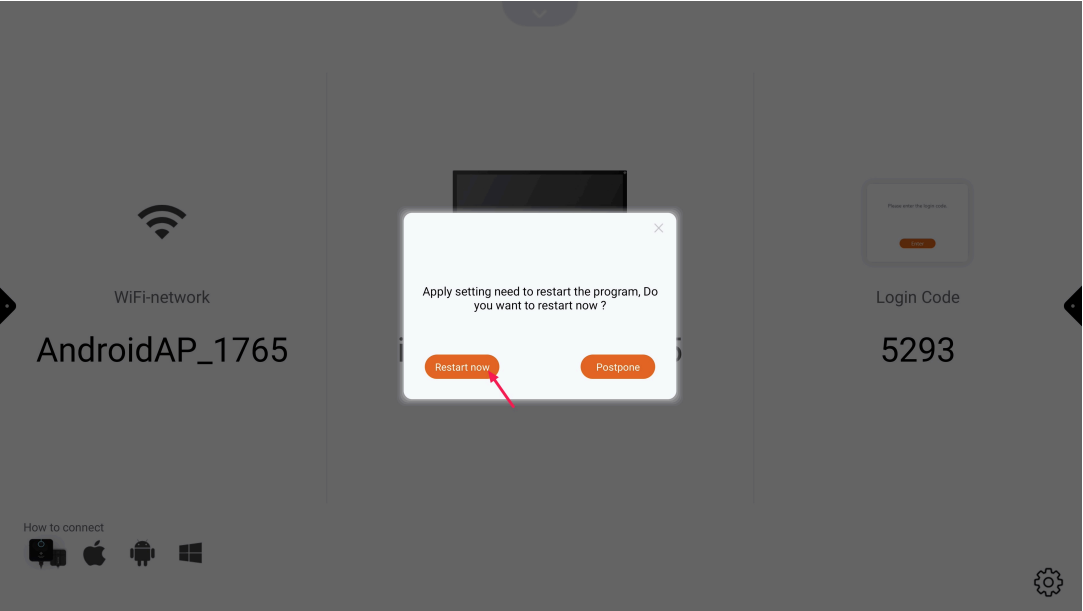
Press “Restart now” and wait for Present to restart.
-
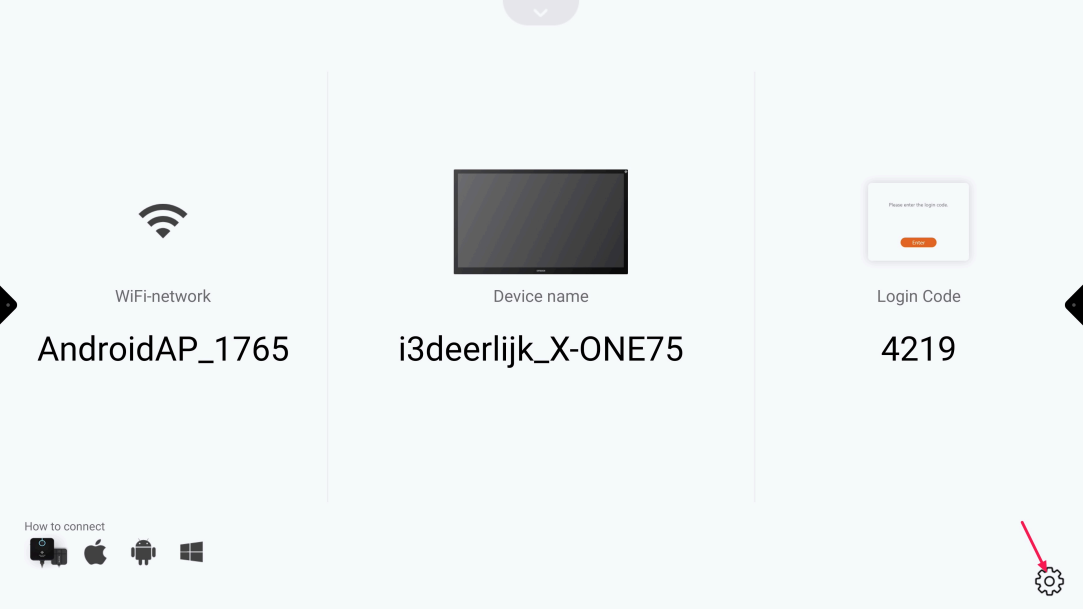
Open Present settings again (cog-wheel).
-
Press “Pair dongle” and follow the on-screen instructions to connect your i3AllSync transmitter.
Troubleshooting
-
If the hotspot does not appear, double-check that both Wi-Fi and Ethernet are disabled (Ethernet must be unplugged).
-
If pairing fails, restart the display and repeat the steps.
-
For persistent issues, contact i3CONNECT support.