
Make sure all 3rd party devices are disconnected before you continue
If you can’t access the debug menu on your i3SIXTY 2 and need to reinstall the system firmware, this guide walks you through the process using only a USB drive and the device’s power button, no remote required.
This article is for IT admins or technical users who need to recover or update the system firmware on an i3SIXTY 2. Do not use these steps for routine updates or if you can access the debug menu. If your device is still responsive, use the standard update process instead.
By the end, your i3SIXTY 2 should boot into the setup wizard with the new firmware installed. If the device does not reboot or show an image after 10 minutes, see Troubleshooting below.
Before you start
-
Disconnect all third-party devices from the i3SIXTY 2.
-
Prepare a USB drive (FAT32 formatted).
-
Download the correct firmware files for your model and version
|
|
i3SIXTY 2 |
(MAY 2023) |
(JUN 2024) |
|---|---|---|---|
|
August 2022 |
Instructions
-
Format your USB drive to FAT32 and copy both the
.IMGand.INIfirmware files to the root folder. -
Power off the i3SIXTY 2 by unplugging the power cable.
-
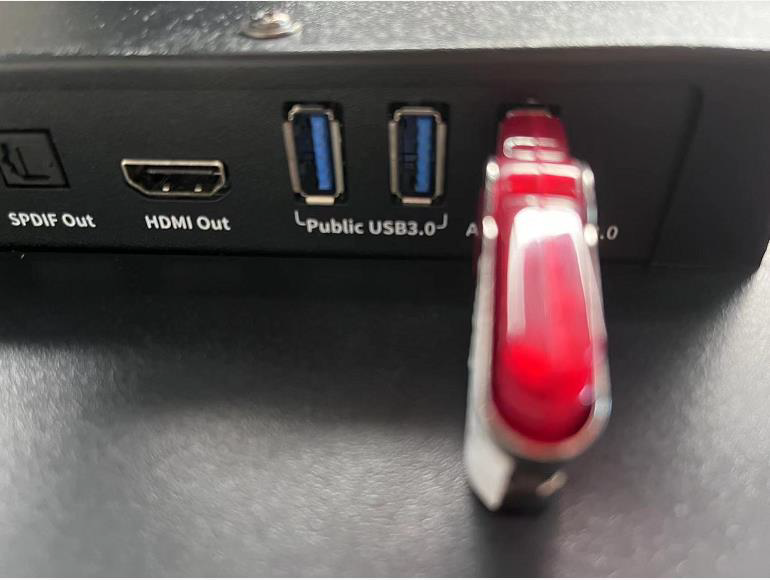
Insert the USB drive into the USB 3.0 port on the device.
-
Press and hold the power button on the i3SIXTY 2.
-
While holding the power button, plug in the power cable to turn the device on.
-
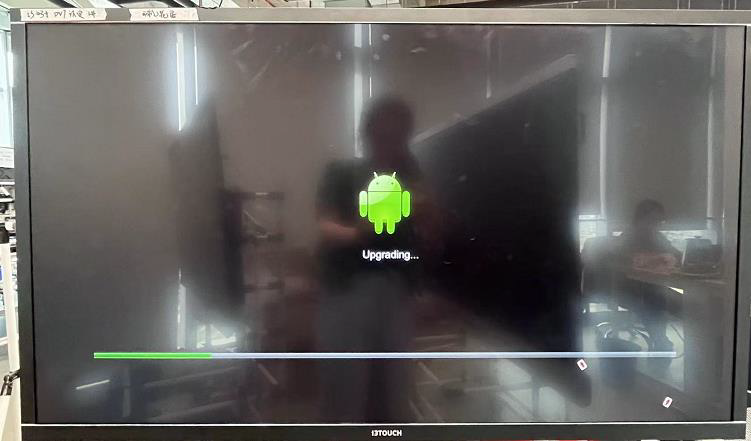
Release the power button when you see the Android robot appear on screen. The power button LED will start flashing, and the upgrade will begin.
-
Wait for the process to finish (about 5 minutes). The device will reboot automatically—do not interrupt.
-
After reboot, wait for the setup wizard to appear. The device may reboot a second time before the wizard is shown. The full process can take up to 10 minutes.
Troubleshooting
-
No image on display or HDMI out during update? This is normal. Watch for the status LED blinking slowly—this means the update is in progress. Wait up to 10 minutes for the device to reboot and show the setup wizard.
-
If the device does not reboot or show an image after 10 minutes, unplug the power, wait 30 seconds, and repeat the process. If issues persist, contact i3CONNECT support.
-
Do not interrupt the process until you see the setup wizard. Interrupting may cause firmware corruption.