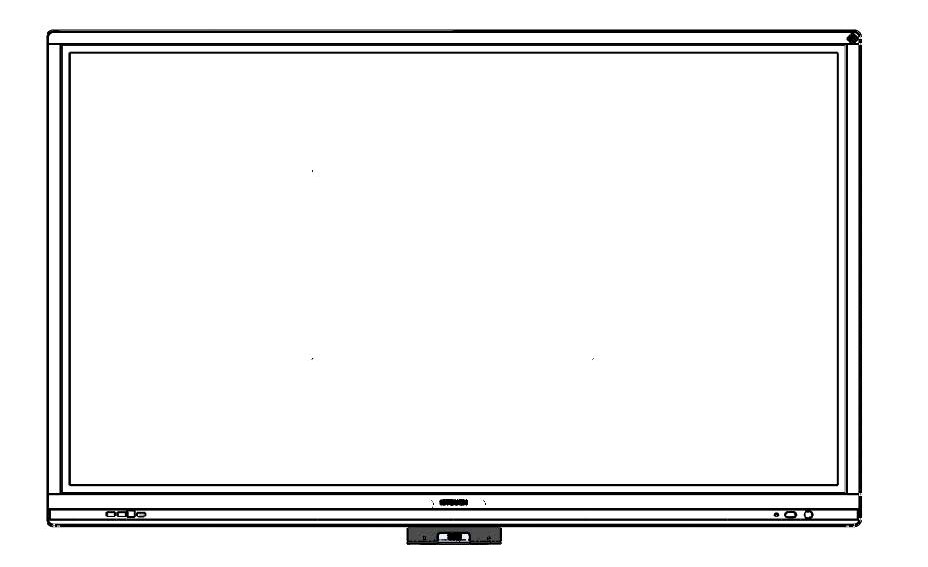
Avoid influence from external sources.
Where to position the i3CAIR?
The i3CAIR is best placed in a ‘neutral’ space in the room. We advise not to place an i3CAIR close to a radiator or any other kind of heating source. The i3CAIR is best placed in the shade, and direct sunlight is to be avoided.
The following circumstances are to be avoided:
-
Placing your i3CAIR too close to a heat source (avoid proximity of heating system, electronic devices, direct sunlight).
-
Placing you i3CAIR too close to an air vent or ventilation system, or anything that causes an unnatural airflow.
-
Do not position your i3CAIR upside-down
-
Do not position your i3CAIR in such a way that blocks any of the openings on the sides and on the back
Mounting i3CAIR onto an i3TOUCH with i3MULTIBRACKET
The i3CAIR sensor box is ideally positioned using the specially designed bracket. This bracket can be easily attached to your i3TOUCH.
-
Make sure the display is accessible at the rear. If needed, remove the display from its wall or mounting and detach any mounting system or suspension bracket that may be in the way.
-
Mount the i3CAIR on the i3MULTIBRACKET with the supplied screws. The bracket attaches to the backside of the i3CAIR with its arms pointed upwards.
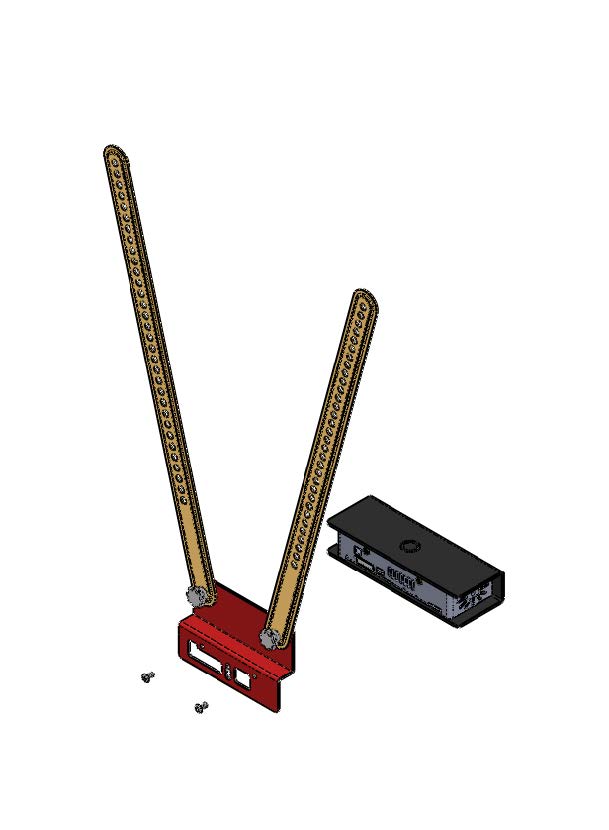
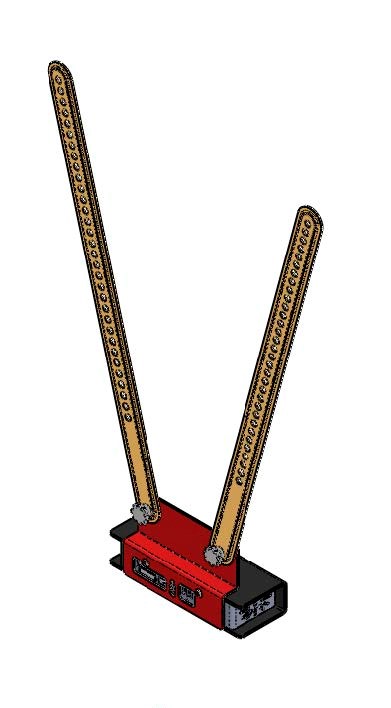
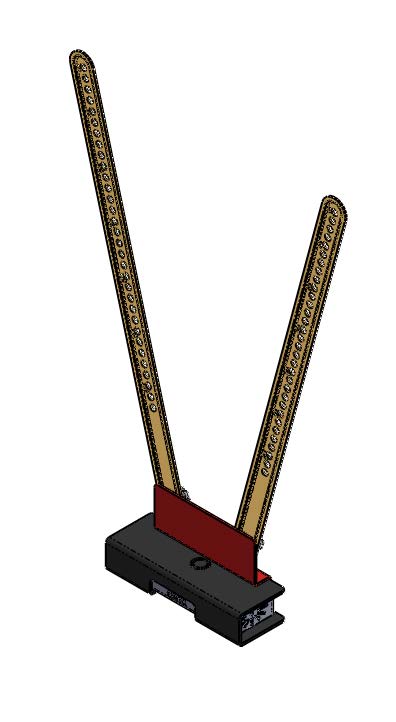
-
Position the i3CAIR in the middle at the back of the screen; against the bottom. Look for a position where the holes on the arms of the bracket align with the bottom VESA holes. Do this by opening or closing the arms until they line up.
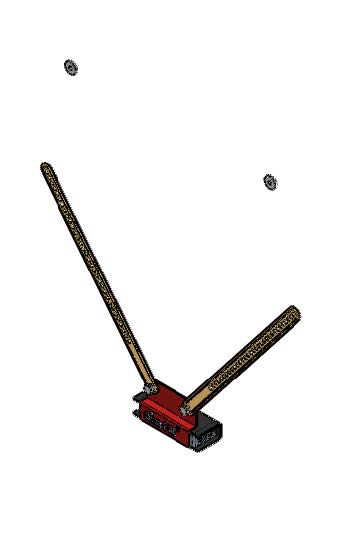
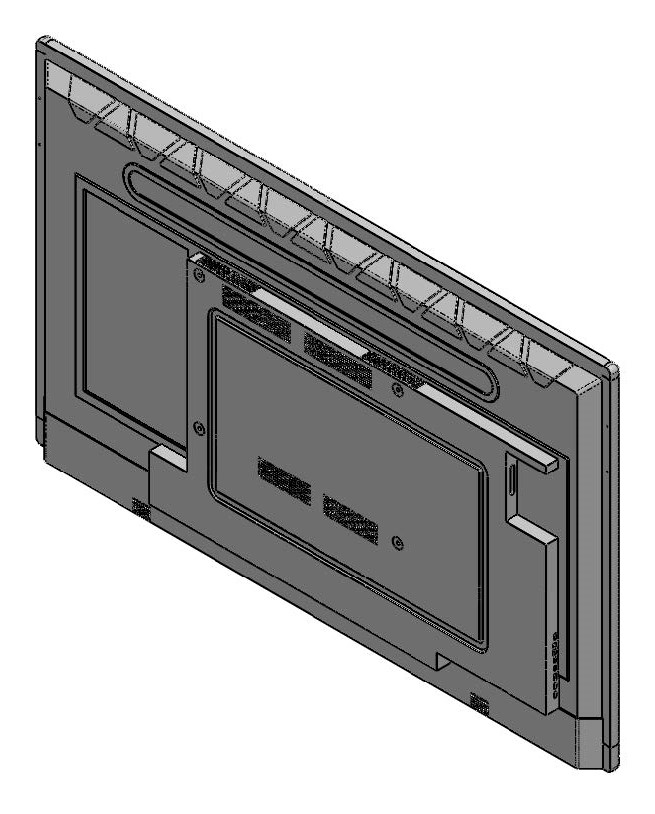
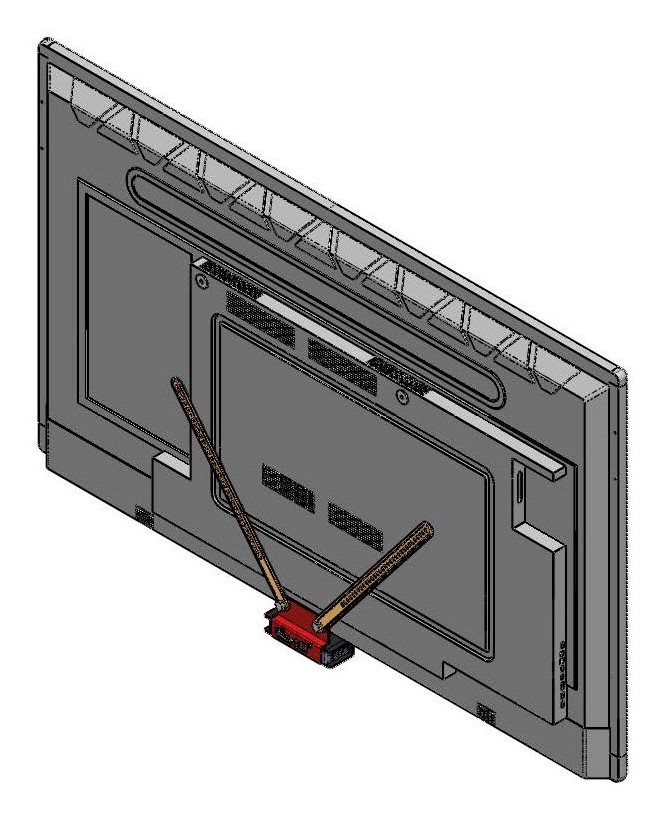
-
Place the supplied rings on the top VESA holes
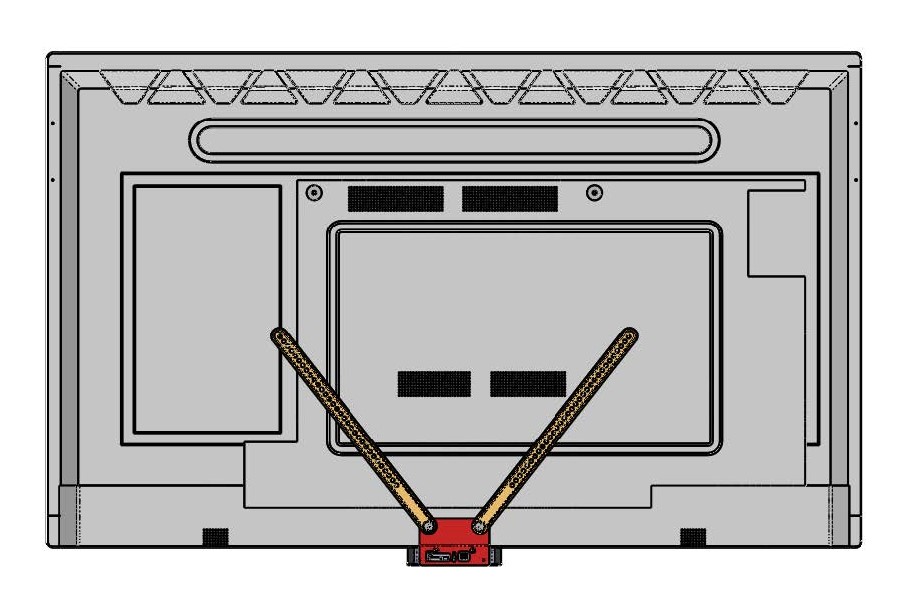
-
Make sure that the i3CAIR is levelled with the bottom of the display and positioned in the center. You can still tweak the position of the i3CAIR by changing the orientation of the arms on the bracket. Fasten the knobs on the bracket once you have found the right position.
-
Now reattach your mounting system or suspension bracket over the i3MULTIBRACKET, locking everything in place.
-
Connect the supplied USB cable to the i3CAIR (micro USB port)
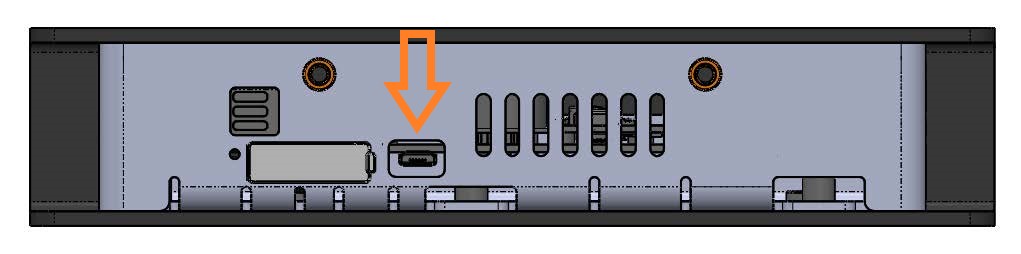
-
Connect the other end of the USB cable to the i3TOUCH display. We recommend to always choose a USB port on the underside of the display. This only applies to i3TOUCH displays that are using an OPS computer because the the USB ports on the side of the display are taken over by the OPS computer when switching to the OPS input. This will disable the i3CAIR as long as the input source is on the OPS.

-
Re-attach the display to the wall or it’s mount.