Connect
Connecting your i3CAIR to an i3TOUCH display is incredibly simple! Use the included USB cable to connect the i3CAIR (micro USB port) with a USB port on the i3TOUCH.
The i3CAIR will get its power from the USB cable so there is no need for an external power supply.
When plugging the micro-USB into your i3CAIR's micro-USB port, please do it gently and avoid twisting the wire. This is to preserve the service life of the micro-USB port.
Make sure to connect your i3CAIR to a USB port of the i3TOUCH display!
Preferably a USB port on the underside of the display. Other USB ports may connect with an attached HDMI device or an OPS (if present) and cause issues with the i3CAIR. Attaching the i3CAIR to a USB port of the OPS (if present) will not work.
Setup & Configure
Open the i3CAIR app
Once the i3CAIR has been attached to the i3TOUCH, navigate to your installed apps and open the i3CAIR application.
Install i3CAIR from the i3STORE
Check out your installed apps by pushing the ‘apps’ icon on the launcher menu. Verify if the i3CAIR application (apk file) has already been installed on your i3TOUCH. If not, then hit the install button and the apk will be downloaded and installed.
Auto-detect the presence of a sensor box
When the i3CAIR application is present on an i3TOUCH display, it will then automatically detect the presence of an i3CAIR sensor box. When you launch the app you will see the connection status in the upper right corner.
Checking the Connection Status
Check the connection status in the i3CAIR app
When the app has found a new i3CAIR device, status will be ‘yellow’ - 'connecting'. Connecting with the i3CAIR may take a few seconds. When the connection with the sensor box is successful the status will be ‘green' - ‘connected’.
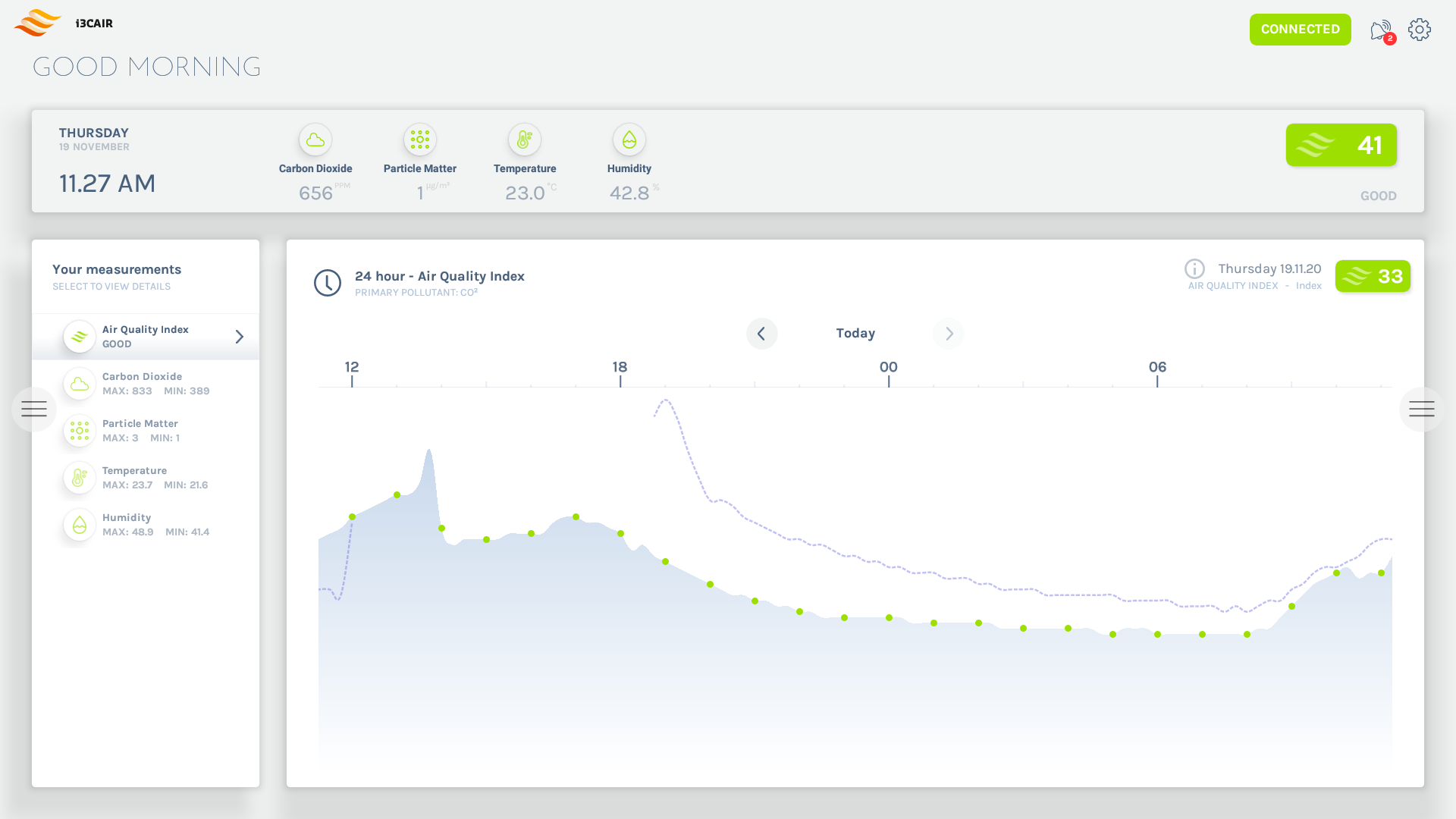
When no i3CAIR is connected, the connection status will be ‘grey’ showing a ‘disconnected’ message. In case of issues, the connection status may be ‘grey' or ‘red’ showing a ‘disconnected’ or 'error’ message. Try to give the i3CAIR app some time, the issue may resolve itself after a few seconds.
Check the connection status in the i3LAUNCHER
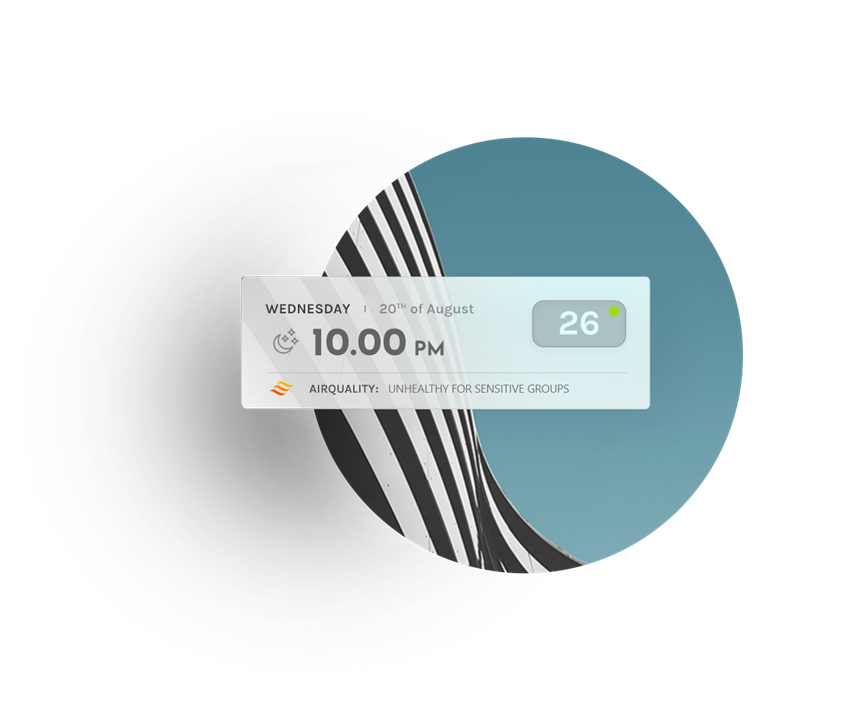
If an i3CAIR sensor box has been paired successfully with an i3TOUCH, then the i3CAIR air quality widget will appear in the upper left corner of the i3Launcher