
Due to the popularity of hybrid working (people working in the office and remote), Microsoft Teams has become a much-used application in working environments. To effectively meet with remote participants as a group, several companies have started offering standalone Microsoft Teams Room (MTR) hardware such as MTR cameras and desk devices.
Microsoft whiteboard is included in the MTR platform, making a combination with a touchscreen a perfect match.
Different vendors offer Android or Windows based MTR solutions that may have slightly different behavior and required settings. In this tech note, we will describe typical MTR setups and relevant settings.
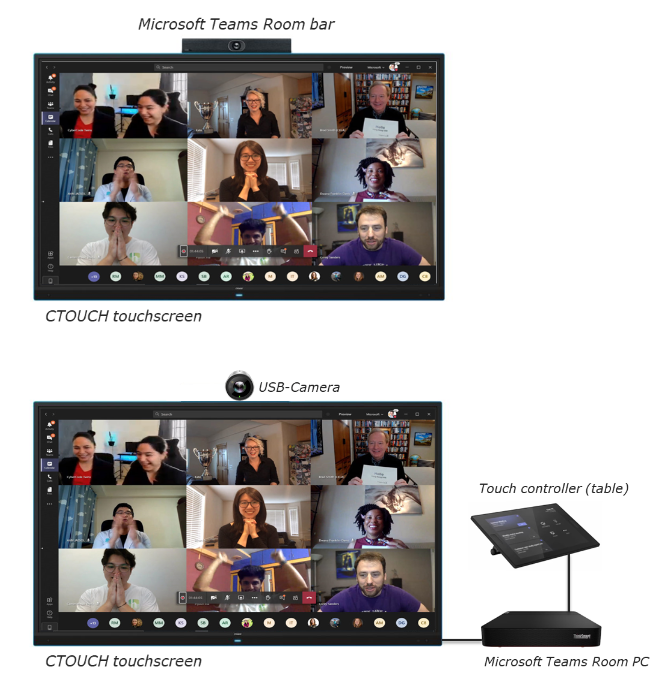
Two typical MTR setups
-
Bar installed on top of the screen has complete MTR inside and controlling the interface is done from the touchscreen. This version tends to be Android-based.
-
USB Camera is attached to an MTR mini PC and Table controller. This is in turn connected to the touch display. This version tends to be Windows-based.
We recommend installing camera’s above the display when using touch. Otherwise, you may stand in front of the camera when whiteboarding.
Important settings
To have the MTR system work well with the screen and save energy, we advise the following settings as a starting point.
|
Setting |
Description |
MTR advised value |
|
Power On Source |
Source shown after screen is booted |
MTR port (eg HDMI 1) |
|
No signal Power Off |
Screen will switch off when no signal is present on the video inputs |
Off |
|
HDMI CEC |
HDMI CEC signal is enabled/disabled |
Off |
|
Startup by External device |
Screen will boot up when external device sends signal (only supports 5V DC signal, not clock sync) |
Off |
|
Standby time (Smart on/off) |
Time after which screen goes in low-power mode (backlight mute) with no touch or movement in the room |
30m |
|
Auto-switch Source |
Switch to newly connected video source |
Off |
|
Power on/off |
Automatically set time and days to switch screen on/off |
Morning/evening times |
Update touchscreen to latest firmware. For Windows-based MTR systems: Set resolution in Windows settings to 1080p for best reliability
Tested Microsoft Teams Rooms products
Many brands have MTR standalone products such as Logitech, Crestron, Lenovo, Yealink and Cisco. So far, we have tested with the following MTR products:
-
Lenovo MTR with desk control screen (Windows 10 based)
-
Yealink A30 camera MTR with/without desk control screen (Android-based)
-
Logitech desk control screen with Intel NUC PC (Windows-based)
For Lenovo and Logitech MTR with Intel NUC, we have found that best reliability can be gotten with the settings above, giving special care to:
-
Set Windows resolution to 1080p
-
Disable Windows sleep function
-
Disable ‘No signal power off’, ‘HDMI CEC’
Logitech with Intel NUC proved to be the easiest and most reliable setup
For Yealink settings proved to be non-critical, but we still advise disabling ‘No signal power off’ and ‘HDMI CEC’.
Multiple touch screens
MTR also offers support for multiple touchscreens, which enables the participants to the the whiteboard on one screen and the remote participants on the other screen in full size and both with touch.
To support this, Microsoft requires a Premium Room account, so make sure you have this (a message will appear on the second screen if you have a basic account). A
Dual display setups give a great interactive meeting experience because one screen is used for the audience and another is used for the whiteboard.
Warning: test setups with each firmware
The settings and changes shared in this note are a good start for helping configuring MTR and i3CONNECT touchscreens. However specific functionalities and behavior can change with each new firmware or product change.
It is STRONGLY advised to thoroughly test the MTR setup with touchscreen and specific settings in your office or lab, and test over a longer period of time (several days and over the weekend), and in daily use, before installing in a live situation.
i3CONNECT cannot guarantee functionality in combination with specific MTR systems, as MTR settings, hardware and firmware change constantly. Consult your MTR suppliers support articles in case of doubt.