
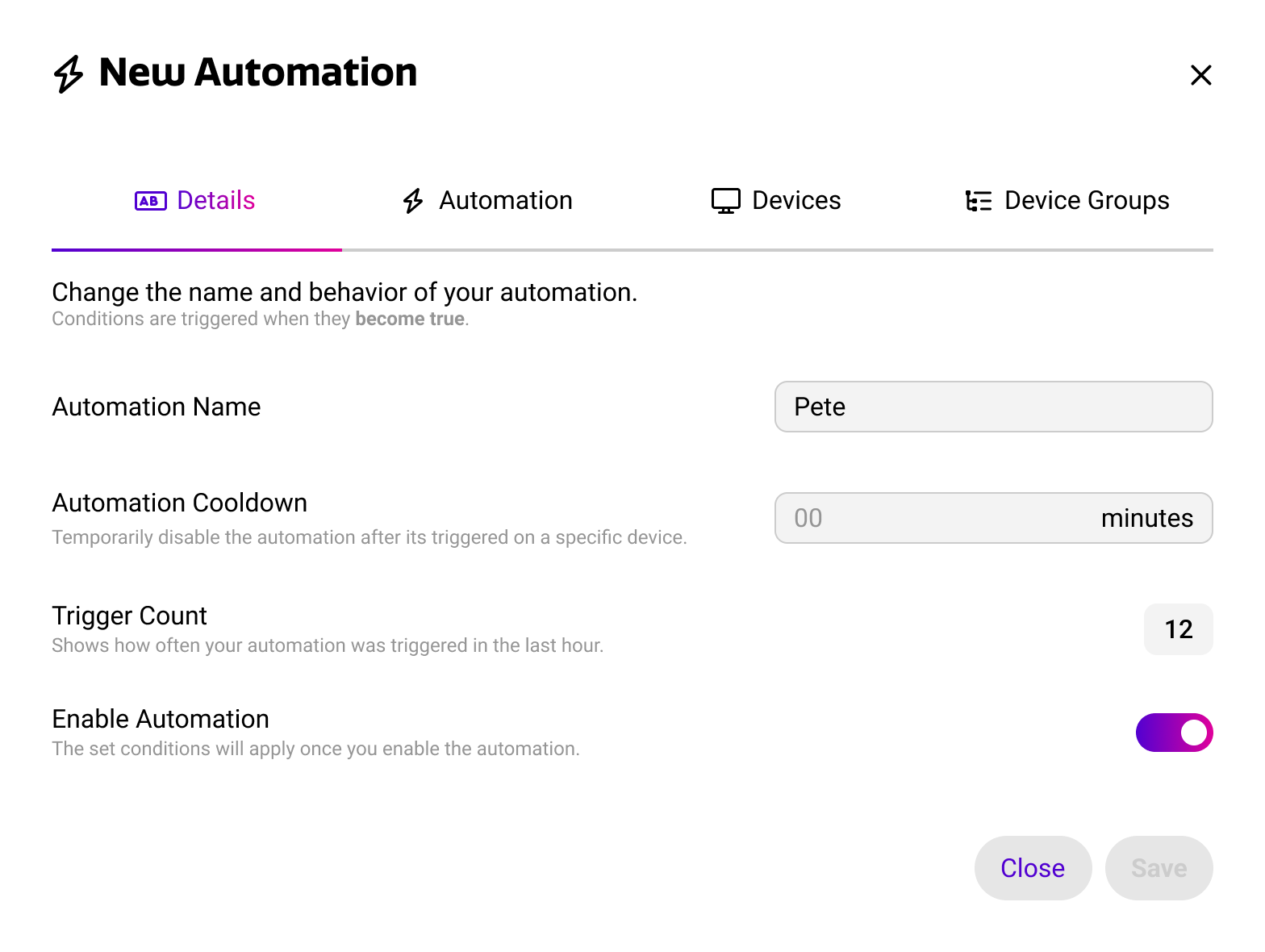
When you open an existing automation, or when you create a new one, you will land on the automation details page. From here, you can give your automation a name and description, build the rules that determine when it runs and what it does, and select the devices it applies to.
Automation properties
Alongside its rules, each automation has a set of properties that determine how it behaves and where it applies.
|
Property |
Required |
Description |
|---|---|---|
|
Name |
Yes |
The name shown in the automation overview. |
|
Cooldown |
Yes |
A period during which the automation will not run again after it has been triggered. Use this to prevent the same rule from firing repeatedly in a short space of time. |
|
Enable |
No |
Whether the automation should be actively monitoring the assigned devices. |
An automation can only be saved once it has a name, at least one when-condition, at least one action, and at least one device or device group.
The structure of an automation
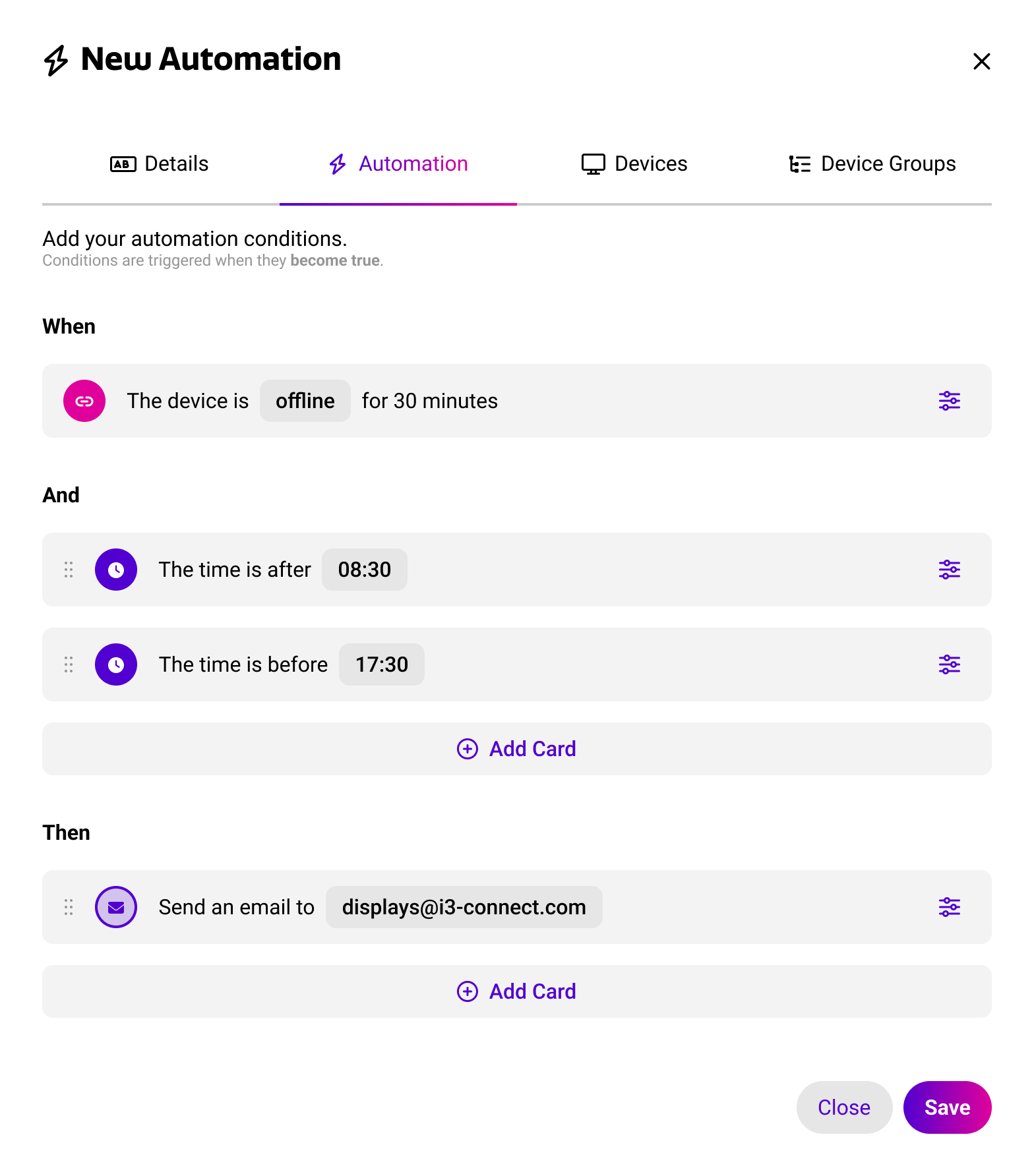
Every automation is built from three parts. Together they form a single rule that reads as a sentence: when something happens, and a number of conditions hold true, then Cortex performs one or more actions.
|
Part |
Required |
Description |
|---|---|---|
|
When |
Yes |
The trigger of the automation. When-conditions are event-based: they are evaluated at the moment a value becomes something. |
|
And |
No |
Additional conditions that must hold true for the automation to run. And-conditions are state-based: they check whether a value is something at the moment the trigger fires. |
|
Then |
Yes |
The action or actions that Cortex performs when the automation runs. |
Example -> When the connection status of a display becomes offline, and the weekday is not Saturday or Sunday, then send an email to the facility manager.
Condition and Action Settings
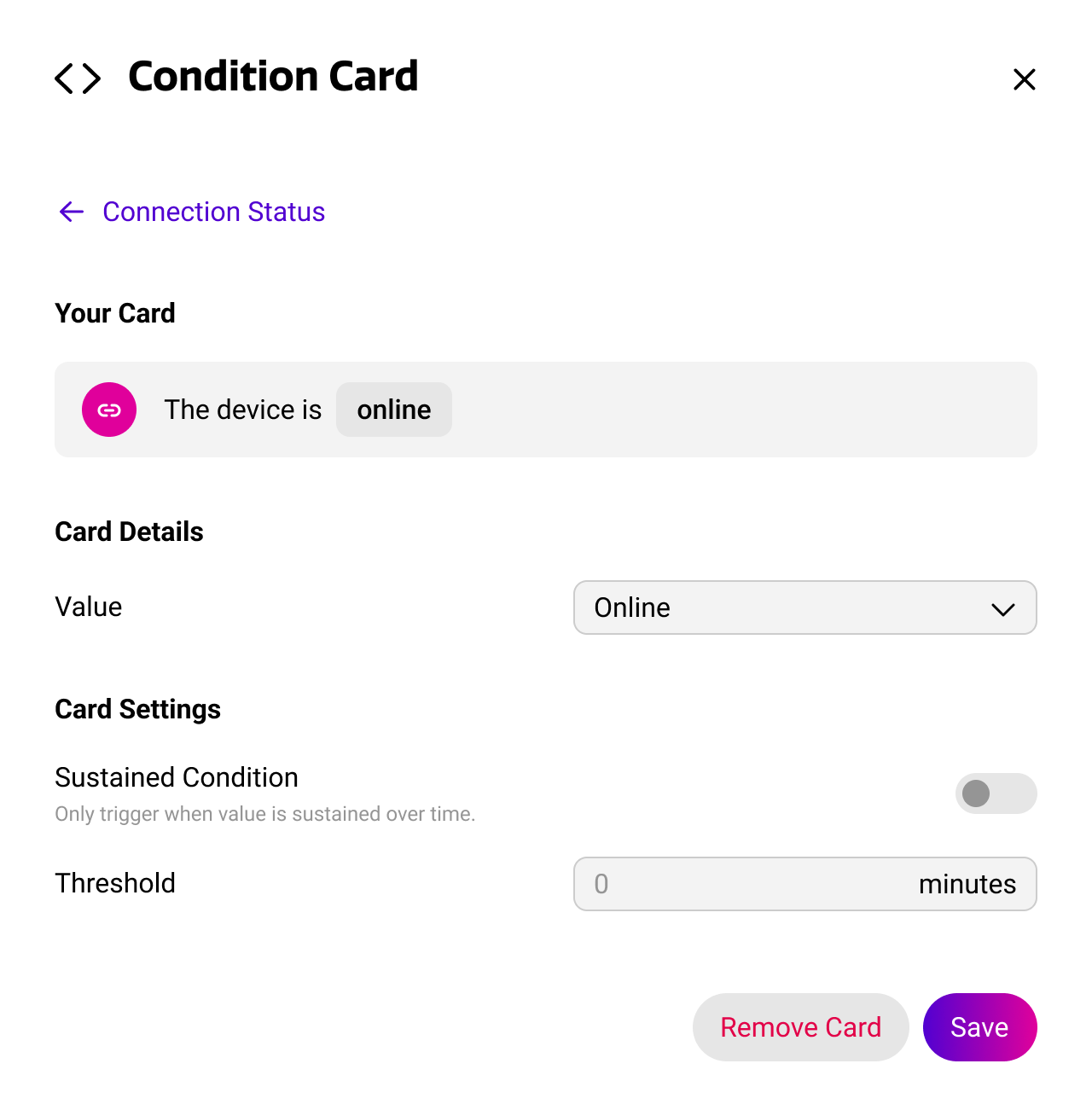
Conditions and actions are added as cards. When you add a new card, you can define specific settings to further finetune its behavior. The available options depend on whether the card is a condition or action.
Condition Options
Value → This is the value that the condition should meet.
Operator → This is how the value should be measured, such as equals or smaller than.
Sustained Condition → Whether the value should be met for a longer duration of time. This can be set with a threshold in minutes.
Action Options
Value → This is the value that the action should use to execute. For example, the name of the configuration to be applied.
Delayed Action → Whether the action should be delayed before it is executed. This can be set with a delay value in minutes.
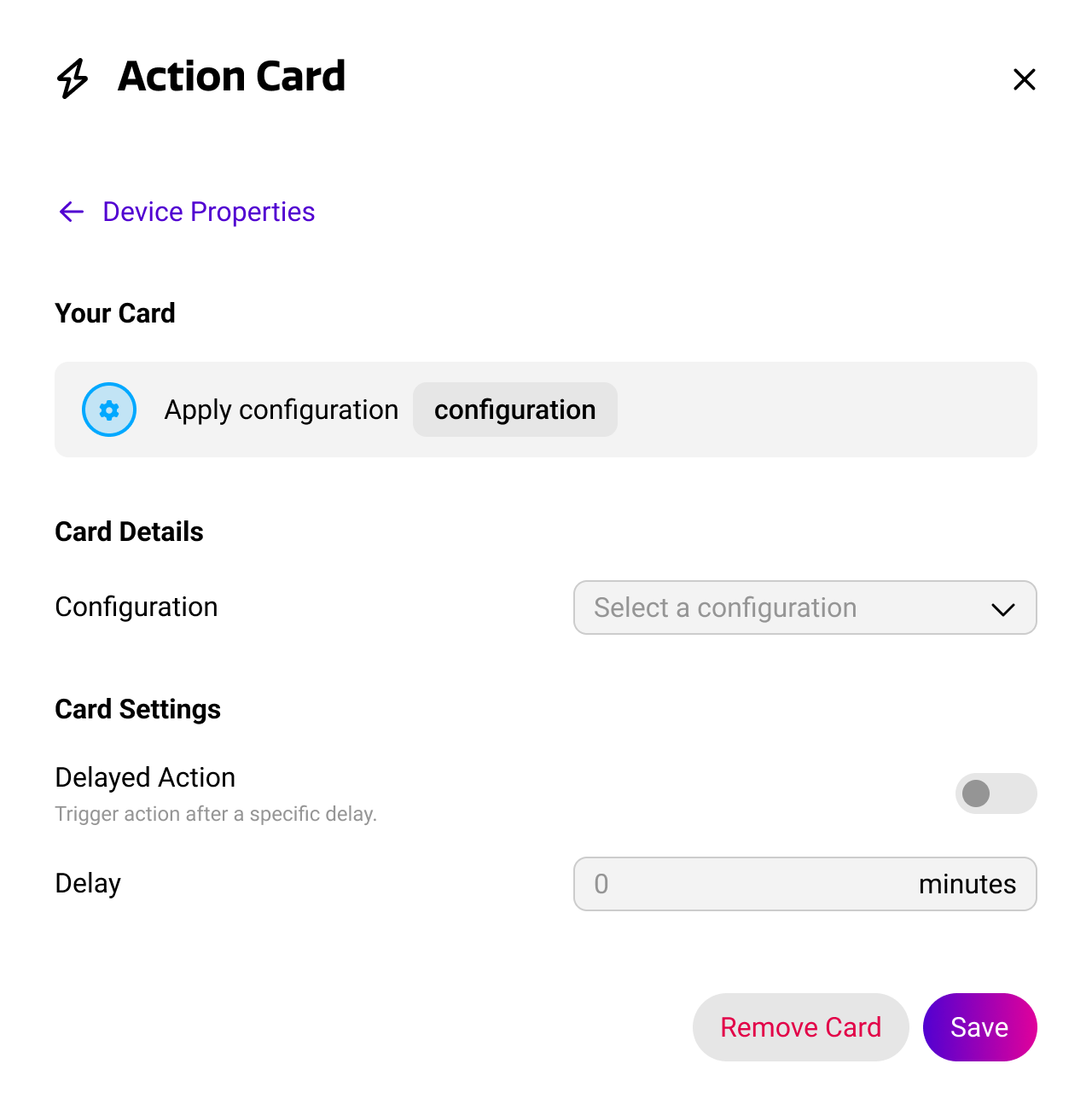
Once created, a card can be reopened at any time to adjust its settings, or removed from the automation entirely. Cards are executed in the sequence in which they are placed within the automation.
Devices and device groups
Every automation is applied to a selection of devices, device groups, or both. Only the devices within that selection are monitored, which allows you to keep automations tightly scoped to the part of your fleet they are relevant for.
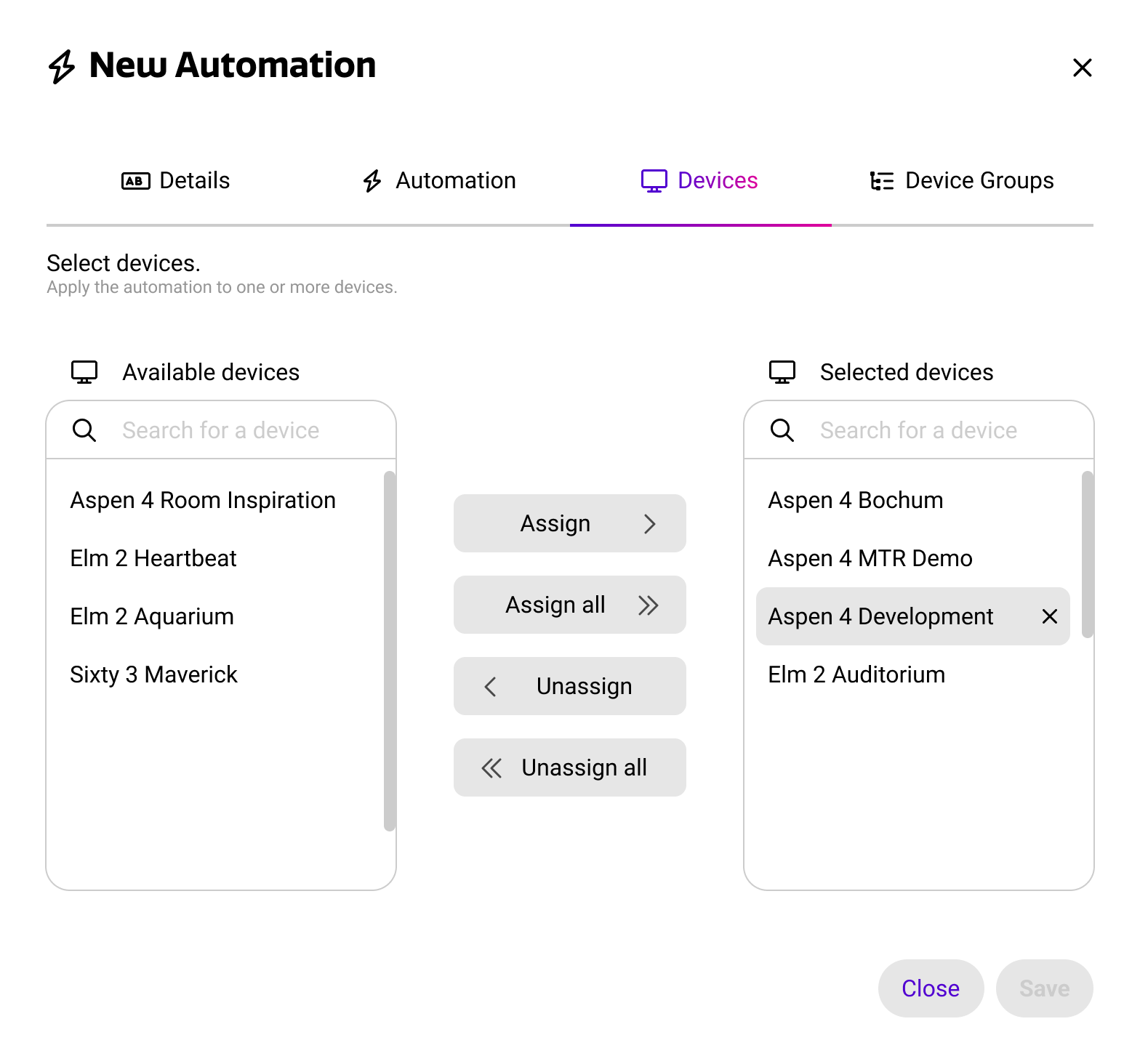
Applying to single devices
In the single device view, you can assign multiple devices to the automation. You can do this one by one, or by holding CMD/CTRL and selecting multiple devices from the list before assigning.
The automation is evaluated for each of the selected devices individually. Additional devices need to be added manually later when required.
Applying to device groups
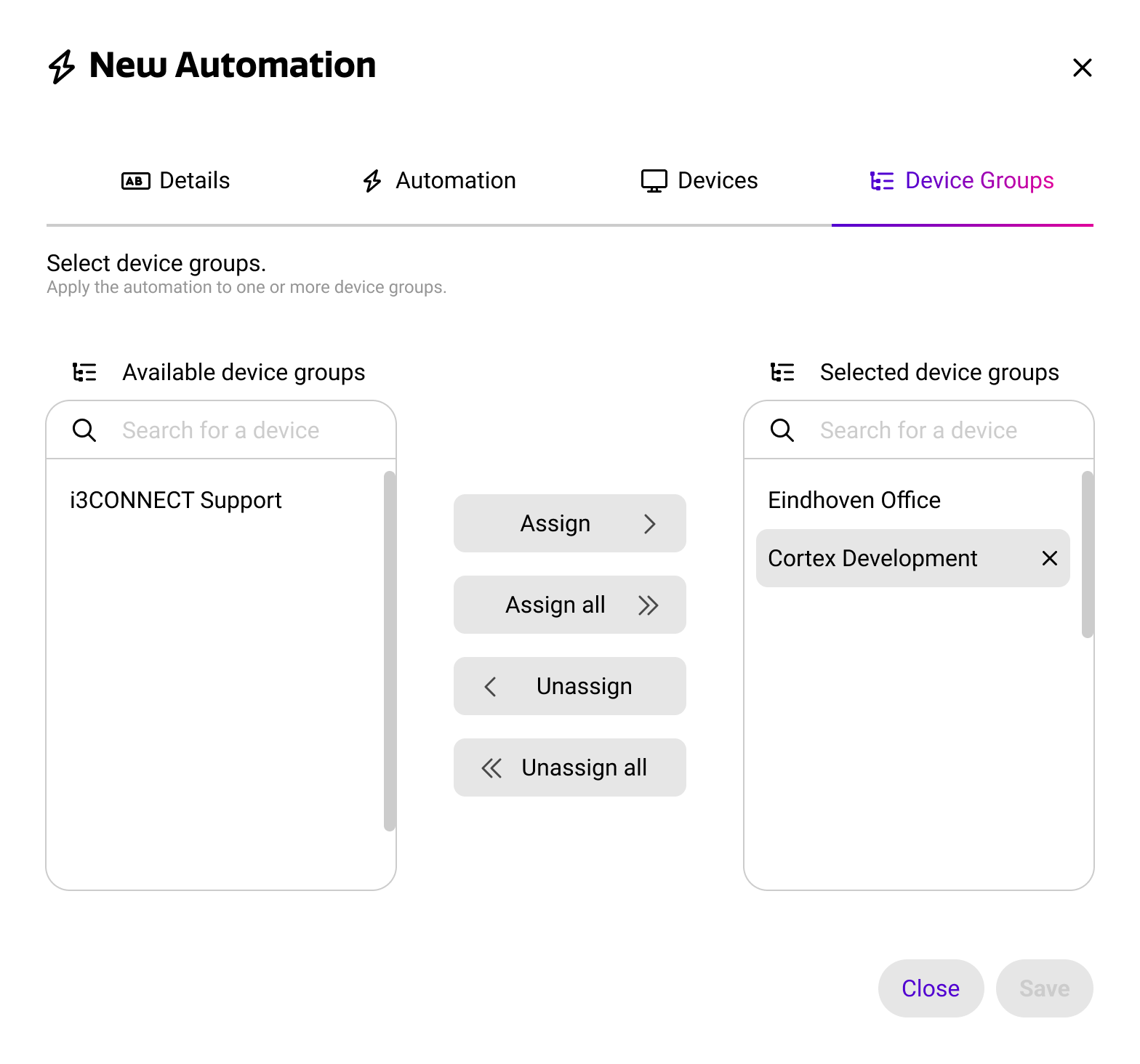
In the device group view, you can assign multiple groups to the automation. You can do this one by one, or by holding CMD/CTRL and selecting multiple groups from the list before assigning.
The automation is evaluated for all devices that are part of the selected groups, including devices that are added to those groups at a later stage.
Combining And/Or Conditions
The and-section can contain multiple conditions. By default, all conditions in this section must hold true for the automation to run. By dragging a condition by it’s handle on the left side, you can arrange conditions such that they are separated by an “or” separator. This means that Cortex now checks for either condition to be true, instead of all conditions being true.
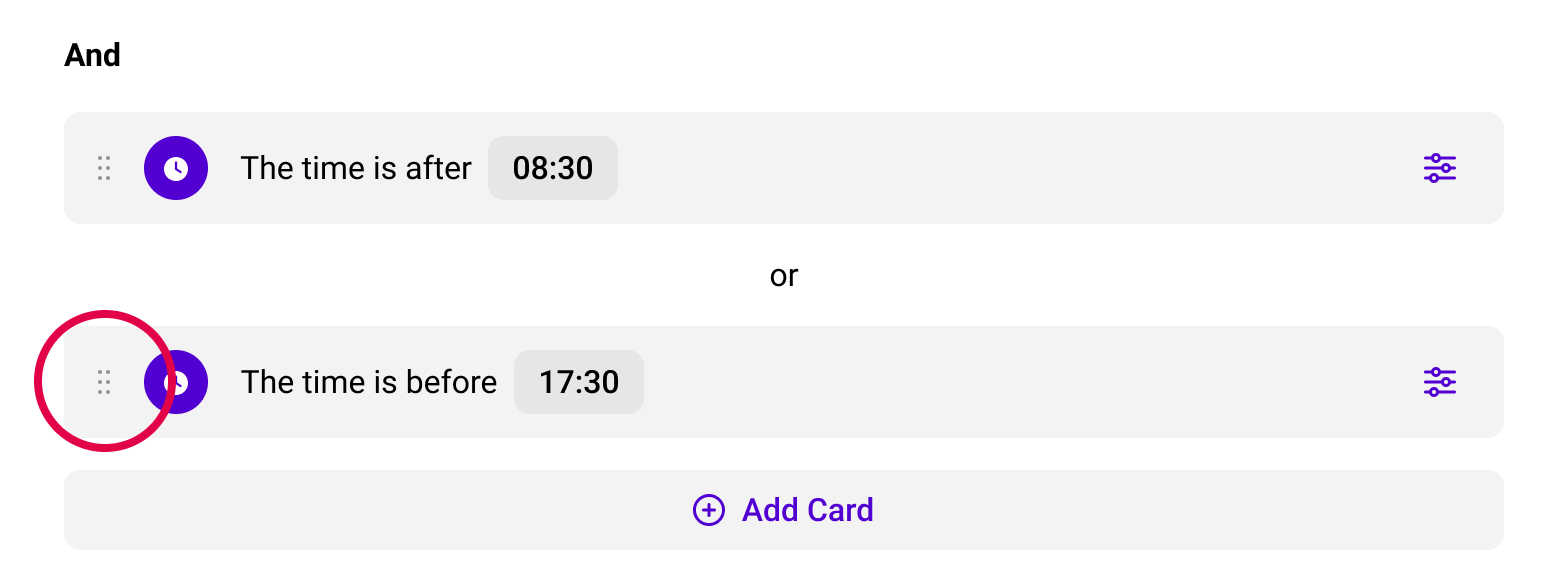
Example → An automation that runs when a display goes offline, and the weekday is Saturday or Sunday, allows you to treat weekend outages differently from those during the school week.