
Keep your i3COMPUTER OPS 10 running smoothly and securely by updating its BIOS through the UEFI interface. This guide is designed for IT administrators or advanced users who need to perform a BIOS update to resolve compatibility issues, enhance performance, or apply security patches. By following these steps, your OPS 10 should have the latest BIOS version installed and ready for use.
This article is not intended for users unfamiliar with BIOS updates—incorrect updates can cause system issues. If you’re unsure, contact your IT support or i3CONNECT support team.
If the update fails or your device does not boot after the process, stop and reach out to support immediately.
Before You Start
-
Backup any important data from your OPS 10.
-
You’ll need a Windows PC, a USB memory stick (at least 4GB, formatted to FAT32), and the correct BIOS update files.
-
Ensure your OPS 10 is connected to a reliable power source.
Instructions
-
Extract the BIOS update ZIP file to your Windows desktop.
-
Format your USB memory stick to FAT32 (all data will be erased).
-
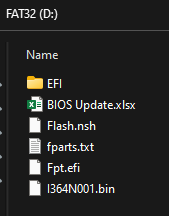
Copy all extracted files to the root directory of the USB stick.
-
Insert the USB stick into the OPS 10.
-
Power on the OPS 10 and press the DEL key on your keyboard to enter the BIOS menu.
-
Navigate to the Advanced tab and adjust the ME Lock setting:
-
For OPS 510: Set to Disabled
-
For OPS 710: Set to Enabled
Save & Exit the BIOS, then restart the OPS.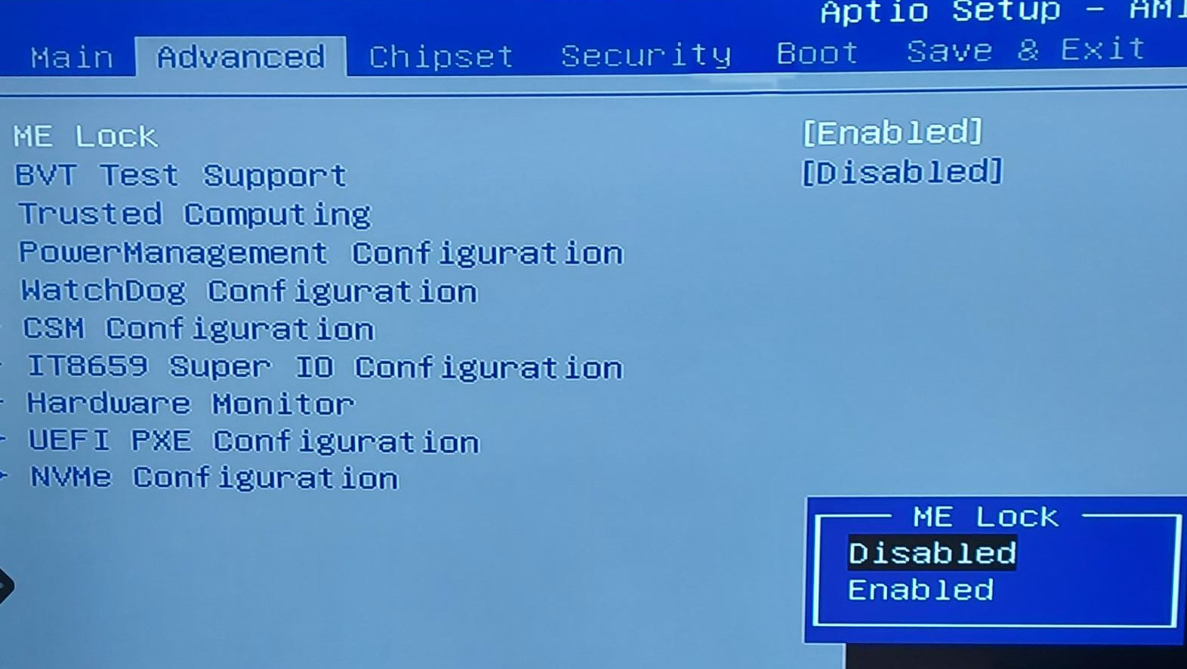
-
-
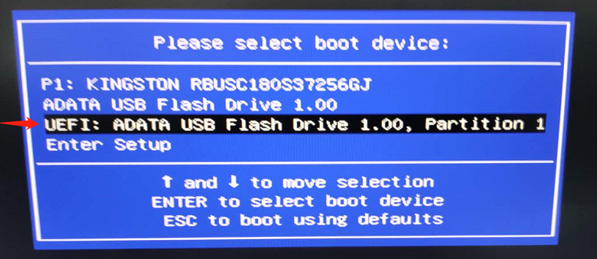
Press F11 key to enter into BIOS boot sequence menu and choose UEFI USB memory stick to boot.
-
Type
dirto list the files.-
If you don’t see your files, try
fs1:anddiragain until you find them.
-
-
Run the update script by typing
FLASH.NSHand pressing Enter. -
Wait for the process to complete.
-
You should see “FPT Operation Successful” in green text.

-
-
Power off the OPS 10 and unplug it from power for at least 10 seconds before restarting.
Troubleshooting
-
If the USB stick is not detected, ensure it’s formatted to FAT32 and all files are in the root directory.
-
If you cannot access the BIOS or boot menu, try a different keyboard or USB port.
-
If the update fails or you see error messages, do not attempt to restart repeatedly—contact i3CONNECT support for help.
-
This guide is not suitable for other OPS models or non-UEFI BIOS updates.