
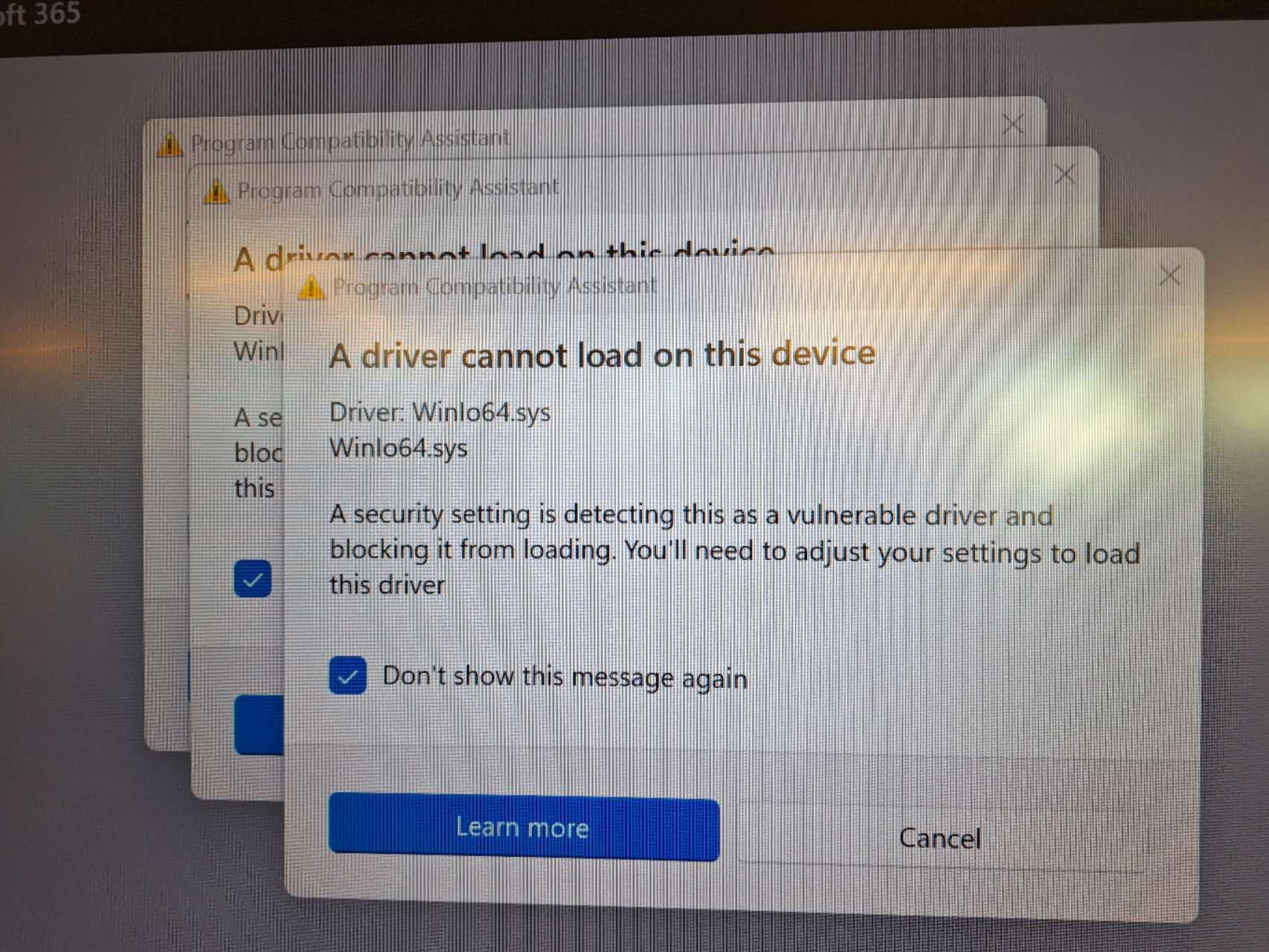
If you see the “A driver cannot load on this device” message for Winlo64.sys on your OPS x12UW (ultrawide) PC in an i3TOUCH Ultra display, it’s because Microsoft has flagged the DssAudioService audio driver as vulnerable and blocked it in recent Windows 11 updates. This article guides you through replacing the blocked driver so your audio works smoothly again.
This article is for IT admins or users managing i3COMPUTER 512UW or 712UW OPS modules in i3TOUCH Ultra displays. If you’re using a different OPS or display, these steps won’t apply.
By the end, your OPS x12UW should have working audio with the updated driver. If the new driver fails to install or the error persists, contact i3CONNECT support.
This fix only applies to OPS x12UW (ultrawide) PCs used in i3TOUCH Ultra displays:
-
10010580 - i3COMPUTER 512UW OPS
-
10010511 - i3COMPUTER 712UW OPS
Before you start
-
Make sure you’re using an OPS x12UW (512UW or 712UW) in an i3TOUCH Ultra.
-
You’ll need admin rights on the OPS PC.
-
Download the updated driver before uninstalling the old one.
Instructions
Uninstall the blocked DssAudioService driver
-
Open Windows Settings and go to Apps.
-
Find “DssAudioService” in the list of installed apps.
.png?cb=998ba483185500bed0f0693209b5e1d7)
-
Click the three dots next to it and select Uninstall.
Install the updated DssAudioService driver
-
Download the new driver:
DssAudioServiceSetup_2.0.0.12.exe -
Double-click the downloaded file and follow the on-screen instructions to complete installation.
Troubleshooting
If you still see the error after installing the new driver:
-
Restart the OPS PC and check again.
-
Make sure you installed the correct driver version.
-
If the issue persists, contact i3CONNECT support for further help.