
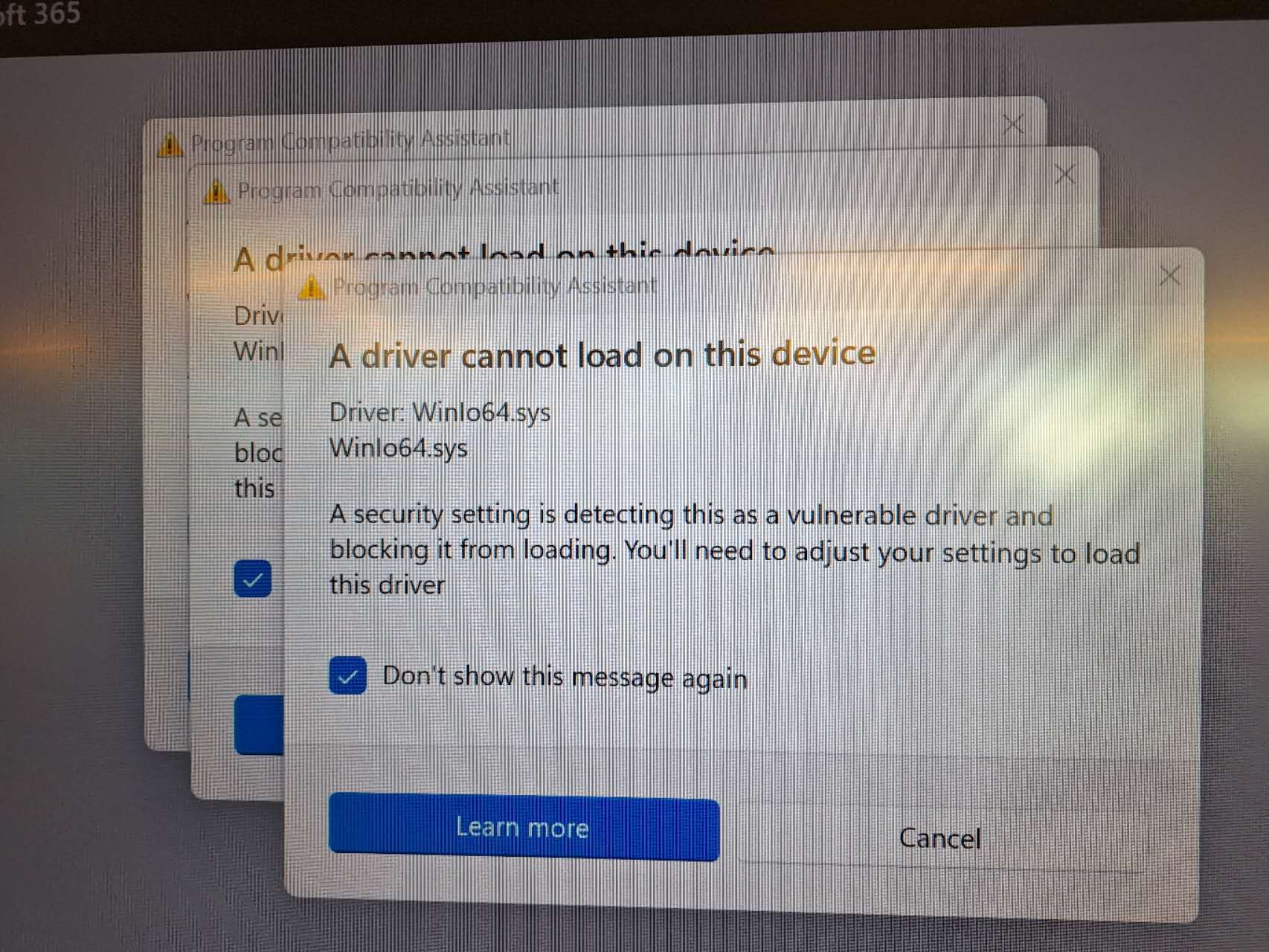
If your i3OPS x12UW (ultrawide) PC, typically used in i3TOUCH ULTRA displays, shows the error “A driver cannot load on this device” related to Winlo64.sys, it means Windows has blocked the DssAudioService audio driver due to a security vulnerability. This article is for IT admins or support staff managing i3COMPUTER OPS x12UW devices.
By following these steps, your audio driver should install and function correctly. If the error persists or audio is still unavailable, see the troubleshooting section below.
This issue only affects the OPS x12UW (ultrawide) pc’s that are normally only used in the i3TOUCH ULTRA displays:
10010580 - i3COMPUTER 512UW OPS
10010511 - i3COMPUTER 712UW OPS
Do not use these steps for other OPS models or non-i3TOUCH ULTRA displays.
Before You Start
-
Ensure you are working on an i3COMPUTER OPS x12UW device (model 512UW or 712UW) used in i3TOUCH ULTRA displays.
-
You need administrator rights on the device.
Instructions
We expect that this will be resolved by Microsoft in a new build of Windows 11. In the meantime, this can be resolved by uninstalling “DssAudioService” and replacing it with an updated driver:
-
Uninstall the old audio driver.
Open Windows Settings > Apps. Find “DssAudioService” in the list, click the three dots, and select “Uninstall”..png?cb=998ba483185500bed0f0693209b5e1d7)
-
Download the updated driver.
DssAudioServiceSetup_2.0.0.12.exe
-
Install the new driver.
Double-click the downloaded file and follow the on-screen instructions to complete installation.
Troubleshooting
-
If the error message still appears:
Restart your device and repeat the installation steps. -
If audio is still not working:
Check that you downloaded and installed the correct driver version. -
If you are not using an i3OPS x12UW in an i3TOUCH ULTRA display:
This article does not apply. Refer to the support documentation for your specific device. -
If you continue to experience issues:
Contact i3CONNECT support for further assistance.
This article is based on the latest available information as of March 2026. If Microsoft releases a Windows update that resolves this issue, follow their guidance instead.