
Depending on your IT network requirements, you may wish to install network certificates on your display. This is possible through the backend Android settings. Please review those here:
Before you start
-
Prepare a USB stick (SanDisk brand recommended, formatted to FAT32).
-
Ensure the certificate file is saved to the root directory of the USB stick.
Instructions
-
Insert the USB stick containing your certificate into one of the available USB ports on the display.
-
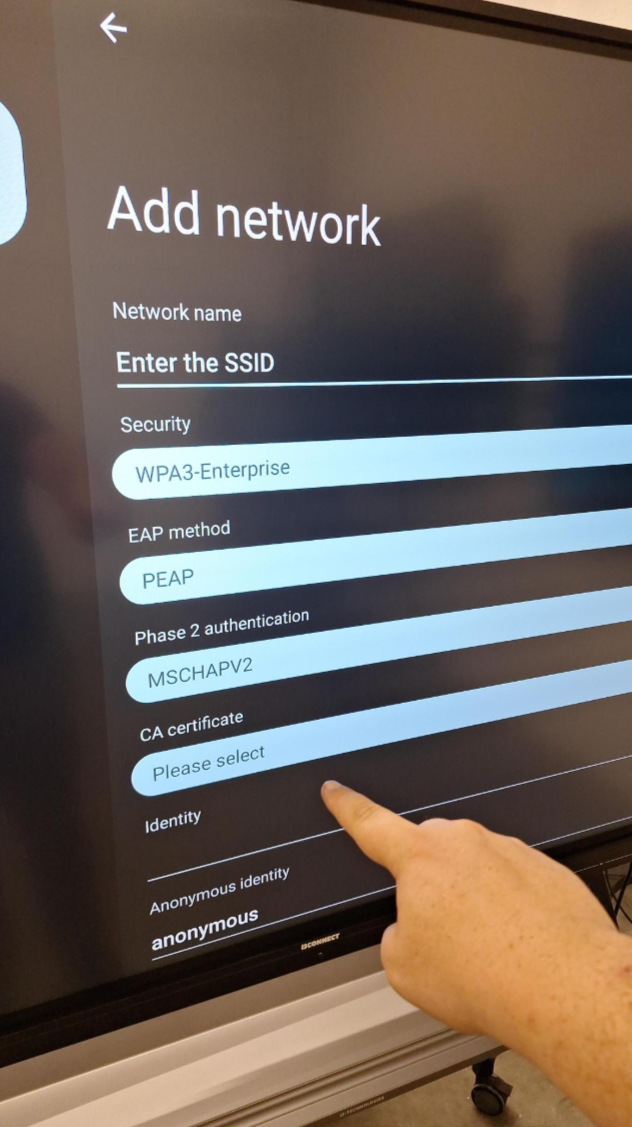
Open the Advanced Android settings and navigate to the Add network menu.
-
Enter the SSID (Network name) for your connection.
-
Select the Security type (e.g., WPA3-Enterprise) and set the EAP method and Phase 2 authentication as required by your IT department.
-
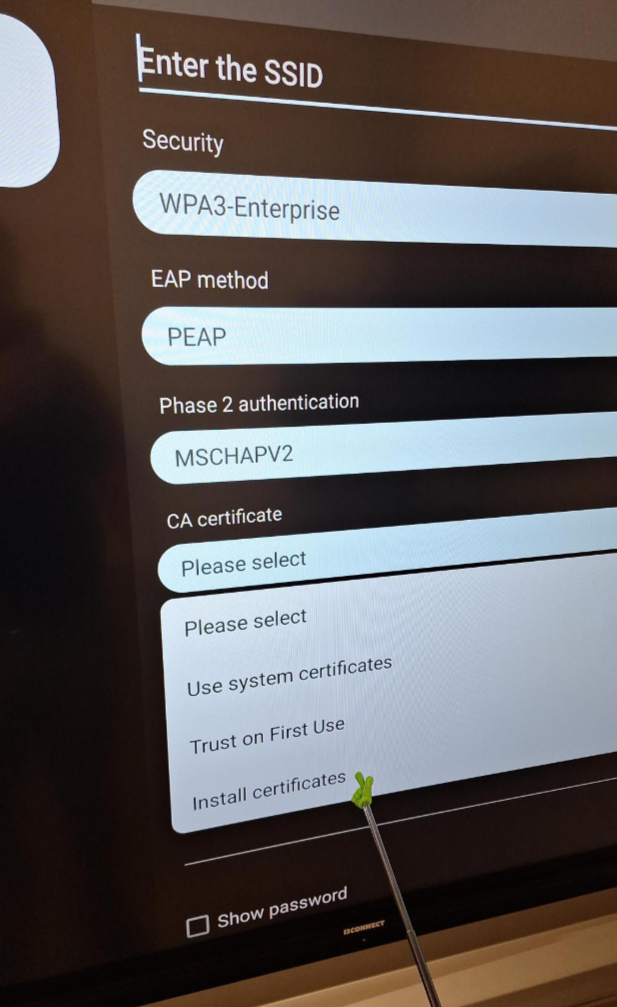
Tap on CA certificate where it says "Please select."
-
Select Install certificates from the dropdown menu that appears.
-
Locate and select your certificate file from the USB drive to complete the installation.
-
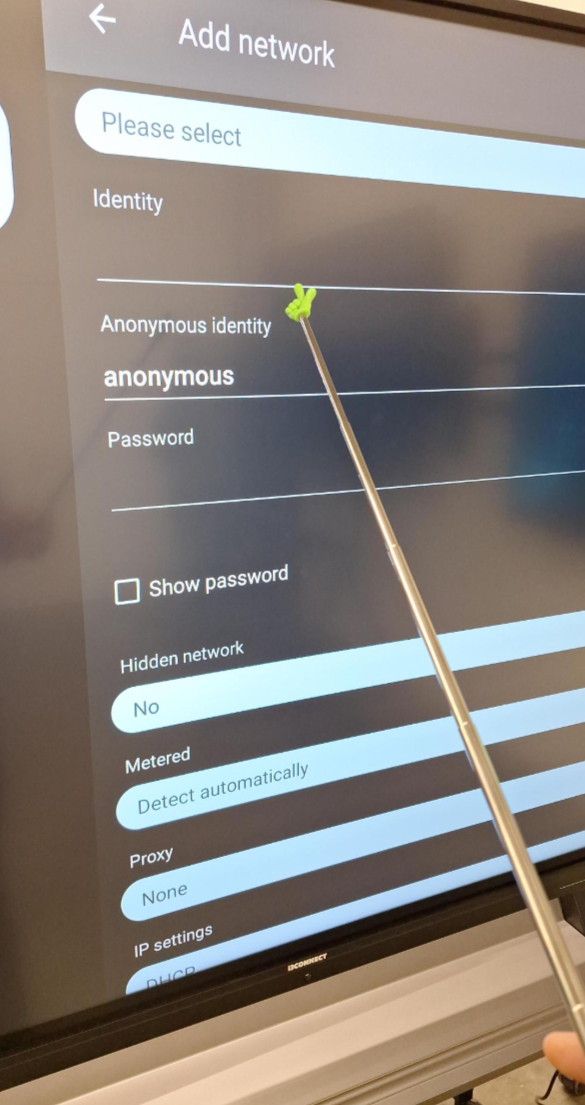
Enter your Identity and other required credentials to finish the network setup.
Troubleshooting
-
Certificate not recognized: Ensure the USB stick is formatted to FAT32. The display may not read NTFS or exFAT drives.
-
Connection failed: Double-check that the "Phase 2 authentication" matches your server settings (e.g., MSCHAPV2).
-
Hidden Networks: If your SSID is not broadcasted, ensure you change the Hidden network toggle to Yes.