
Challenge: Pop-up warning
There has been a change to the Google/Android servers causing this error message to be displayed when the screen is connected to the internet:
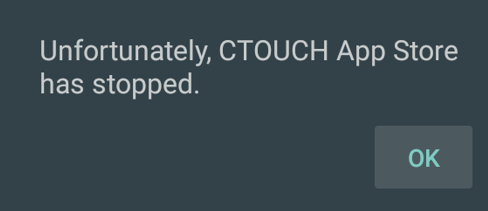
This can be resolved by recovering the firmware. (or disconnect it from the internet in case only external devices or OPS PC are being used.
IMPORTANT: Settings, files and Apps that you've installed will get lost! This firmware is only for Laser Sky and Laser Nova models!
MirrorOp license is pre-activated in this firmware release
Solution: Update firmware via USB
Requirements
Preparing the USB Stick
-
Extract the ZIP file containing the firmware to a known location.
-
Copy the file MstarUpgrade.bin to the root directory of the USB stick (do not place it inside a folder).
Instructions
-
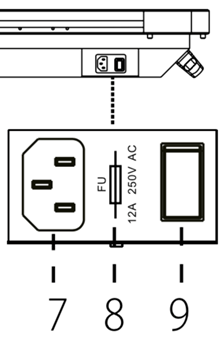
Turn the screen OFF by pressing the Power Switch [9] next to the main power cable.
-
Insert the USB stick into the USB port on the side [4].
-
Press and hold the CTOUCH button in the center of the screen while turning on the Power Switch [9].
-
After turning on the Power Switch [9], keep holding the CTOUCH button for another 10 seconds.
-
The power LED will start flashing red and blue, indicating that the upgrade process has started. A blue screen with a white progress bar will appear during the firmware upgrade.
-
When the mainboard upgrade is complete, the screen will reboot. After restarting, factory default settings will be applied. Touch functionality will be disabled during this process.
-
Wait until the Welcome Screen appears.
Post-Upgrade Settings
-
Select the language and press START.
-
Select the location and press NEXT.
-
Choose the Normal power-saving mode and press NEXT.
-
The Android home screen will appear.