
If your motion dongles (version 1 or version 2) aren’t working in i3LEARNHUB games, you may be facing a browser permission issue. This guide helps you enable the right settings so your dongles are recognized and ready for action. These steps are for anyone using i3LEARNHUB with motion dongles who can’t interact with games as expected. If your dongles aren’t paired or you’re having hardware issues, see the pairing or hardware troubleshooting guides instead.
By the end of these steps, your dongles should work in i3LEARNHUB games. If not, check the troubleshooting section for next steps.
Before you start
-
Make sure your motion dongles are paired with your device.
-
Use Google Chrome or Microsoft Edge for best results.
Instructions
-
Open your browser’s flags page:
-
For Chrome: Type chrome://flags/ in the address bar and press Enter.
-
For Edge: Type edge://flags/ in the address bar and press Enter.
-
-
Search for “local network access checks”.
-
Set this flag to Disabled.
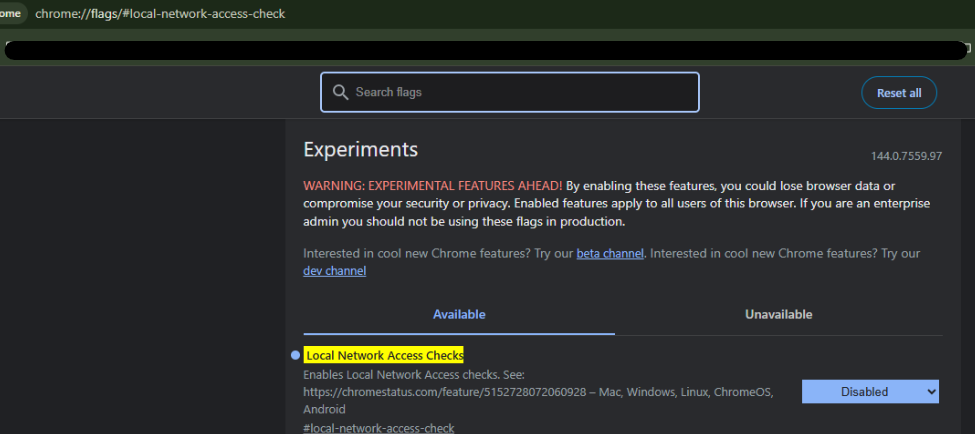
-
Restart your browser to apply the change.
-
Go to the i3LEARNHUB game you want to play, for example: https://ab-iframe.i3learnhub.com/game/play/42029
-
When prompted, allow the requested permissions for the site.
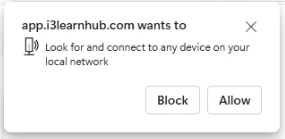
-
Check the permissions icon (yellow highlight before the URL) to confirm permissions are allowed.
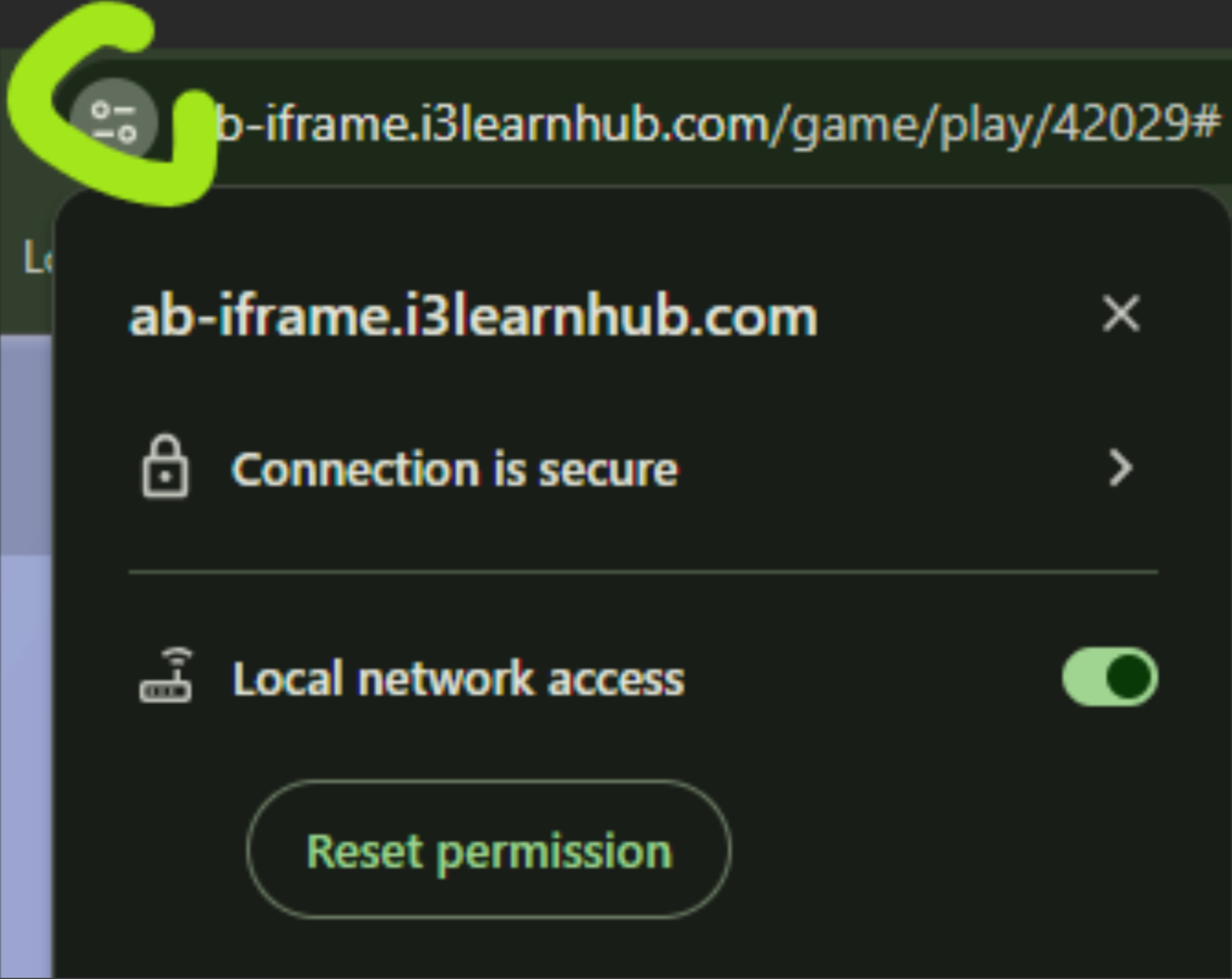
-
Test your dongles in the game. You should now be able to play using the motion dongles.