This guide walks you through securely mounting and connecting Camera 2 to your i3CONNECT interactive display. These steps are for installers or IT staff familiar with display mounting and cable routing.
If the camera isn’t detected or video/audio doesn’t work after setup, see the troubleshooting section or contact support. If you’re using a different camera model, this article will not apply.
PDF download
|
Description |
Document |
Last updated |
|---|---|---|
|
English |
Before you start
-
Have a Phillips screwdriver handy if needed for your display mount.
-
Make sure all of the box contents are present:
-
1x i3CONNECT Camera 2
-
1x USB-C to USB-C cable (1.5m - with attached USB-C to USB 2.0 adapter)
-
1x 3.5mm audio cable (1.5m)
-
1x Installation manual
-
Installation instructions
-
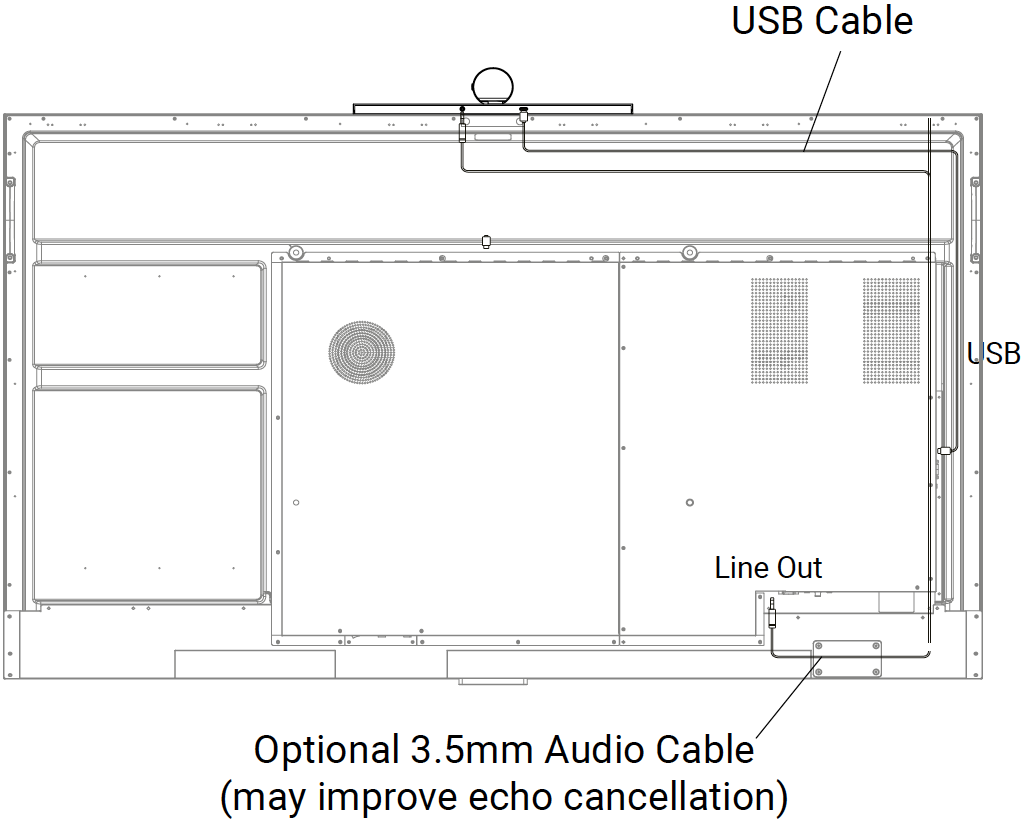
Position Camera 2 at the exact center of the top edge of your display.
-
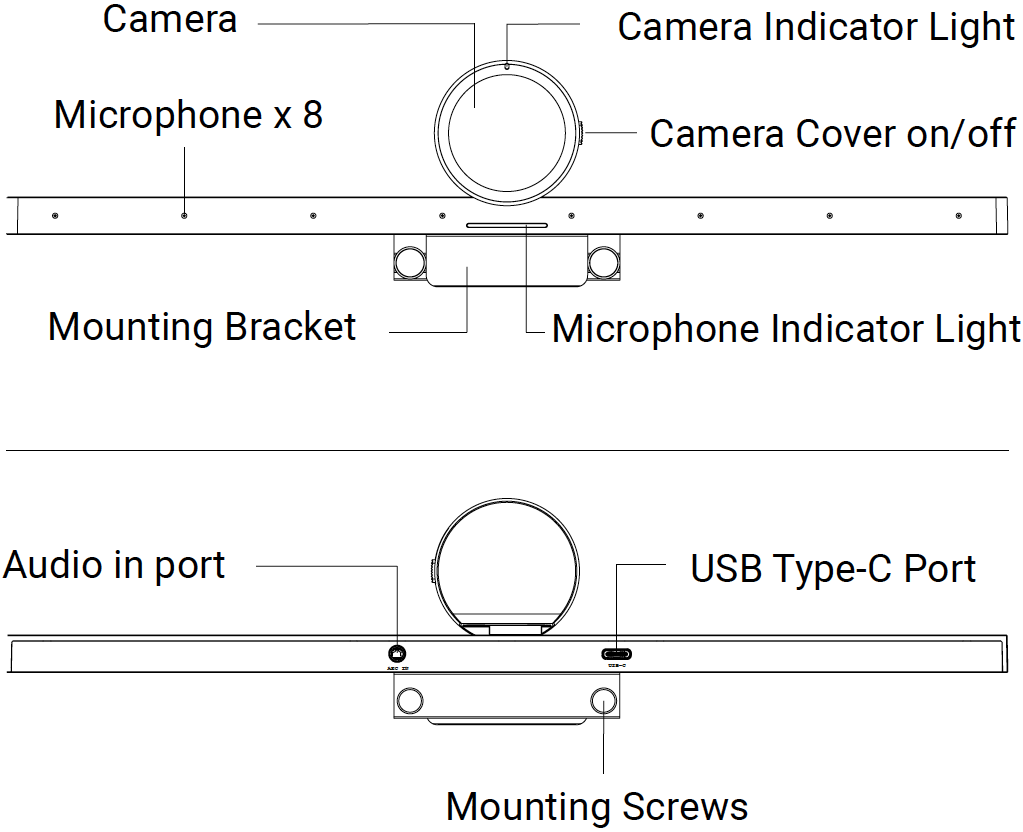
Secure the camera using the thumb screw on the back of Camera 2.
-
Plug in the USB cable: Insert one end (USB-C or USB-A) into any USB port on the display, and the other end into the USB-C port on Camera 2.
All sources and devices: Connecting Camera 2 to the display’s USB port also connects it to attached laptops, peripherals, and any installed OPS computers.
OPS only: Connecting Camera 2 to a USB port on an OPS will limit the camera connection to only the OPS, and no other attached peripherals or sources.
-
(Optional) Connect audio cable: Insert one end of the 3.5mm audio cable into the Line OUT port of the display and the other end into the AEC IN port of Camera 2. This can help reduce noise.
-
Set audio output: In your display’s settings, ensure both Line OUT and the speaker are set to output simultaneously (often called MIX mode).
-
Test that it works: Switch to the Home source of i3CONNECT Studio.
-
Camera: open the Camera app to test that the video is functioning properly.
-
Microphone: open a conferencing app like Microsoft Teams to test that the microphone is working properly.
-
Troubleshooting
-
If Camera 2 isn’t detected in step 6, double-check all the USB and audio cable connections. Restart the display if the problem continues to persist.
-
If audio isn’t working or there’s noise, confirm the 3.5mm cable is connected and MIX mode is enabled in settings.
-
For software or driver issues, refer to your display’s support articles or contact i3CONNECT support.
Product images