
Required tools
-
1x USB 2.0 Flash Drive / Stick (We recommend a SanDisk brand, Formatted to FAT32).
-
The correct update file below
Firmware files
Download the file in the table below. Always download the latest version to make optimal use of your device.
Instructions
-
Make sure the i3CONNECT Display is switched off.
-
Format the USB [minimum 4GB] stick as FAT32.
-
Extract upgrade file you downloaded above to the USB disk (FAT32) and place it in the root directory (the main folder).
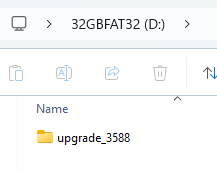
-
Safely detach the USB disk from your computer.
-
Insert the USB disk into the USB port of the i3CONNECT display.
-
Power off the display. Power on the display with the USB still connected by pressing and holding the POWER button until the power LED blinks. It will now update.
What happens during the update
The display will compare the version you are trying to install with the already-installed version. When they are the same, it wont install any firmware update. In some cases, it might be necessary to install another version of the firmware first to achieve your desired installed version.
First, the display will update and when it is finished, the screen will reboot and upgrade MCU automatically. The whole update will take about 15 minutes to complete.
Do not interrupt the firmware upgrade process in any way:
-
Do not disconnect the i3CONNECT display from power.
-
Do not remove / pull out the USB drive