
On the i3WHITEBOARD you’ll find several tools to work with, divided into three sections:
-
Main tool menu, which can be activated by finger touch
-
VR tool menu is available if activated in the Settings menu. (Whiteboard settings in i3WHITEBOARD)
-
(physical) Pen tool menu, for displays that come with physical pens
If i3WHITEBOARD Pen preferences are set in Basic Mode, both finger and pen can access the Main tool menu (see Whiteboard settings in i3WHITEBOARD to set the pen mode).
Main tool menu
The Main tool menu consists of several tools you can use. Click on the link to learn more about this tool.
-
Selection tool (has a pointer and a box select tool)
-
Drawing tool (has a pencil and a marker tool)
-
Shape tool (has a selection of shapes you can draw with)
These tools respond to finger touch activity. This means that you use them using your fingers.
Some i3TOUCH displays also come with physical pens. To learn how to use them, see below in the Pen tool menu. The tool menu will show you the tools available with which you can draw objects. The features of that object, such as color and line thickness, will be available in the Features menu.

Features menu
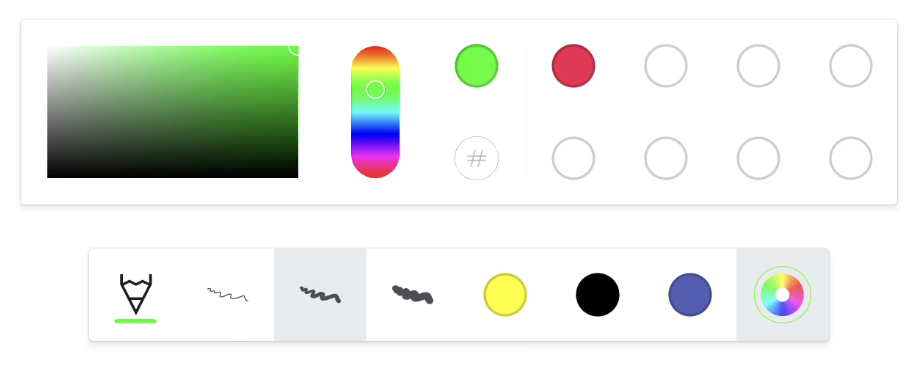
This Features menu is a subset of the tool menu and the UI will depend on the tool selected. This menu consists of:
-
A visual representation of the active tool
-
Line thickness selector (3 options for you to choose from)
-
Recent colours (the 3 most recent colours of the selected tool)
-
Color picker and color archive (a sub-menu with a color picker and up to 8 recently used colours
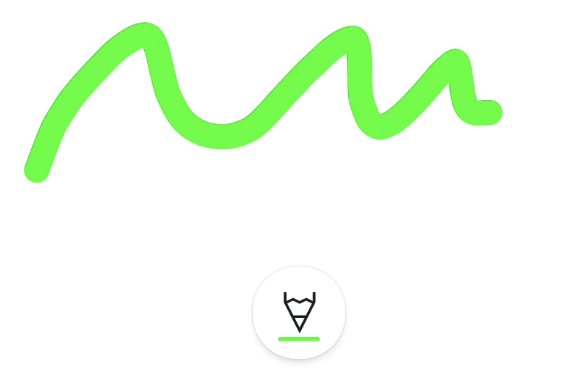
Collapsed Features menu
The Features will “collapse” once you start drawing, in order to get out of your way. This means that it will only show you the active tool, and the active color.
Press the collapsed Features menu, if you’d like to change color or thickness.
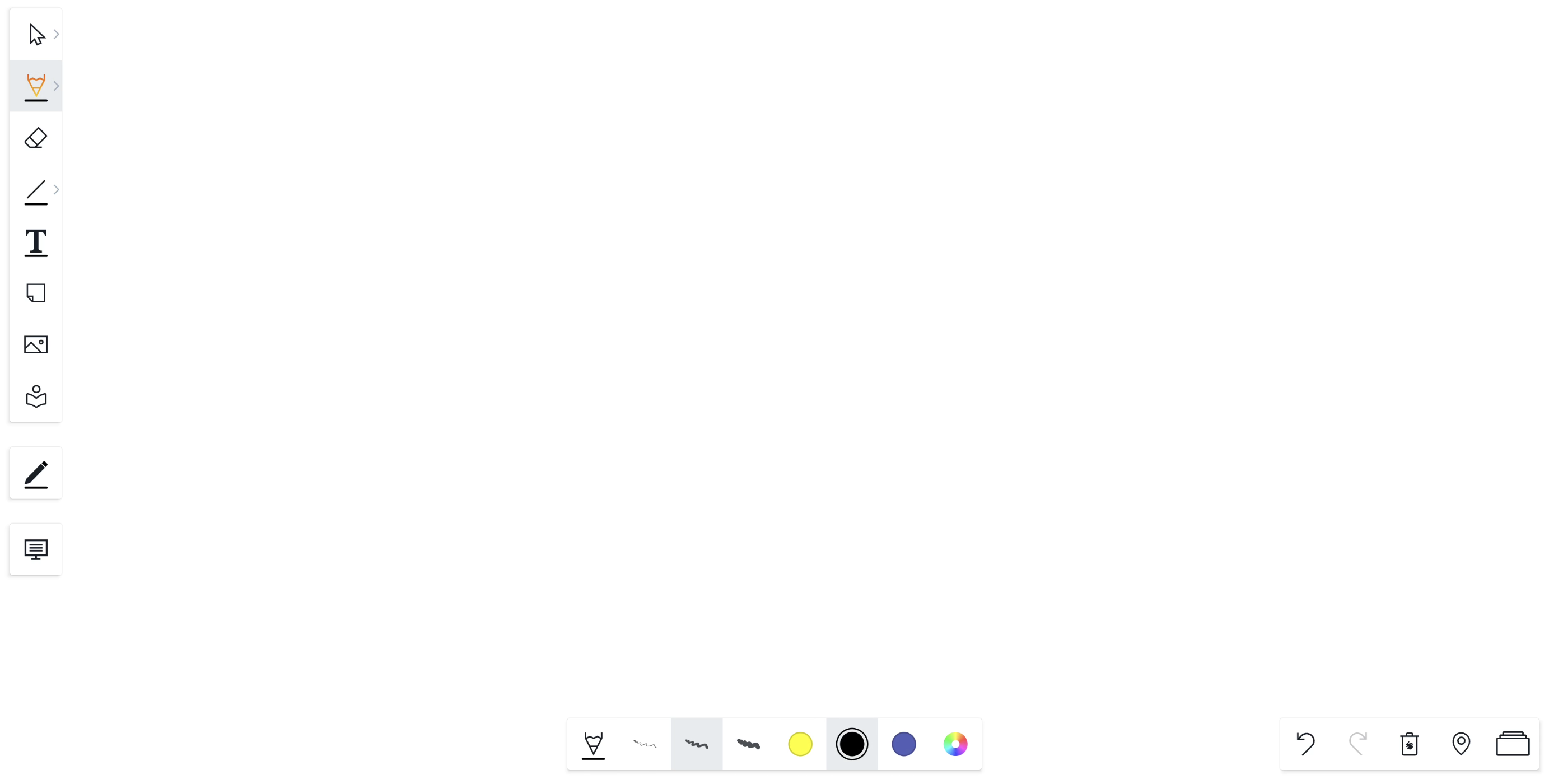
Features menu in Vertical vs Bottom menu mode
If i3WHITEBOARD is configured in vertical menu mode, the Features menu will appear at the bottom of the canvas while the tool menu is fixed to the left side.
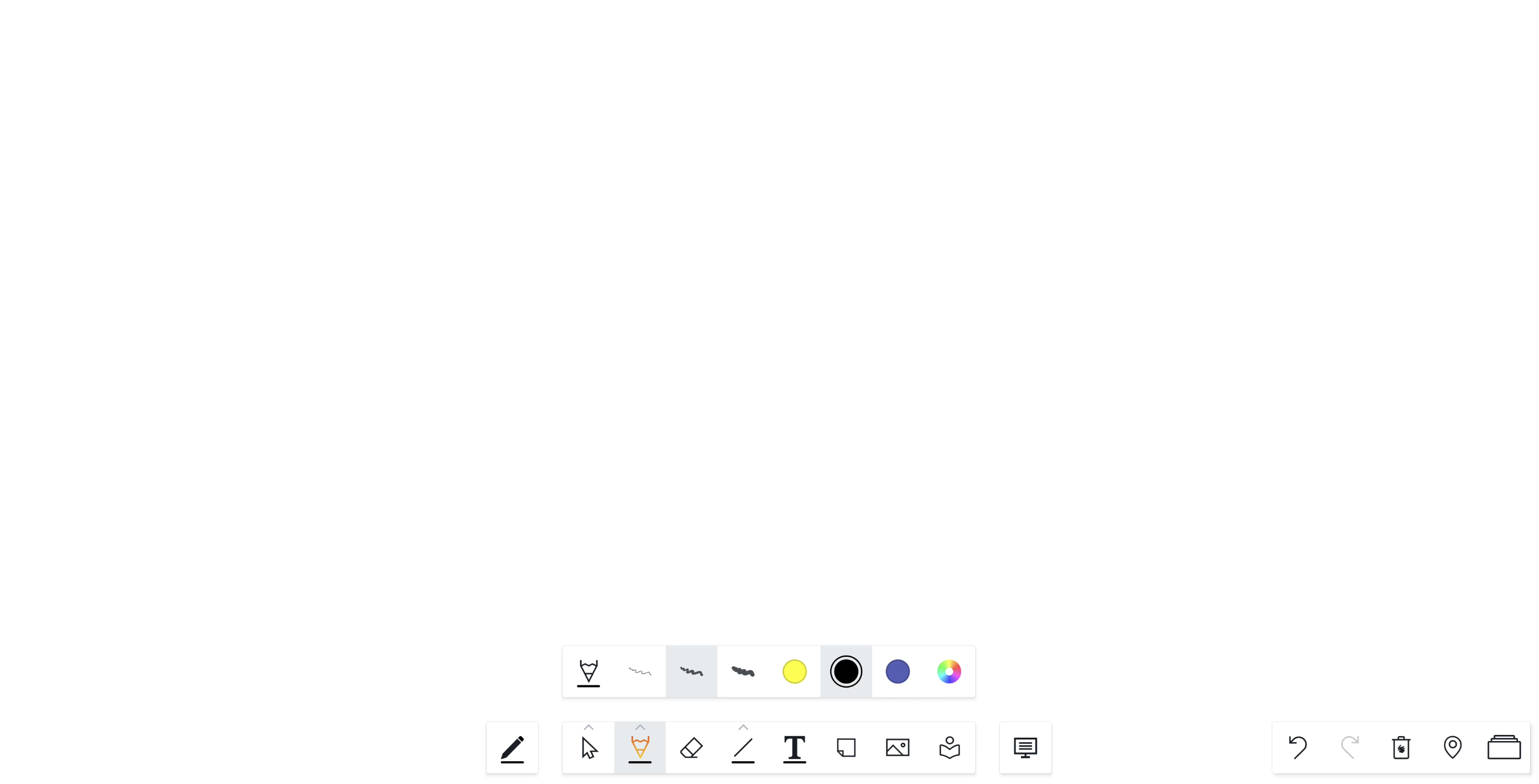
If i3WHITEBOARD was configured in Bottom menu mode, the Tool and Features menu will both appear at the bottom of the screen.
Related pages (detailed descriptions)
-
Selecting and modifying objects - Whiteboard tools in i3WHITEBOARD -
Draw & erase - Whiteboard tools in i3WHITEBOARD -
Shapes - Whiteboard tools in i3WHITEBOARD -
Line thickness - Whiteboard tools in i3WHITEBOARD -
Text editor - Whiteboard tools in i3WHITEBOARD -
Sticky notes - Whiteboard tools in i3WHITEBOARD -
Images and photos - Whiteboard tools in i3WHITEBOARD -
Icon library - Whiteboard tools in i3WHITEBOARD -
VR Measure - Whiteboard tools in i3WHITEBOARD -
Backgrounds and templates - Whiteboard tools in i3WHITEBOARD