
Need to organize your lessons, worksheets, or resources in i3LEARNHUB? This guide shows you how to create folders and subfolders in your private files, so you can keep your digital classroom tidy and easy to navigate. These steps are for anyone using i3LEARNHUB’s web platform. If you’re managing shared or public folders, check the relevant sharing guides instead.
By the end of these steps, you’ll have a custom folder structure in your private files. If you can’t create folders or don’t see the options described, contact your IT admin or i3CONNECT support.
Before you start
-
Make sure you’re logged in to your i3LEARNHUB account at app.i3learnhub.com.
Instructions
-
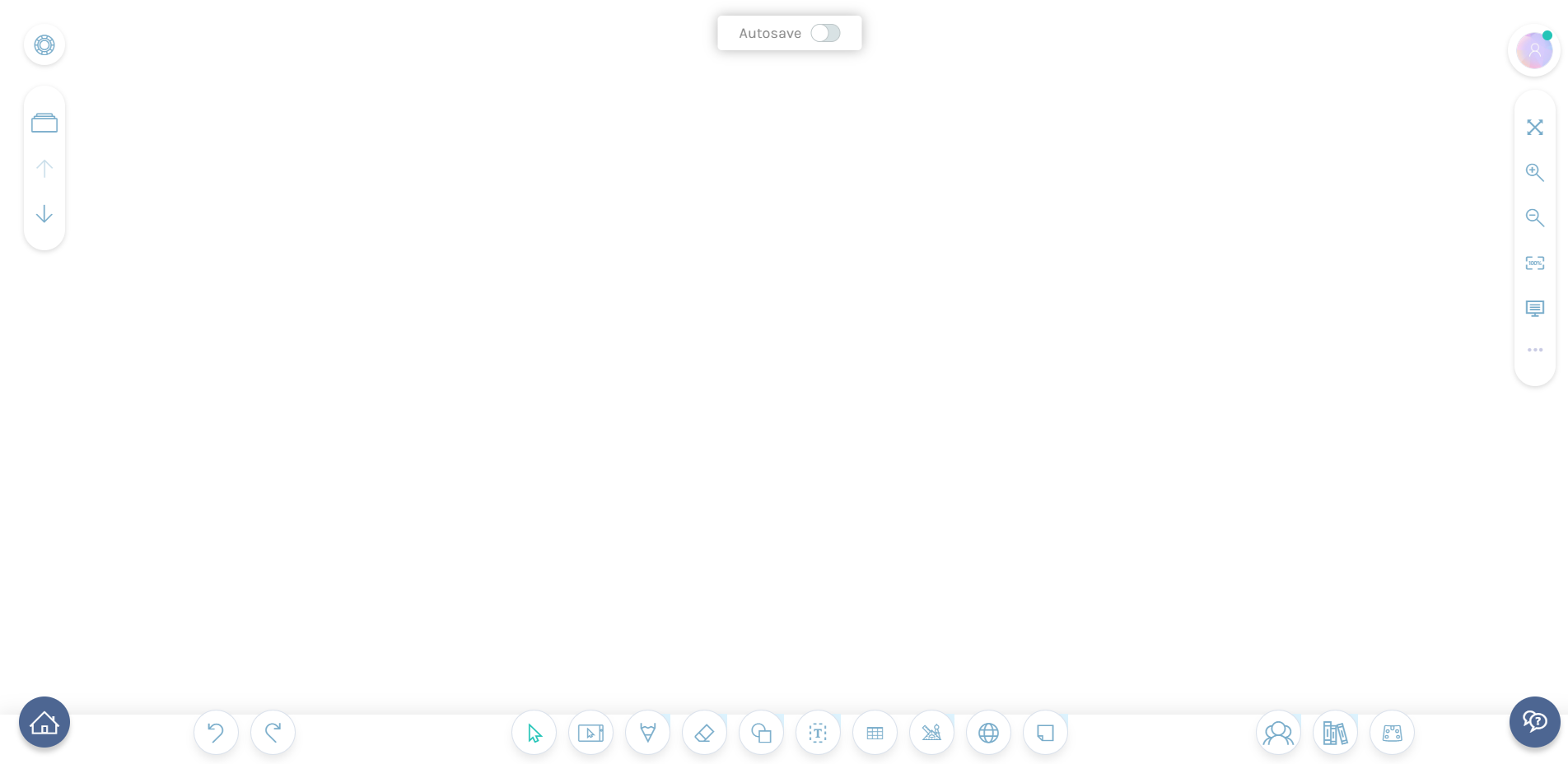
Go to app.i3learnhub.com and click the home icon.
-
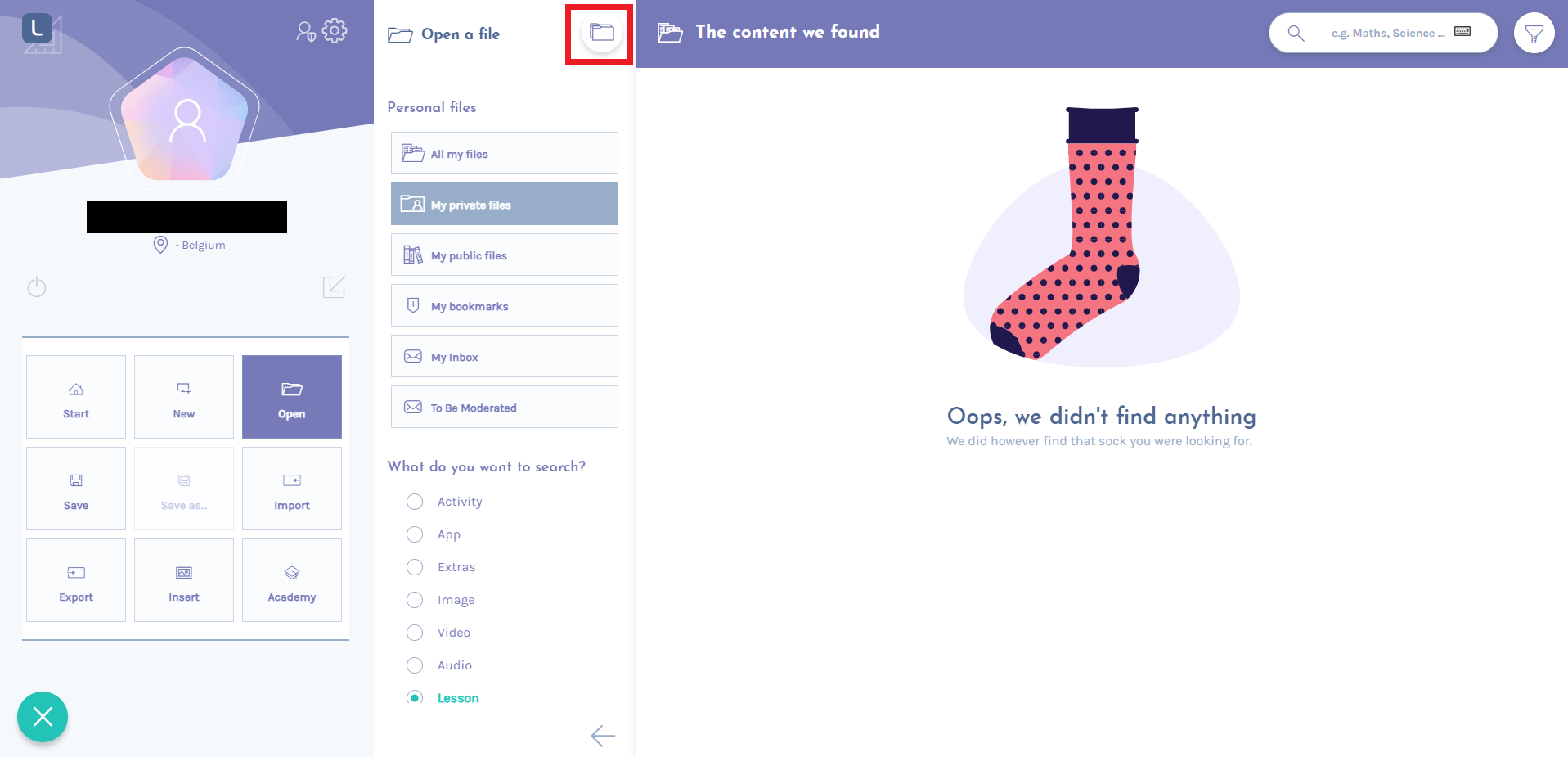
Navigate to My private files.
-
Click the folder highlighted in red to open it.
-
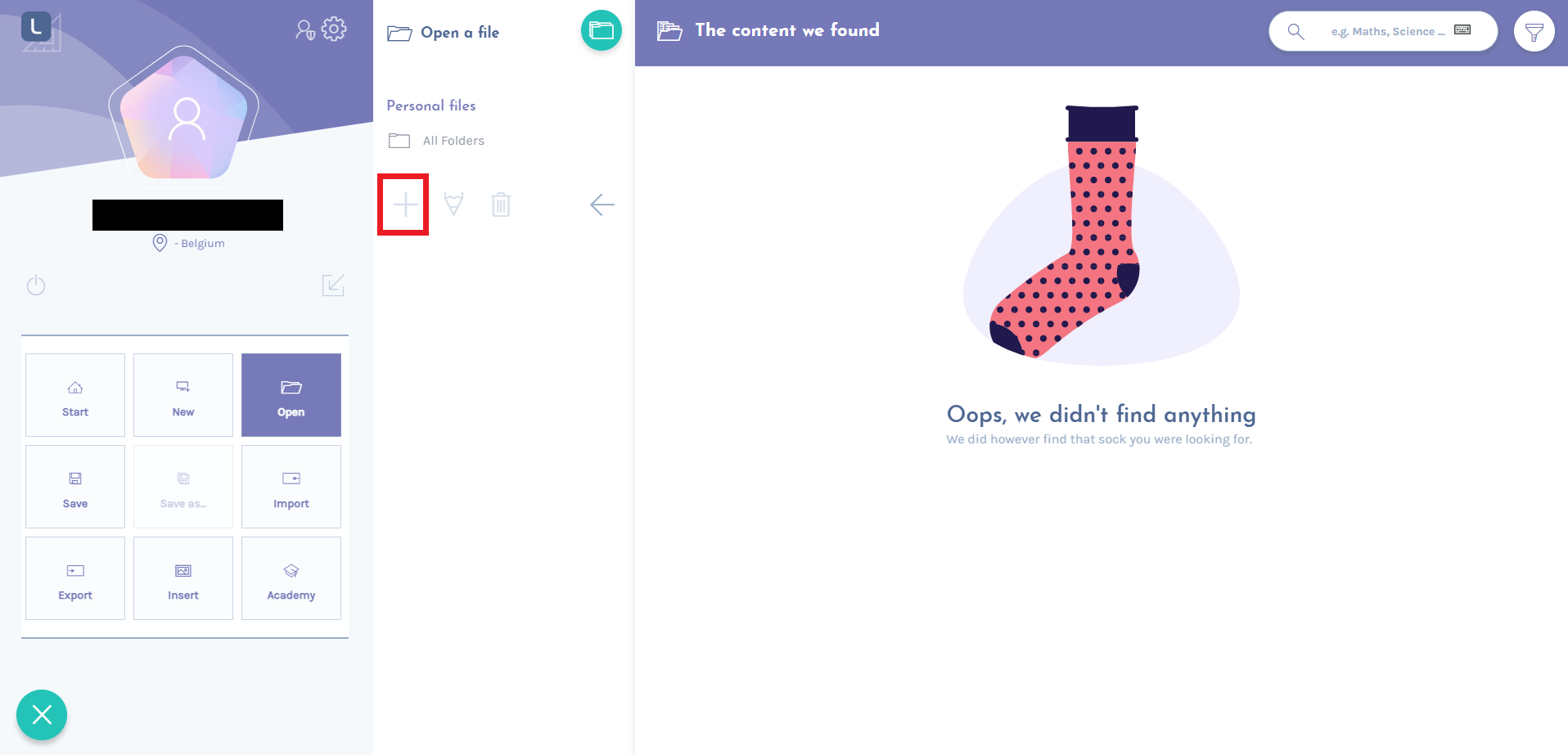
Select “All folders” in the sidebar.
-
Click the + button to create a new folder.
-
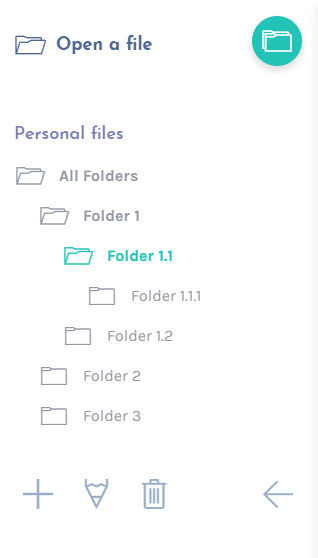
To create a subfolder, select an existing folder and click the + button again. You can use the folder tree to organize lessons by subject, date, or project.
Troubleshooting
If you don’t see the + button or can’t create folders:
-
Refresh your browser and try again.
-
Make sure you’re in “My private files,” not a shared or public folder.
-
If the problem continues, contact your IT admin or reach out to i3CONNECT support.